Creang a New Program
You can create a new program that has either the default values from the preloaded program or the values
from the current program you selected in “Selecng a Program” (page 14).
To create a new program:
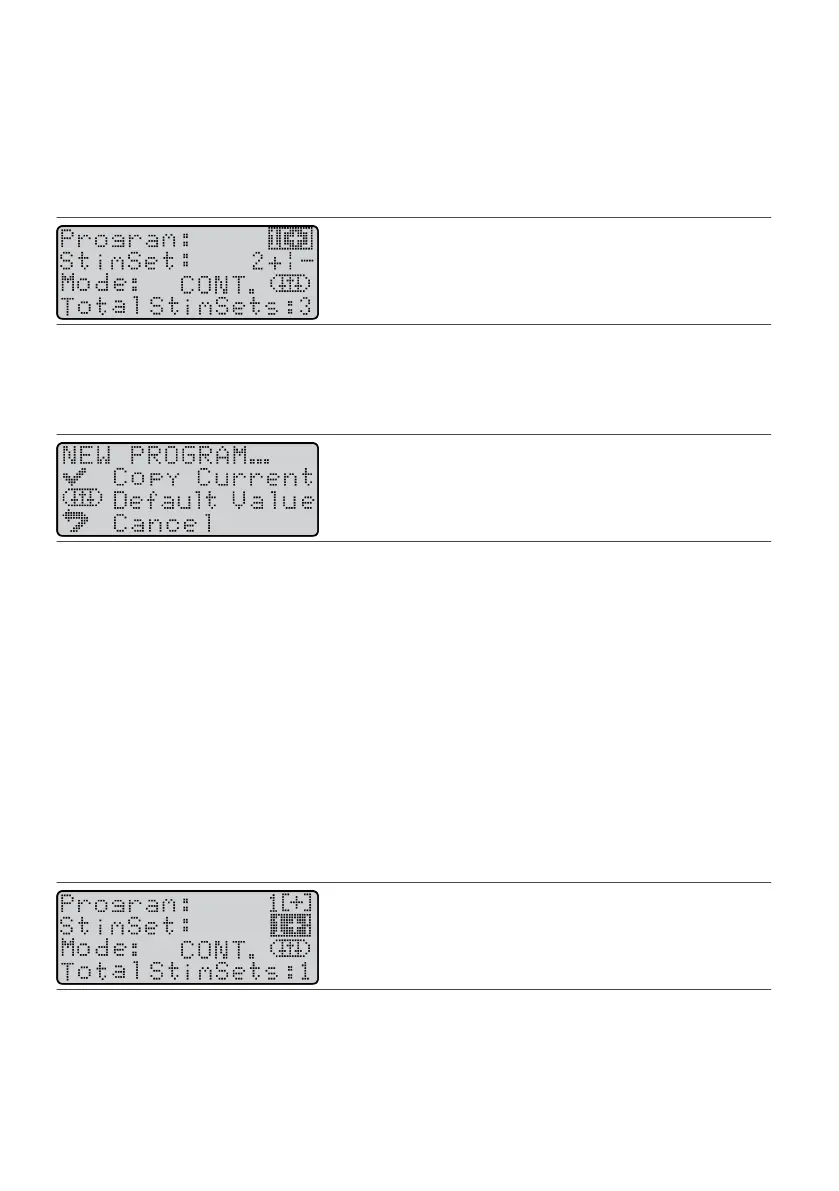
1. From the Program screen, press either Scroll key unl it highlights the program number with the plus sign1.
in brackets [+].
Figure 43. Highlight the Program eld
NOTE: If the [
+
] does not appear, you cannot add a program because the maximum number of programs
has already been reached.
2.
Press the Amplitude Increase key. The NEW PROGRAM screen appears.
2.
Figure 44.
NEW PROGRAM screen
3.
Perform one of the following acons:
3.
– To add a program with the same values as the current program, press the Select key.–
–
To add a program with default values, press the Balance key.
–
The programmer creates the program and displays it on the Program screen with a new program number,
making it the current program. You can now modify any parameters in the new program as desired.
Working With Sm Sets
Each program can hold up to eight sm sets (or smulaon sets). The program that you select before
accessing the Program screen contains at least one sm set. You can modify this sm set by following the
steps in “Modifying a Sm Set in a Program” (page 20), or you can add a new sm set to the program by
following the steps in “Adding a Sm Set to a Program” (page 21).
Modifying a Sm Set in a Program
To modify a sm set in a program:
1. From the Program screen, press the Balance key to highlight the SmSet eld.1.
Figure 45. Highlight the SmSet eld
2. If the number of the sm set that you want to modify is not shown on the screen, press the Amplitude2.
Increase key unl it appears.
3.
Select and modify the smulaon parameters.
3.
20
–
–









 To Next Page