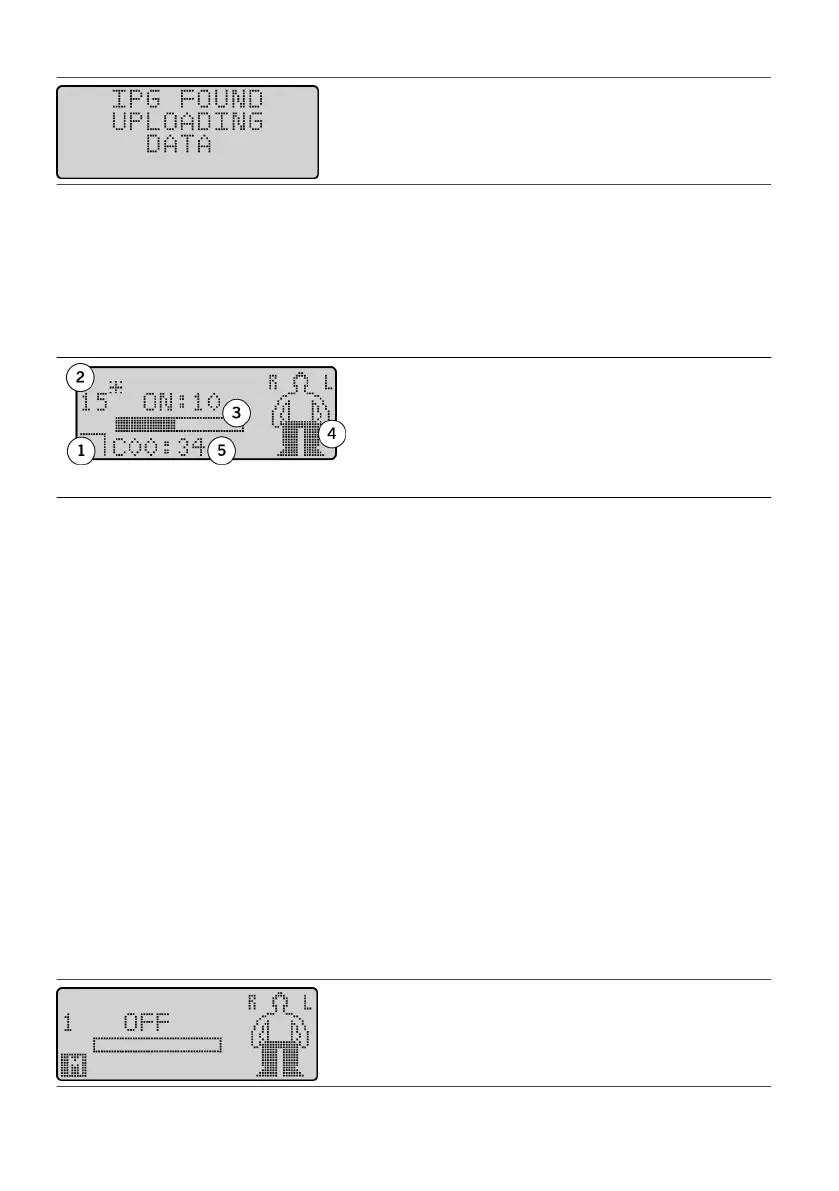
Figure 6. IPG FOUND screen
The next screen that appears shows informaon about the IPG, and then the Operaonal Display screen
appears. See “About the Operaonal Display Screen” (page 9) for more informaon.
About the Operaonal Display Screen
The Operaonal Display screen is the home screen of the paent programmer. From this screen, you can view
and control programs in the standard operang mode, and you can enter programming mode to create and
edit programs. The following image shows the main parts of the Operaonal Display screen.
Figure 7.
Parts of the Operaonal Display screen
1. User opon window1.
2. Program number2.
3. Acve amplitude bar3.
4. Smulaon map4.
5. Smulaon mode5.
User opon window. Shows an icon that allows you to select dierent programmer modes. During standard
operang mode, this area of the screen is blank. To allow you to enter other modes, it displays one of the
following icons:
▪
The Program icon (P) indicates program selecon mode.
▪
▪ The Menu icon (M) indicates the menu mode (and programming mode).▪
▪ The Baery icon (B) indicates IPG baery capacity mode.▪
▪
The MRI Mode icon (MR) indicates MRI mode (available only with models that support MRI mode).
▪
Program number. Shows the current program number that is downloaded to the IPG. If the program number
shows a star (*) beside it, it means that the program is a BurstDR
™ smulaon program. For more informaon
on
BurstDR smulaon programs, see “Programming BurstDR™ Smulaon Programs” (page 19).
Acve amplitude bar. Shows the acve amplitude level when the IPG is on. When the IPG is on, the word
“ON” is displayed above the graphic with the numeric amplitude level. When the IPG is o, the word “OFF” is
displayed above the graphic.
Smulaon map. Shows shaded areas, which indicate where a program is intended to provide smulaon.
R and L designate right and le sides of the body.
Smulaon mode. Provides informaon about a program’s smulaon mode. For more informaon, see
“Seng the Smulaon Mode” (page 26).
Changing Programmer Sengs
To change the programmer display and volume sengs from the Menu screen:
1. From the Operaonal Display screen, press either Scroll key unl the Menu icon (M) appears in the user1.
opon window.
Figure 8. Scroll to the Menu icon (M)
2.
Press the Select key. The Menu screen appears.
2.
9




 To Next Page