Real Time Triplex Stand Alone DVR
60
With Triplex function, you can enter search mode
while the DVR is in live or recording mode.
So you don’t need to stop recording to initiate
Playback mode.
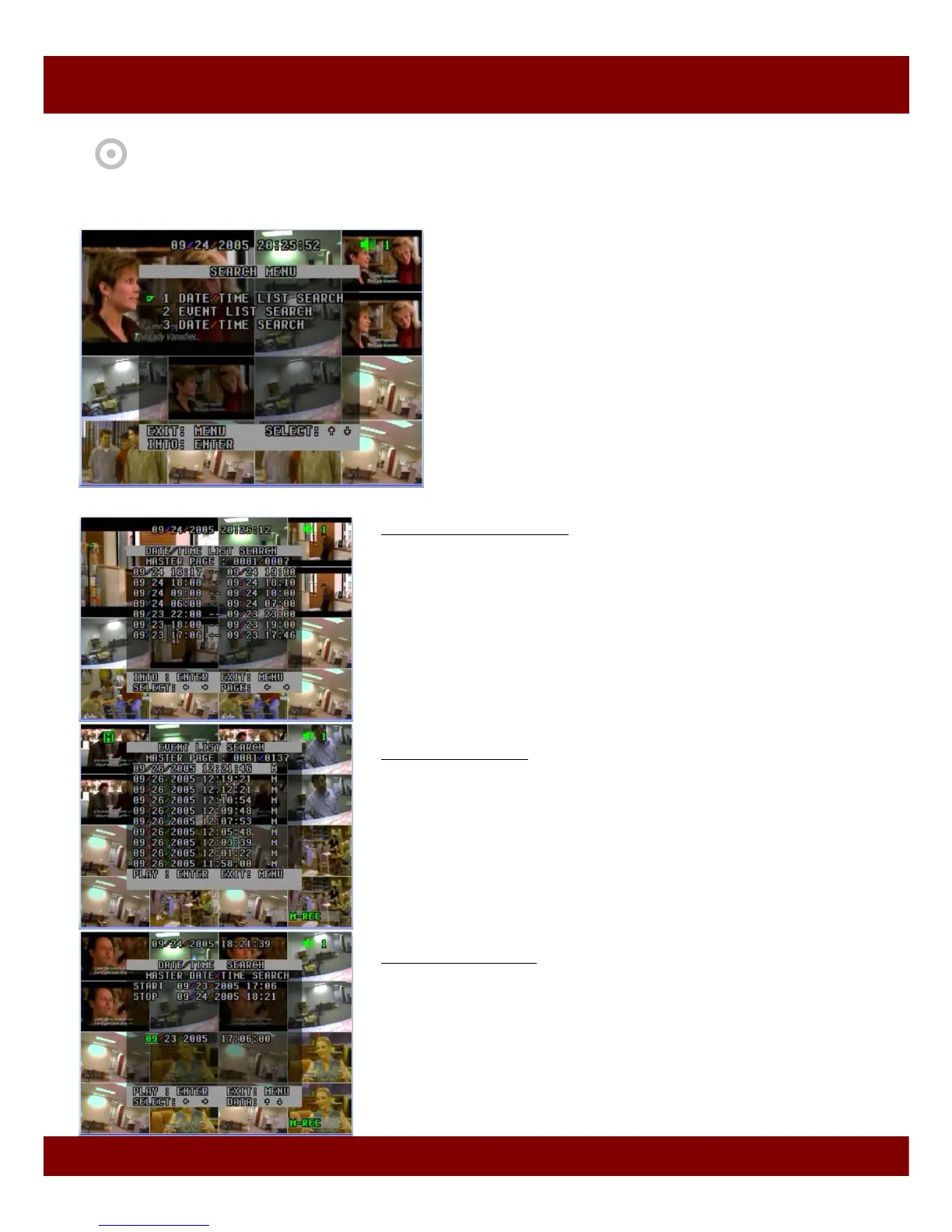
Press SEARCH button and move to one option to retrieve
video using “Up/Down” button.
Then press ENTER button to enter the selected search
option.
To watch a desired recorded video, press ENTER button at
the event highlighted. Then DVR replay the video.
Also you can designate exact date and time to retrieve
video using DATE/TIME SEARCH option.
You can stop the video at any time by pressing “STOP”
button. Also FF, REW, PAUSE are available in Playback mode.
[ Search Menu ]
CHAP 6. PLAYBACK - SEARCH MODE
1. Date / Time List Search
Select Master or Slave using SER button.
It shows a list of recordings triggered by Manual or Schedule Recording.
DVR generates separate event list at every hours, even though you
record for long time for easy operation.
It supports up to 1,000 recordings.
You can select your desired date/ time in each recording list.
• To return to search menu, press MENU button again.
And press MENU button in search menu, to exit to live display mode.
2. Event List Search
Select Master or Slave using SER button.
It shows a list of recordings triggered by the motion and external event.
It supports up to 1,000 recordings.
You can select your desired date/ time in each recording list.
• To return to search mode, press MENU button again.
And press MENU button in search menu, to exit to live display mode.
3. Date / Time Search
Select Master or Slave using SER button.
You can designate a specific date and time to retrieve video. If you input
Invalid date/time, DVR will display the closest video.
• To return to search mode, press MENU button.
And press MENU button in search menu, to exit to live display mode.



 To Next Page