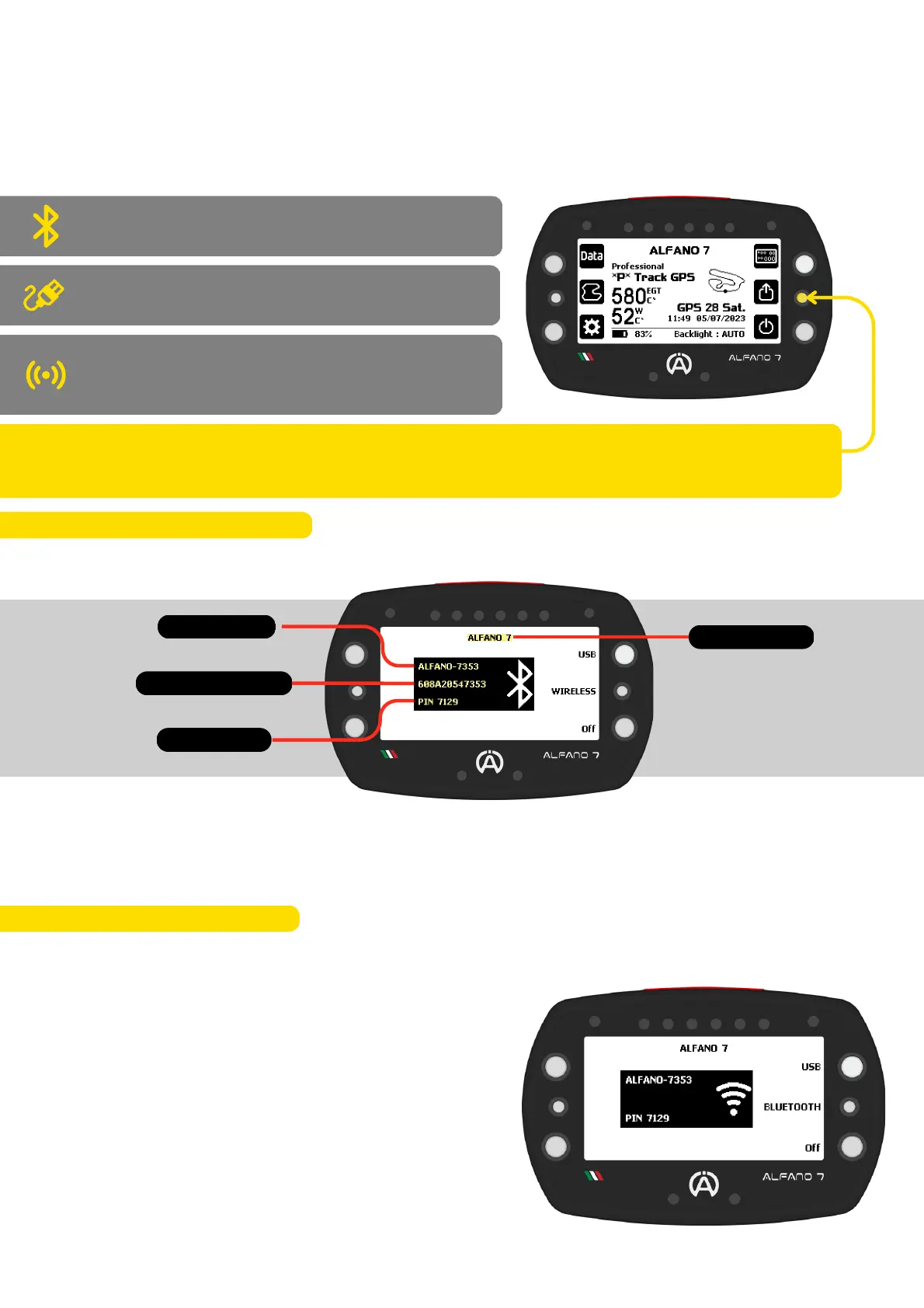
To share data with another device, simply activate the sharing mode on the Alfano 7 by
pressing the central right button from the homepage. Pressing this button while the Alfano
7 is off will turn it on and make it immediately ready to share data
6. Data Sharing
The Alfano 7 has three communication technologies:
6.2. Wireless Connection
By default, when entering the Sharing Menu, the Alfano 7 will activate the Bluetooth Mode
The Driver's Name selected may not be associated with the sent data. This information
helps teams to promptly identify the device from which they are downloading data
To switch between Bluetooth, Wireless, or USB modes, simply press the corresponding
button
Bluetooth to ADA appplication (available on iOS
/ Android portable devices and Windows PCs)
and towards other Alfano 7s
USB cable to ADA application for Windows PC
Wireless to ADA application for Windows PC (via
Alfano A4550 Dongle) and Alfano wireless
sensors
The Wireless sharing screen shows the name of the device, the security code for the first
connection and at the top the name of the last selected driver
Wireless communication is only possible with
Windows PCs via the Alfano Dongle (A4550 -
available soon)
Data exchange with mobile devices is only
possible via Bluetooth
The Alfano Dongle offers quick session
downloads, with speeds about 6 times faster than
Bluetooth and 25% faster than the USB cable,
even over long distances
13



 To Next Page