1. Getting started 13
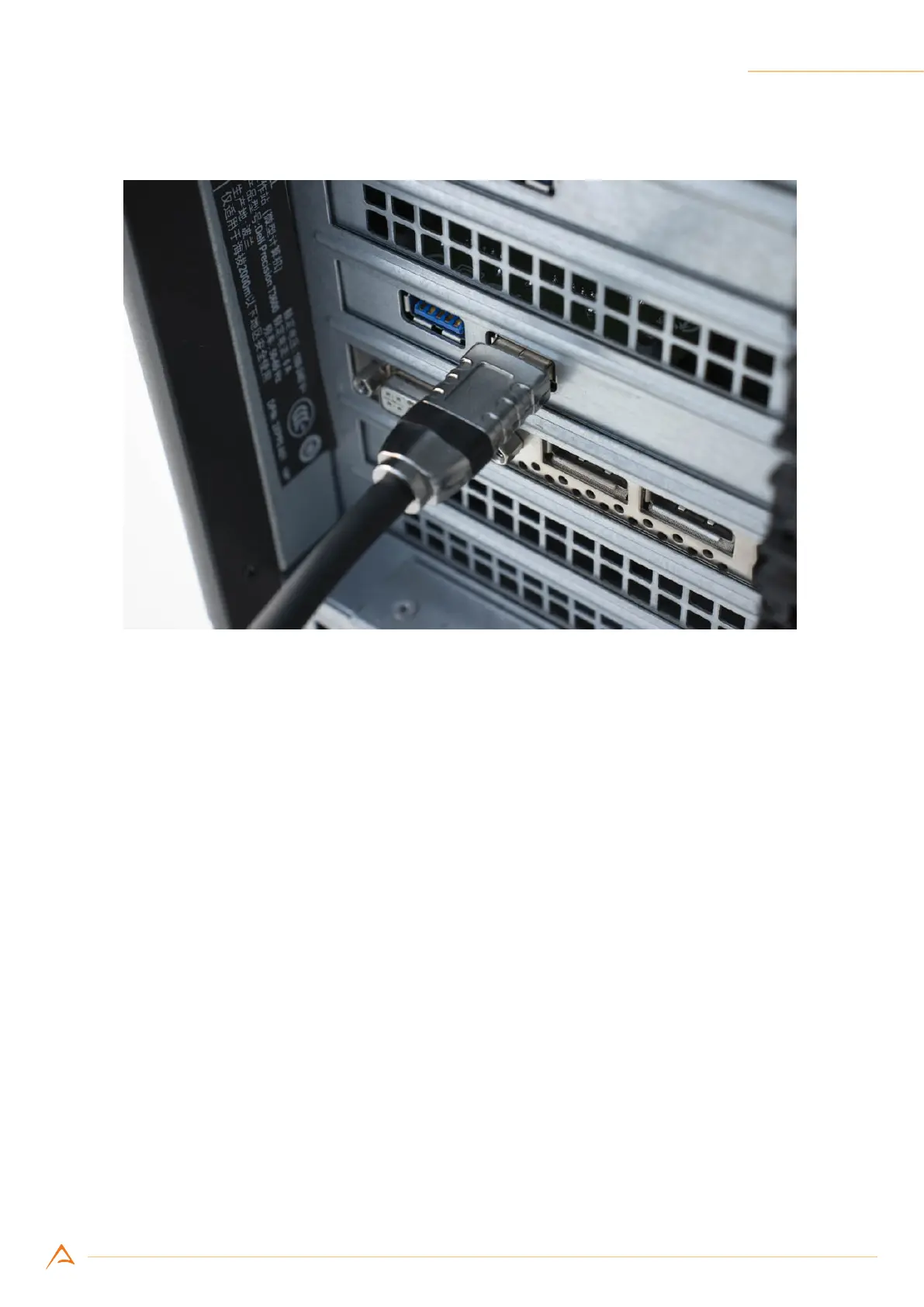
Step 4: Connect the USB type A plug (Figure 1.2a) to a SuperSpeed USB port on the PC.
1.4 FIRST START
1.4.1 Status LED
NECTA features a status LED on its back, showing the operating conditions of the camera. When a USB
connector is plugged in, LED remains red until the computer detects and congures the camera. At that
point the LED turns green: the camera is now ready to acquire. During acquisition, LED turns orange.
Different behaviours of the status LED may indicate that camera is malfunctioning. To a complete ref-
erence on the status LED codes, refer to Table 5.1.
1.4.2 Run Alkeria player
MaestroUSB3 comes with a user-friendly software application, allowing to explore the main features of
NECTA cameras and check the correct camera and software installation. Once installed MaestroUSB3
SDK, you can nd the application at the following path:
Program Files\Alkeria\USB3\MaestroUSB3\Players
Alternatively, you can easily start the Alkeria player by accessing the Windows Start button and look for
Alkeria player from the MaestroUSB3 Program folder: Start->All programs->Alkeria->USB3->MaestroUSB3.



 To Next Page