ALPINE iLX-F509E 68-41657Z84-A (EN)ALPINE iLX-F509E 68-41657Z84-A (EN)
15-EN
Connect or disconnect the select
details, see “Connecting the Device Reg
the Device List”, “Disconnecting the C
Device” (page 15).
Delete the selected device informa
details, see “Deleting a Bluetooth Devic
list” (page 15).
Pairing the Bluetooth® Device
Search for Bluetooth compatible devices.
Setting item:
Add New Device
1 Touch [Add New Device].
A search for devices to connect wirelessly t
starts.
The Search List is displayed
devices is displayed.
2 Touch a device to connect in the list.
The Select Function screen is displayed.
3 Select the function of the connec
on the Select Function screen, and t
A check mark is displayed for the select
Hands Free1: The devic
hands-free phone.
Hands Free2: The devic
hands-free phone.
Bluetooth Audio: The devic
Audio device.
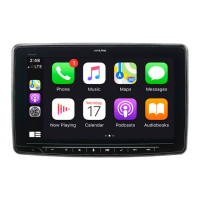
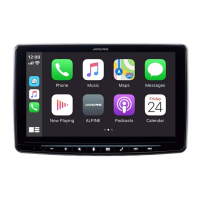
Apple CarPlay*: The device is used as A
* If you want to use Apple CarPla
displaying [Apple CarPlay] on the Select F
screen, select [Hands Free1] or [Hands Fr
connect your device.
• For example, when the devic
phone and Bluetooth Audio, select [
and [Bluetooth Audio].
• If you want to use Apple CarPlay with a wir
connection, set the Wi-Fi function of your iP
“ O n”.
4 When a code is displayed on the device, check
that the code is the same as the one on the
screen of the unit, and touch [Yes].
When the device connection is complete, a message
appears and the device returns to normal mode.
Connecting the Device Registered in
the Device List
Select one of 10 paired Bluetooth or Wi-Fi compatible
devices that you previously registered.
1 Touch [Connect] of the device you want to
connect from the Paired Device list.
The Function Select screen is displayed.
2 Select the function of the connecting device
on the Function Select screen, and touch [OK].
A check mark is displayed for the selected function.
When the device connection is complete, a message
appears and the device returns to normal mode.
Disconnecting the Connected Device
Touch [Disconnect] of the device you want to
disconnect from the Paired Device list.
The device is disconnected.
Deleting a Bluetooth Device from the
list
You can delete the information of a previously connected
Bluetooth compatible device.
1 Touch [ ] (Delete) of the Bluetooth
compatible device to delete from the Paired
Device list.
2 Touch [Yes].
• Touching [No] will cancel the setting.
Wi-Fi Setup
[Wi-Fi] is selected on the Device Setup menu screen.
Setting the Wi-Fi
Set to [On] when using Apple CarPlay with a wireless
connection.
Setting item:
Wi-Fi
Touch [ ] (Off) or [ ] (On) of “Wi-Fi”.
Bluetooth Setup
[Bluetooth] is selected on the Device Setup menu screen.
Setting the Bluetooth
Set to [On] when connecting the unit to the Bluetooth
compatible device.
Setting item:
Bluetooth
Touch [ ] (Off) or [ ] (On) of
“Bluetooth”.
Setting the Auto Connection
You can connect the last connected device automatically.
Setting item:
Auto Connection
Touch [ ] (Off) or [ ] (On) of “Auto
Connection”.
Setting the PIN Code
You can set the PIN code for connecting with a BLUETOOTH
compatible device.
Setting item:
Bluetooth PIN Code
1 Touch [Bluetooth PIN Code].
A numeric keypad screen is displayed.
2 Touch [Delete All].
The displayed PIN code is cleared, then you can enter
the new PIN code.
3 Enter a 4-digit passcode, and then touch [OK].
• The initial number is 0000.
• Touch [
] to delete an entered number.
• Touch [Delete All] to delete all entered numbers.



 To Next Page