ALPINE iLX-F509E 68-41657Z84-A (EN)ALPINE iLX-F509E 68-41657Z84-A (EN)
28-EN
Setting the Media Xpander (MX)
[Media Xpander] is selected on the Sound Setup Menu
screen.
Media Xpander (MX) makes vocals or instruments sound
distinct regardless of the music source. The Radio (FM), DAB,
USB Flash drive and iPod, will be able to reproduce the
music clearly even in cars with a lot of road noise.
Setting item:
Media Xpander
Setting contents:
OFF (Initial setting) / MX 1 / MX 2/ MX 3
1 Touch [Media Expander].
The Media Xpander setting screen is displayed.
2 Touch [Media Expander] to switch the level.
OFF MX 1 MX 2 MX 3 OFF
• The Media Xpander setting screen is returned to the Sound
Setup Menu screen if no operation has been performed for
more than 3 seconds.
• MP3/WMA/AAC/FLAC/WAV/APE can have its own MX
setting.
• When the Defeat setting is [On], you cannot perform the set
up.
• Not available when “bass engine” is set.
• The MX setting can be performed only when a source is
currently selected.
Equalizer Settings
[EQ Setting] is selected on the Sound Setup Menu screen.
EQ Setting has 3 modes, “Advanced EQ”, “Basic EQ” and
“Preset EQ”.
• When the Defeat setting is [On], you cannot perform the
set up.
• Not available when “bass engine” is set.
Adjusting the Parametric Equalizer
Curve (Advanced EQ/Basic EQ)
You can modify the Equalizer settings to create a response
curve more appealing to your personal taste.
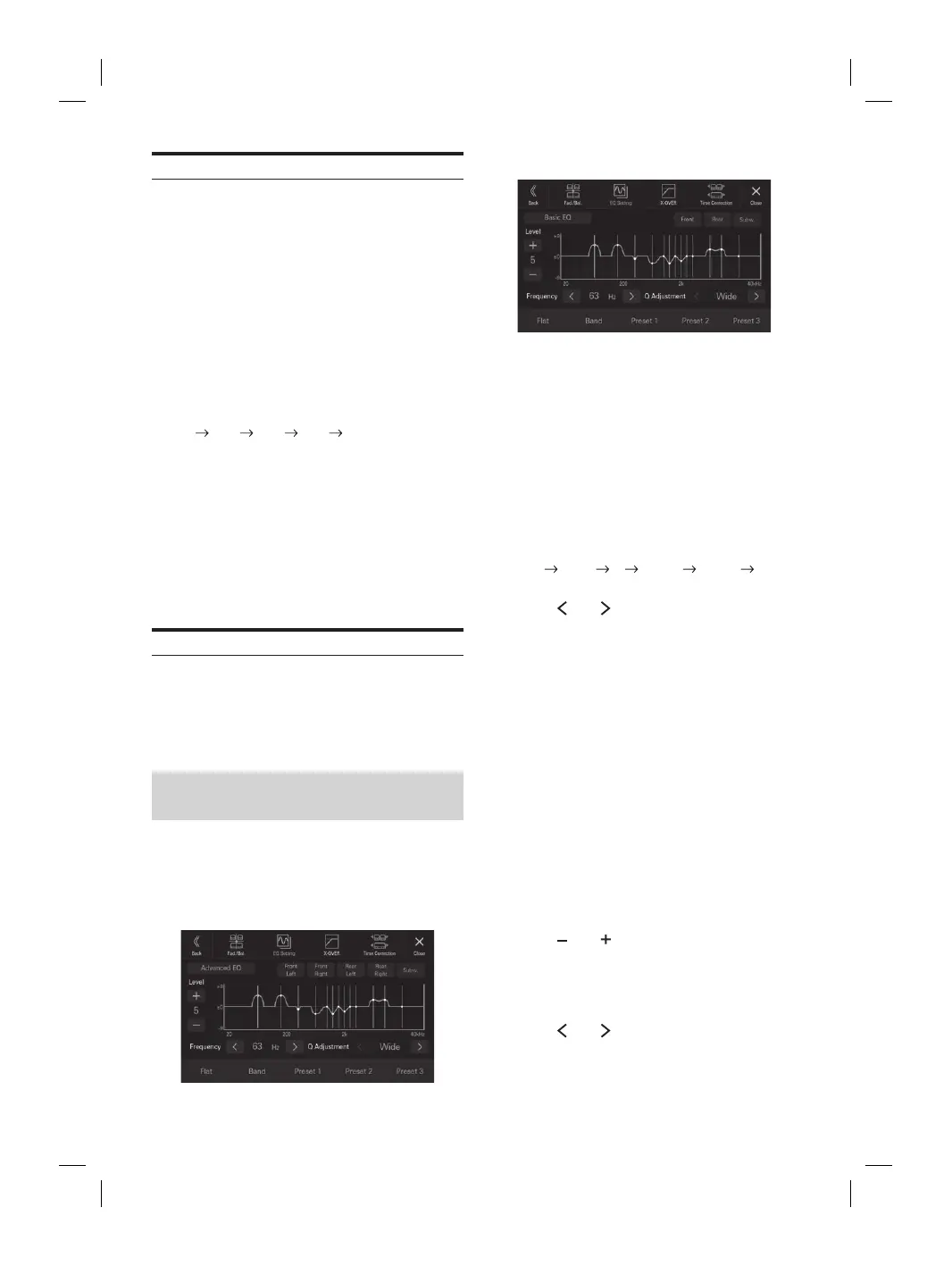
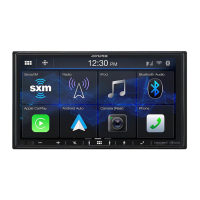
This unit has “Advanced EQ” which can set 4 types of
speakers, and “Basic EQ” which can set 2 types of speakers.
■
Advanced EQ
■
Basic EQ
1 Touch [EQ Setting].
2 Touch [Advanced EQ] or [Basic EQ] to select
Equalizer mode.
3 Select a speaker to adjust.
Advanced EQ: Front Left / Front Right / Rear Left /
Rear Right / Subw.
Basic EQ: Front / Rear / Subw.
4 Touch [Band] to select the band to be
adjusted.
Band1 Band2 ••• Band12 Band13 Band1
• You can select a band directly by touching the screen.
5 Touch [ ] or [ ] of “Frequency” to adjust the
frequency of the selected band.
Adjustable frequency bands:
20 Hz to 40 kHz (in 1/3 octave steps)
Band1: 20 Hz~100 Hz (63 Hz)
Band2: 63 Hz~315 Hz (125 Hz)
Band3: 100 Hz~500 Hz (200 Hz)
Band4: 160 Hz~800 Hz (315 Hz)
Band5: 250 Hz~1.25 kHz (500 Hz)
Band6: 315 Hz~1.6 kHz (630 Hz)
Band7: 500 Hz~2.5 kHz (1 kHz)
Band8: 1 kHz~5 kHz (2 kHz)
Band9: 1.6 kHz~8 kHz (3.15 kHz)
Band10: 2.5 kHz~12.5 kHz (5 kHz)
Band11: 4 kHz~20 kHz (8 kHz)
Band12: 6.3 kHz~31.5 kHz (12.5 kHz)
Band13: 10 kHz~40 kHz (20 kHz)
6 Touch [ ] or [ ] of “Level” to adjust the level
of selected band.
Setting contents:
-9 to +9 (Initial setting: 0)
7 Touch [ ] or [ ] of “Q Adjustment” to select
the bandwidth.
Setting contents:
Wide (Initial setting) / Medium / Narrow
, repeat steps 2 to 6,
.
e the adjusted setting value, touch and
reset 1], [Preset 2], or [Preset 3] for at
onds.
d Band11 are the same as the Bass and Treble
or details on setting Bass and Treble, see “Adjusting
l/Treble Level” (page 31).
ceeding the frequency of adjacent bands are not
usting the Parametric EQ, you should consider the
esponse of the connected speakers.
arametric EQ is adjusted, the Preset EQ is
n.
set EQ is set, the linked Parametric EQ settings are
ged. We recommend storing Parametric EQ settings
t in advance.
at] to initialise all values.
arametric EQ adjusted value
e-set Parametric EQ adjusted value.
eset 1], [Preset 2], or [Preset 3] on the
een.
ored in the Preset will be recalled.
er Presets (Preset EQ)
er settings are preset at the factory for a
ce material.
tents:
OCK / NEWS / JAZZ / ELECTRONIC / HIP
OUNTRY / CLASSICAL
pe can be set to On.
set EQ is set, the linked Parametric EQ settings are
ged. We recommend storing Parametric EQ settings
t in advance.



 To Next Page