ALPINE iLX-F509E 68-41657Z84-A (EN)ALPINE iLX-F509E 68-41657Z84-A (EN)
55-EN
■
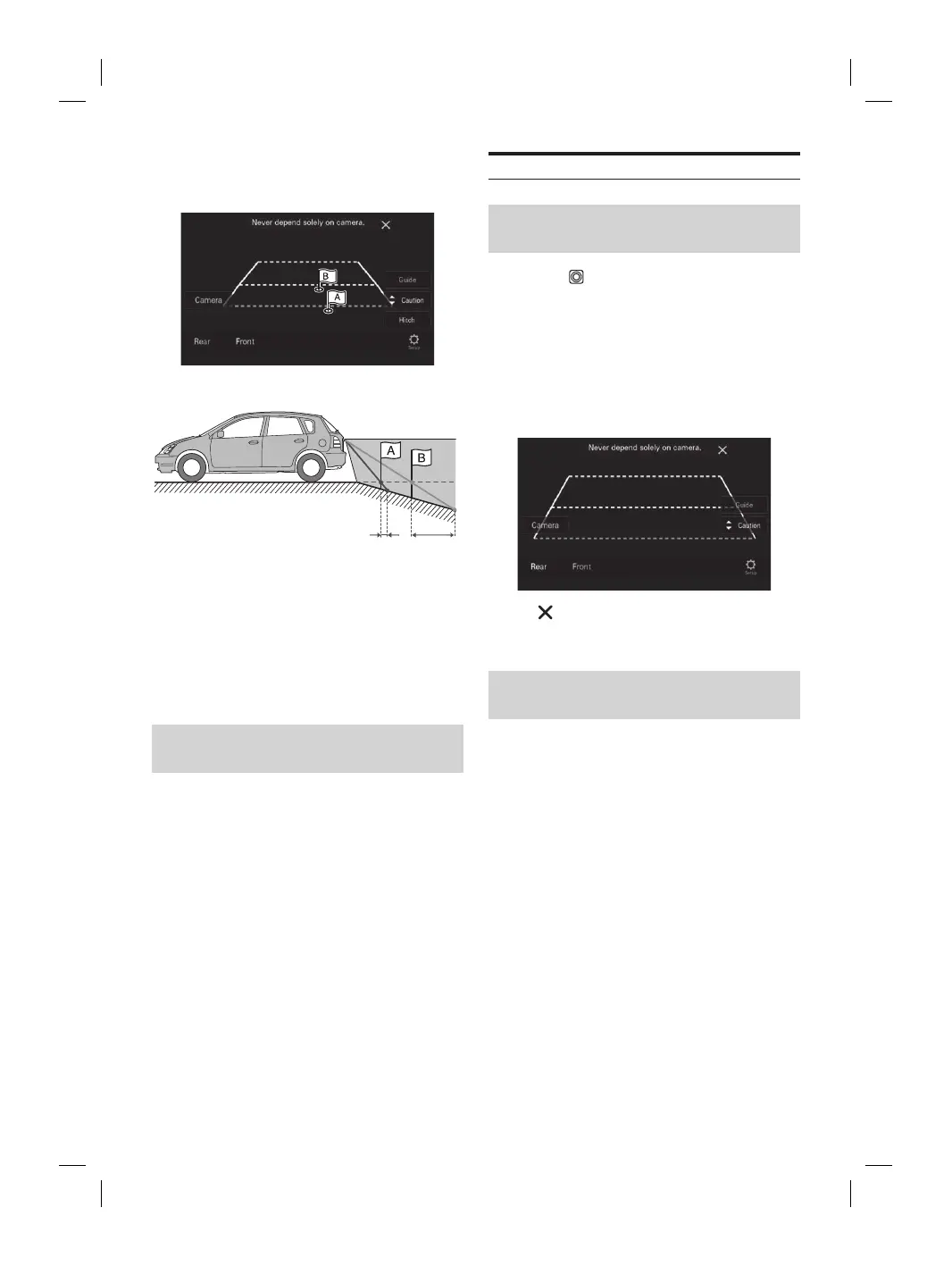
When there is a steep upward slope b
the car (example)
<Screen>
Distance guidance marks
<Situation of the car>
Ac
Error Err
The distance guidance mark represen
flat road surface. Therefore in the c
slope behind the car, the distance guides ar
closer to the rear bumper than the ac
example, if there is an obstacle on the upwar
may appear farther away than its actual p
Also, an error may occur between the guidanc
actual path of the car on the road surface.
■
When there is a steep downward slope behind
the car (example)
<Screen>
<Situation of the car>
Error Error
In the case of a downward slope behind the car, the
distance guides are displayed farther from the rear
bumper than the actual distance.
If there is an obstacle on the downward slope, it seems
closer than its actual position.
Also, an error may occur between the guidance and the
actual path of the car on the road surface.
Switching the Image Pattern for the
Rear Camera
If the camera has a view switch function, the Direct Change
switch is displayed.
1 Touch the screen when the image from the
rear camera is displayed.
The operation screen is displayed on the screen.
• After a 5-second time-out, the operation screen
returns to the camera display screen.
2 Touch [View].
3 Touch [Back], [Panorama], [Corner] or [Top].
The image pattern changes.
• For detailed information about image patterns, see the
camera Owner’s Manual.
• You can perform a Guide Adjustment. For details, see
“Camera Guide Setup” (page 22).
Front Camera Operation
Displaying the Camera Image from the
HOME screen
1 Press the (CAM) button.
The Camera view image is displayed.
2 Touch the screen when the image from the
camera is displayed.
The operation screen is displayed on the screen.
3 Touch [Front].
The Front Camera view image is displayed.
• Touch [ ] to return to the revious screen.
• You can perform a Guide Adjustment. For details, see
“Camera Guide Setup” (page 22)
Switching the Image Pattern for the
Front Camera
If the camera has a view switch function, the Direct Change
switch is displayed.
1 Touch the screen when the image from the
front camera is displayed.
The operation screen is displayed on the screen.
• After a 5-second time-out, the operation screen
returns to the camera display screen.
2 Touch [View].
3 Touch [Panorama], [Corner] or [Top].
The image pattern changes.
• For detailed information about image patterns, see the
camera Owner’s Manual.
• You can perform a Guide Adjustment. For details, see
“Camera Guide Setup” (page 22).



 To Next Page