ALPINE iLX-F509E 68-41657Z84-A (EN)ALPINE iLX-F509E 68-41657Z84-A (EN)
51-EN
Switching the connecting Bluet
Device
If multiple Bluetooth devices are register
you can change the connection among the regist
devices.
1 Touch [ ] (Phone Setting).
The Device List screen is displayed.
2 Select the function of the connec
on the Function Select screen, and t
The Function Select screen is displayed.
3 Select [Bluetooth Audio] in the Func
Select screen, then touch [OK].
A check mark is displayed for the select
The connection will transfer to the select
• For details, see “Connecting the Device Registered i
Device List” (page 15).
Auxiliary Device
(Optional)
WARNING
It is dangerous for the driver to watch video while
driving the vehicle. The driver may be distracted
from looking ahead and an accident could occur.
Install the unit correctly so that the driver cannot
watch video unless the car is stopped and the
parking brake is applied.
If the unit is not installed correctly, the driver will be
able to watch video while driving and may be
distracted from looking ahead and cause an
accident. The driver or other people could be
severely injured.
Operating Auxiliary Devices
(Optional)
To operate devices connected to the AUX terminals of the
unit, follow the procedure described below.
• Set up the “AUX (Auxiliary) Setup” (page 19).
1 Press the (HOME) button to select
Auxiliary (AUX) mode.
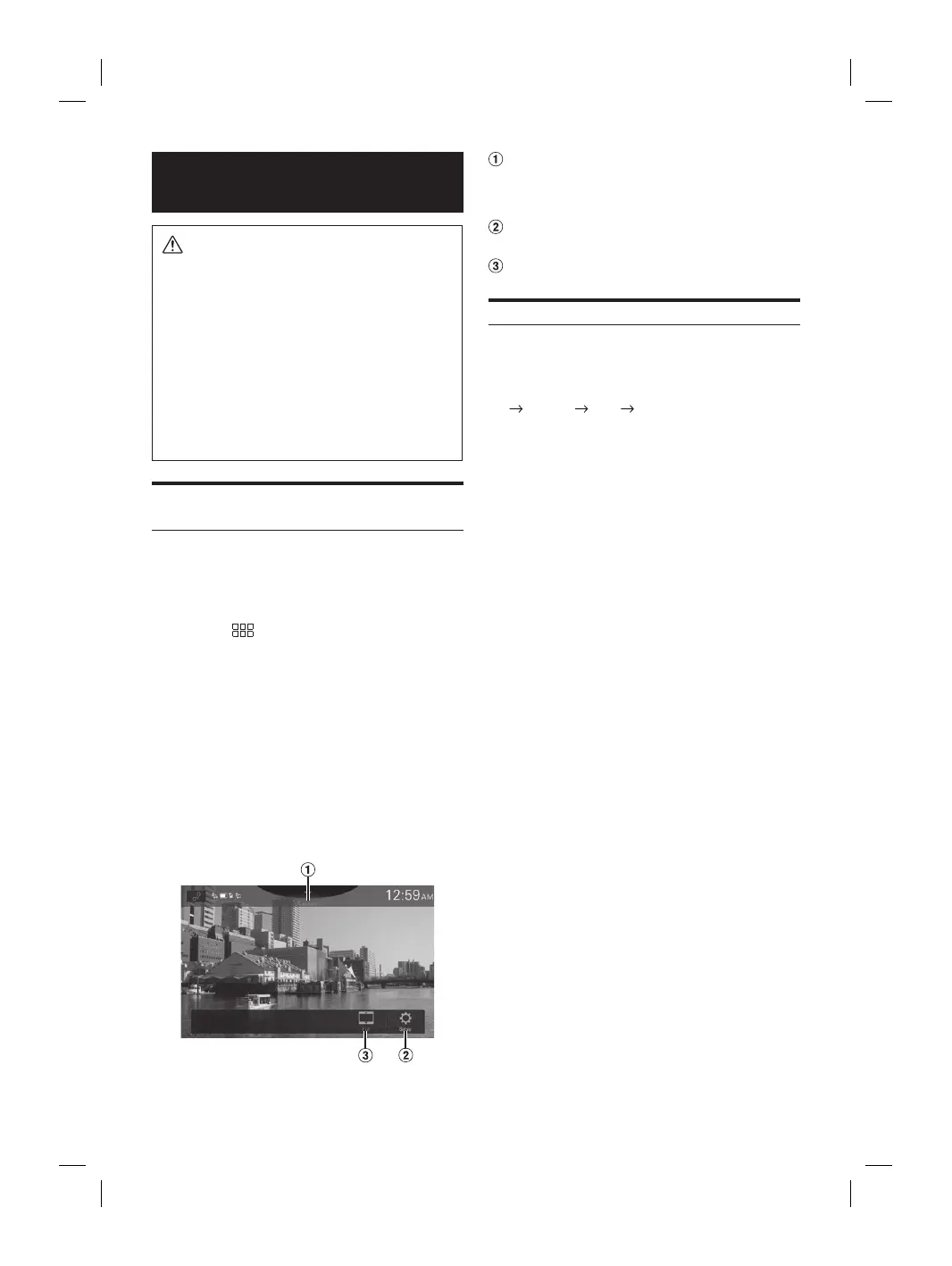
The display shows the Auxiliary (AUX) mode screen.
2 During the Auxiliary (AUX) playback, touch
and hold the screen to display the operation
screen.
The Auxiliary (AUX) operation screen is displayed for
about 5 seconds.
• For your safety, video is not displayed and only audio can be
heard while driving.
• For details on the connected auxiliary device, refer to its
owner’s manual.
Source Title
• The name which is given as the source name in
“Setting the Auxiliary (AUX) Name” (page 19) is
displayed.
Displays the Auxiliary Setup Menu screen (page
19)
Switching Display Modes
Switching Display Modes
You can switch the Display Mode while playing a Video File.
Touch the Display Mode button.
Each time you touch, the Display Mode is switched.
Full
NORMAL WIDE Full
• The Display Mode button displays the currently selected
mode.
• You cannot operate them while driving.
WIDE: Cut the top and bottom of the image and
stretch it over the entire screen.
Full: The mode displays a picture to fit its size
vertically and horizontally with the monitor
size.
NORMAL: Select when viewing 4:3 images. A black
band appears on both sides of the screen.



 To Next Page