ALPINE iLX-F509E 68-41657Z84-A (EN)ALPINE iLX-F509E 68-41657Z84-A (EN)
26-EN
Clearing the password
1 Touch [ ] (On) of “Security Code”.
The password setting screen is displayed.
2 Enter the password you have set, then touch
[OK].
The password is cleared and the system returns to the
System Setup Menu screen, then the Security Code is
set to [Off].
• Input numbers are displayed as “*”.
Vehicle Type Setup
[Vehicle Types for Phone Link] is selected on the System
Setup Menu screen.
Apple CarPlay and Android Auto require information about
the vehicle to use all functions in the best possible way.
Setting item:
Vehicle Types for Phone Link
Steering wheel Setting
Set this item when Apple CarPlay is used/Android
smartphone which installed Android Auto App is
connected.
This setting influences Apple CarPlay/Android Auto mode.
Setting item:
Steering wheel
Setting contents:
Left (Initial setting) / Right
Fuel Type Setting
Set the Fuel type of your car.
Setting item:
Fuel Type
Setting contents:
Unknown / Unleaded gasoline (Initial setting) / Leaded
gasoline / Diesel #1 / Diesel #2 / Biodiesel / 85% ethanol/
gasoline blend / Liquified petroleum gas / Compressed
natural gas / Liquified natural gas / Electric / Hydrogen
fuel cell / Other
EV Connector Type Setting
When [Electric] is selected for “Fuel Type Setting” (page
26), set EV Connector Type.
Setting item:
EV Connector Type
Setting contents:
Unknown (Initial setting) / J1772 / Mennekes / Chademo
/ Combo_1 / Combo_2 / Tesla roadster / Tesla HPWC /
Tesla Supercharger / GBT / Other
Installation Setup
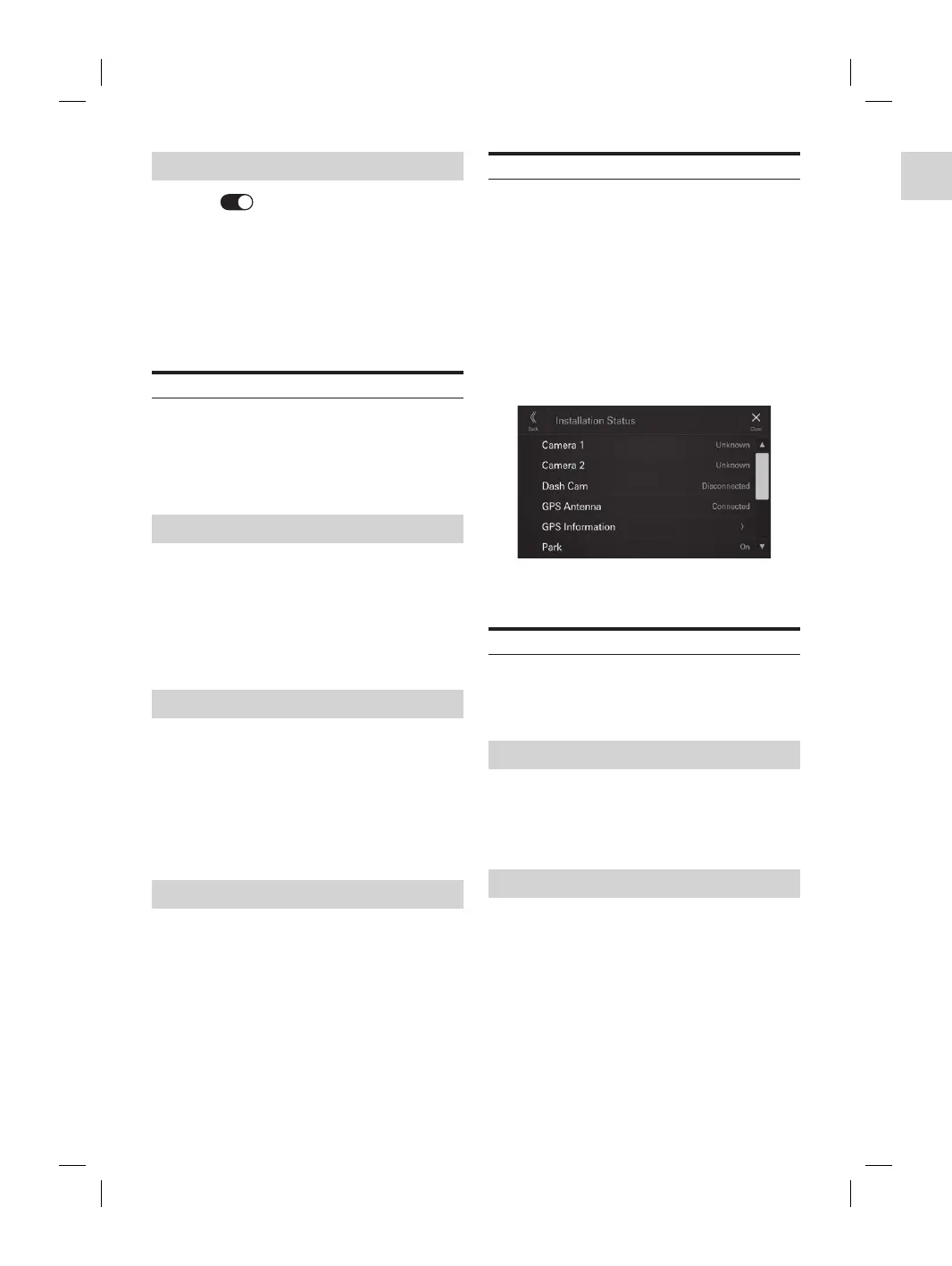
[Installation Status] is selected on the System Setup Menu
screen.
Vehicle Setup enables you to check the installation status of
Camera 1, Camera 2, Dash Cam*, GNSS Antenna, GNSS
Information, Parking, Vehicle Speed, Reverse, Battery
Voltage.
∗ Dash Cam is displayed in the Installation Setup, but this
unit does not support it.
Setting item:
Installation Status
The Installation check screen is displayed.
• Depending on your vehicle, some installation status may not
be checked via this function.
About iLX-507E/iLX-F509E/iLX-F511E
[About] is selected on the System Setup Menu screen.
By using [About], the Serial Number and Model name can
be checked, the Firmware Version can be updated, and
various settings can be initialized.
Displaying the Product Information
You can view the version information of this product. Make
note of this information and refer to it whenever you
contact Alpine Tech Support or an Alpine-authorized dealer.
Setting contents:
Serial Number / Model Name
Updating Firmware Version
Download the firmware from the Alpine website and
update the product using the USB flash drive.
1 Plug the USB flash drive with the update file
stored into the unit.
2 Touch [Update] of “Firmware Version”.
3 After the confirmation message appears,
touch [OK].
• Do not turn on/off the power, change the ignition key position,
until system restart is completed.
ted Tuning According to Your
y Car Update)
, you can perform settings by
ta of the car model from the Alpine
ta to the unit by using the USB flash
ion animation, sound dedicated to the car model,
nnection setting and camera guide line can be set
ata of the car model.
e with the update file
to the unit.
date] of “Car by Car Update”.
onfirmation message appears,
OK].
rn on/off the power, change the ignition key position,
m restart is completed.
ying Software License
tents:
ource Software License
ound Settings
ore the EQ Setting*/X-OVER*/Time Correction*/
ine/Subwoofer to factory
et] of “Default Sound Settings”.
onfirmation message appears,
OK].
em starts initialization.
alues that are stored in Preset 1 to Preset
e initialised.
ystem
e all data, to restore the factory settings.
ive, etc. from the system before
“Clear All Settings”.
onfirmation message appears,
OK].
mation screen appears.
OK].
em starts initialization.
rn on/off the power, change the ignition key position,
m restart is completed.



 To Next Page