10 MaxAgent for Lync Manual
Toolbar Buttons
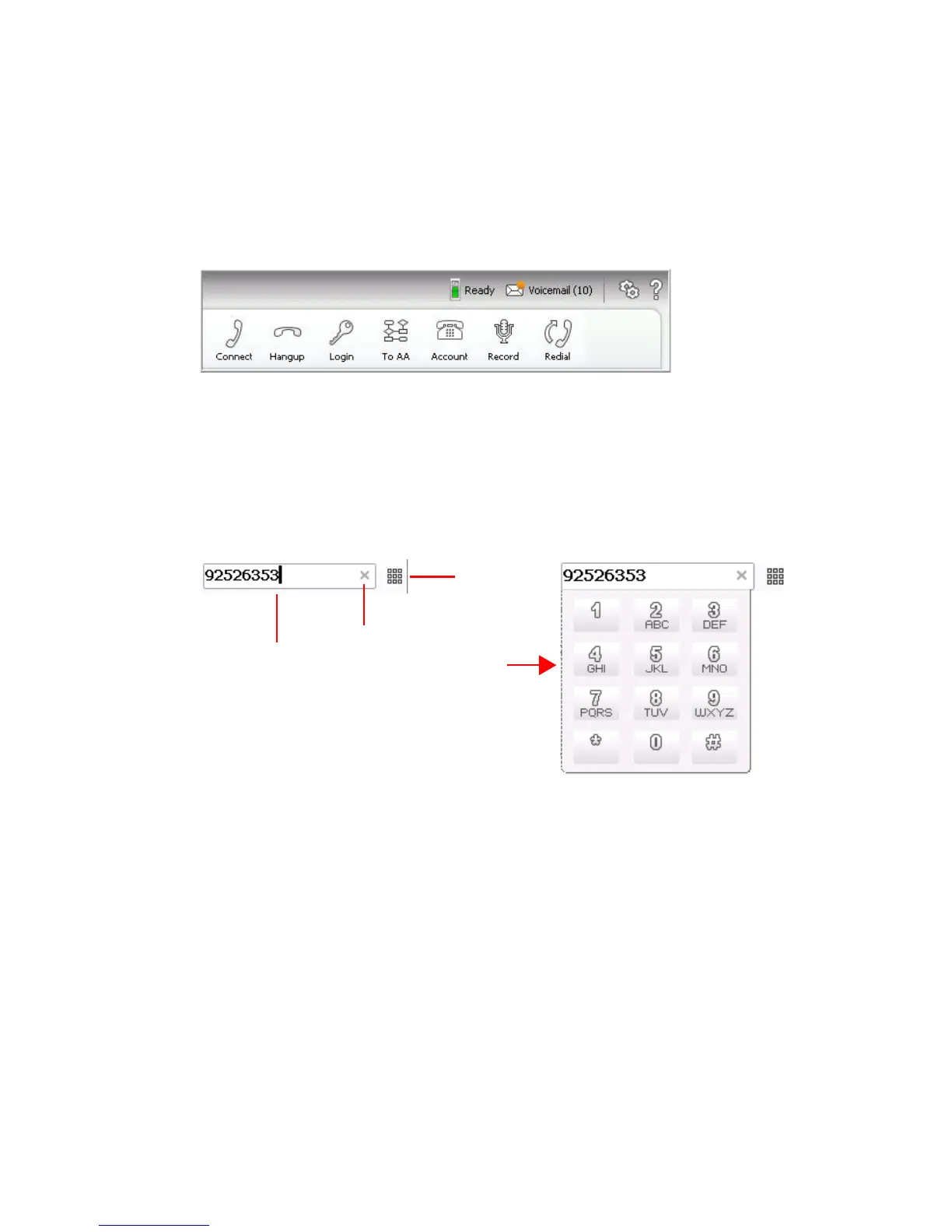
Toolbar buttons provide single-click functions to connect, hang up, send
calls to AA (auto attendant), record, redial, and enter account code. The
Login button lets you log in to other workgroups or log out of a workgroup.
You can choose which buttons to display, and the order in which you want
them to appear; see Customizing the Display for details.
The Dialing field and Dial button are also in the toolbar. Click Dial to open
the dial pad.
Call Information Panel
The call information panel shows several columns of information about
calls:
Record – This appears when a call is being recorded
State – The state of the active call:
• AA – The call is being transferred to an auto attendant
• Busy – The callee is busy or not available
• Call Pending – The call is placed into a workgroup queue
• Conference – The call is in conference



 To Next Page