MaxAgent for Lync Manual 13
Getting Started
• Ready – Workgroup calls can be sent to your extension
• Not Ready – Workgroup calls won’t be sent to your extension
Logging Out or Changing Workgroups
You can log out of a workgroup or change the workgroups you’re logged
into:
1. Click Login to open the Workgroup Login window.
2. Clear the check boxes next to the workgroups you’re logging out from.
3. If logout reason codes are required in your system, select one in the
list.
4. If you want to log into other workgroups, select their check boxes.
5. Click OK.
Minimizing and Closing MaxAgent
Minimize – To minimize MaxAgent for Lync, click the Minimize button
in the top right corner of the screen. MaxAgent shrinks to an icon in
the tray in the lower right corner of your screen.
Exit – Click the button at the top right of the MaxAgent window.
Both MaxAgent and Lync exit.
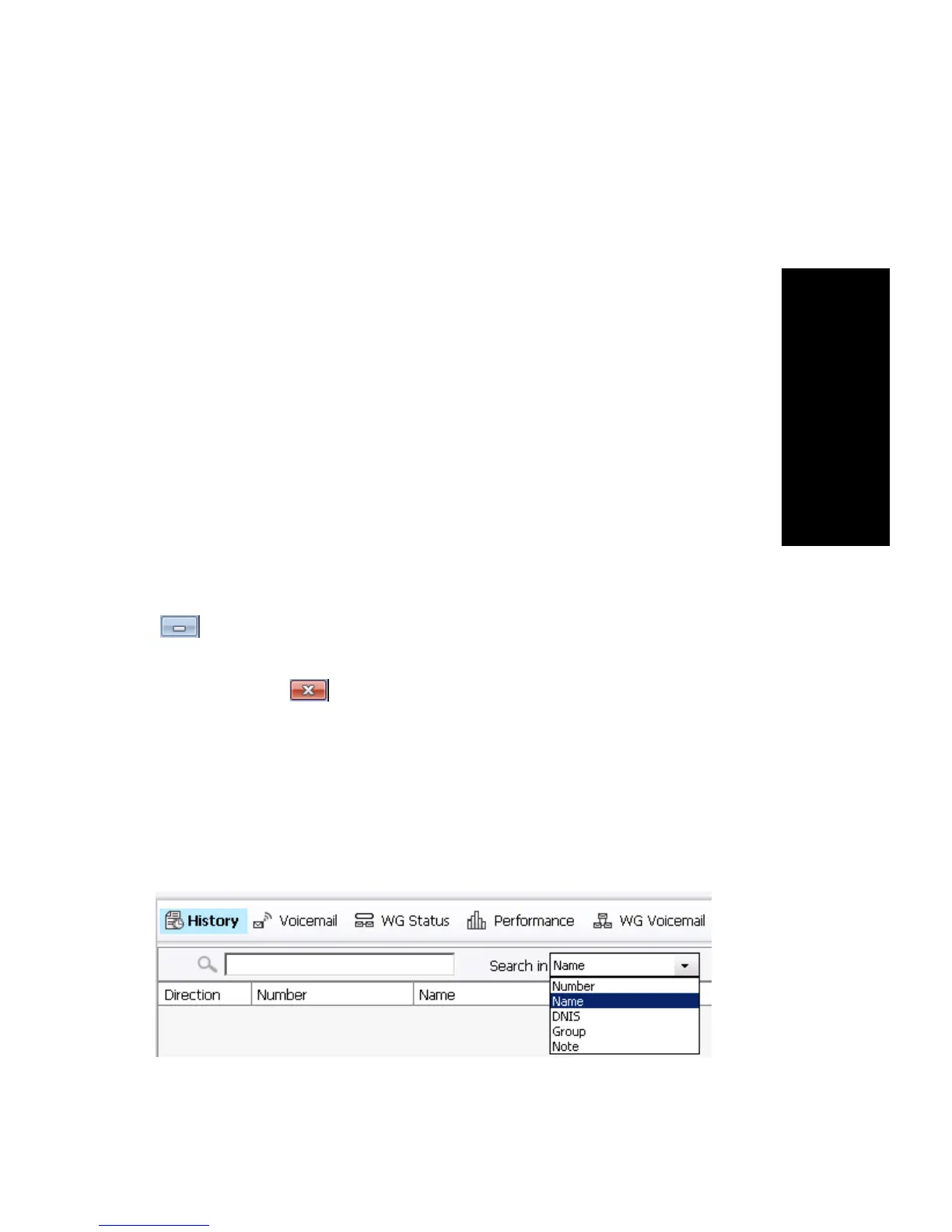
Searching in Tabbed Windows
Searching is available in these tabs: History, Voicemail, and WG
Voicemail.



 To Next Page