32 MaxAgent for Lync Manual
Choosing Workgroups to Monitor
To choose workgroups to monitor:
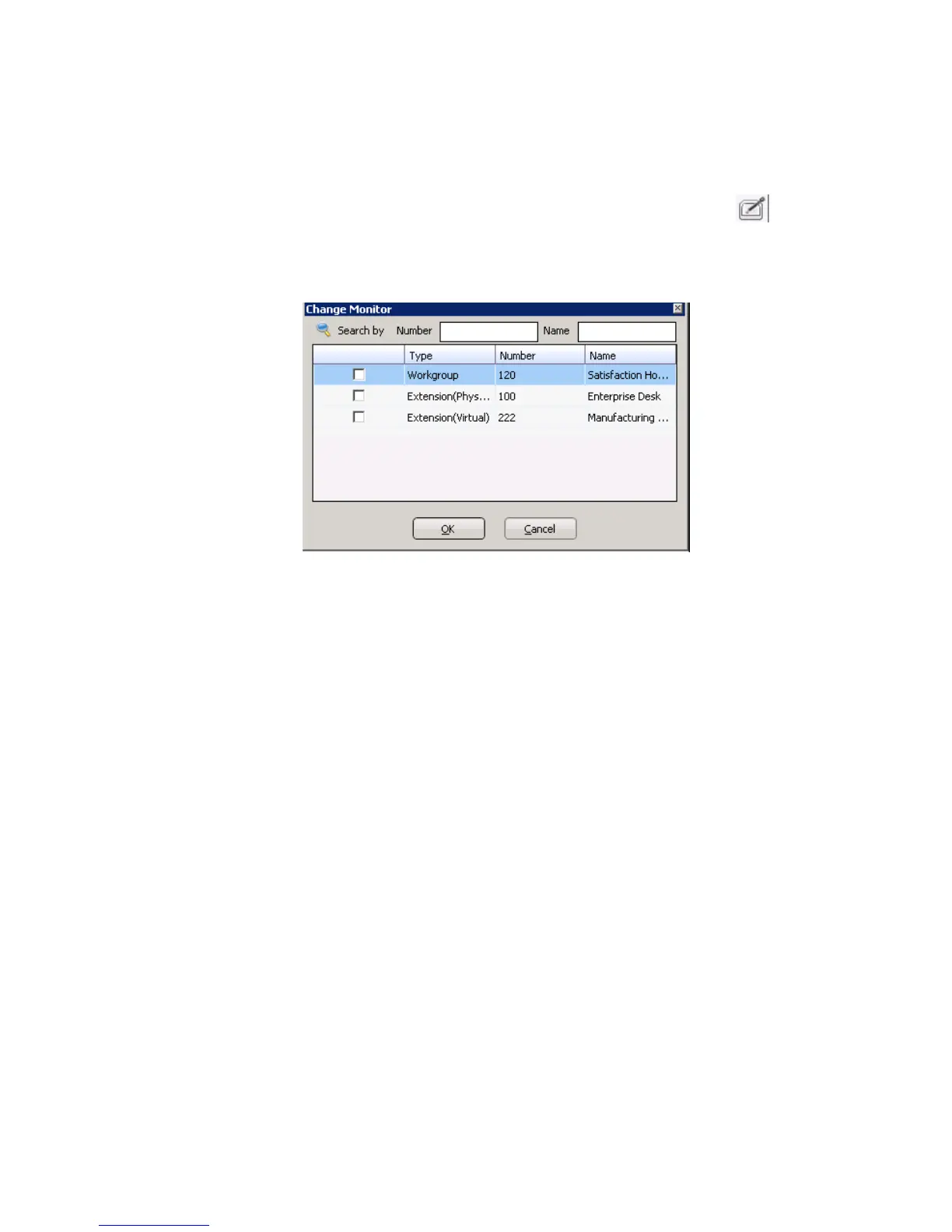
1. Click the Monitor tab, and click the Select Extensions button at
the bottom of the page. Extensions and workgroups to which your
administrator has given you monitoring rights appear.
2. Select the extensions or workgroups you want to monitor, and then
click OK. If the list is long, you can search for entries.
The extensions you select will be listed in the Monitor window.
Viewing the Monitor List
The monitor window includes these fields:
• State – The state can be one of the following:
• Idle – The extension is not in use
• Connected – The extension is in use
• Ringing – The phone is ringing; you can click the State field to pick
up the call at your own extension
• Voicemail – The extension is in voicemail
• Auto Attendant – The extension is connected to an auto attendant
• On Hold – The extension is on hold
• Extension – The extension being monitored
• Name – The name of the agent at that extension



 To Next Page