Digital Video Recorder User Manual
39
5.2 Configuring Recording Schedule
Purpose:
Set the record schedule, and then the camera will automatically start/stop recording according to the configured
schedule.
Steps:
1. Enter the Record Schedule interface.
Menu> Record> Schedule
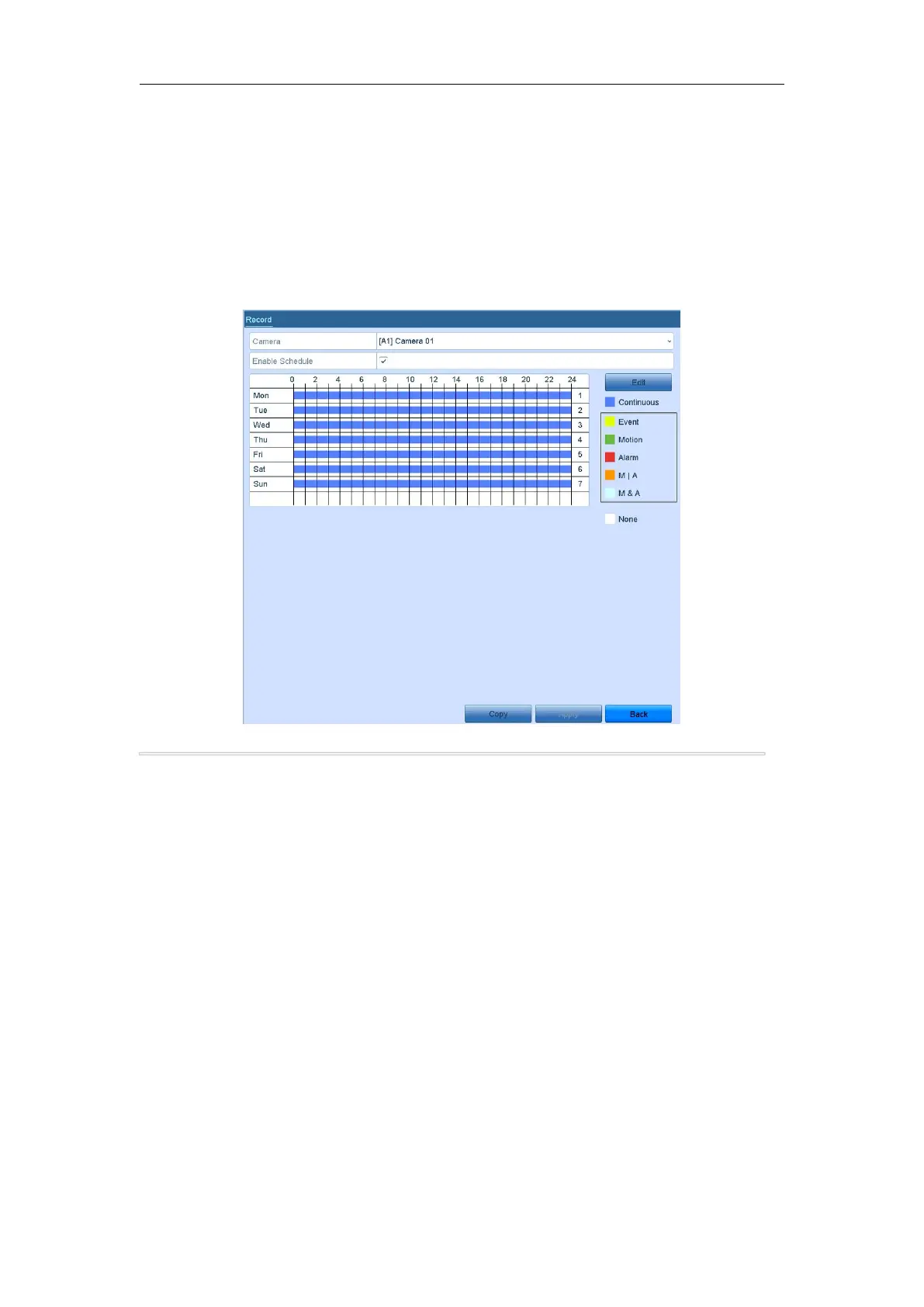
Figure 5. 7 Record Schedule
Different recording types are marked in different color icons.
Continous: scheduled recording.
Event: recording triggered by all event triggered alarm.
Motion: recording triggered by motion detection.
Alarm: recording triggered by alarm.
M/A: recording triggered by either motion detection or alarm.
M&A: recording triggered by motion detection and alarm.
2. Choose the camera you want to configure in the Camera dropdown list.
3. Check the checkbox of Enable Schedule.
4. Configure the record schedule.
Edit the schedule
2) In the message box, you can choose the day to which you want to set schedule.
3) To schedule an all-day recording, check the checkbox after the All Day item.


 To Next Page