Digital Video Recorder User Manual
49
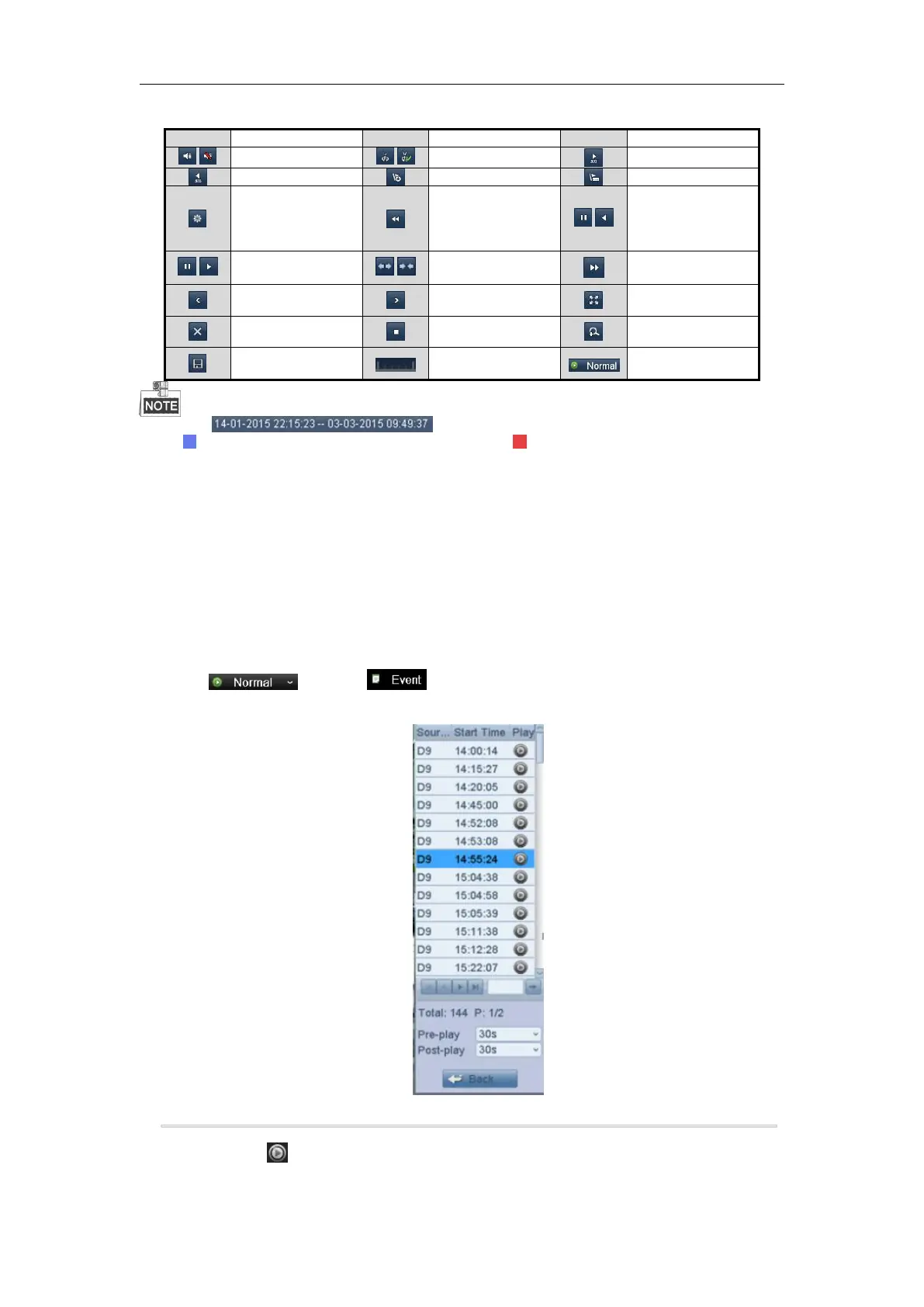
Table 6. 1 Detailed Explanation of Playback Toolbar
Pause reverse play/
Reverse play/
Single-frame
reverse play
Pause play/ Play/
Single-frame play
Scaling up/down the
time line
The indicates the start time and end time of the record files.
represents normal recording (manual or schedule); represents event recording (motion, alarm,
motion | alarm, motion & alarm).
Playback progress bar: use the mouse to click any point of the progress bar to locate special frames.
6.1.3 Playing Back by Event Search
Purpose:
Play back record files on one or several channels searched out by restricting event type (motion detection, alarm
input or VCA). Channel switch is supported.
Steps:
1. Enter the playback interface.
Menu>Playback
2. Click and select to enter the Event Playback interface.
3. Select Alarm Input, Motion, Line Crossing Detection, Intrusion Detection as the event type, and specify
the start time and end time for search.
Figure 6. 5 Video Search by Motion Detection
4. Click Search, and the record files matching the search conditions will be displayed on a list.
5. Select and click button to play back the record files.
You can click Back to return to the search interface.


 To Next Page