Digital Video Recorder User Manual
46
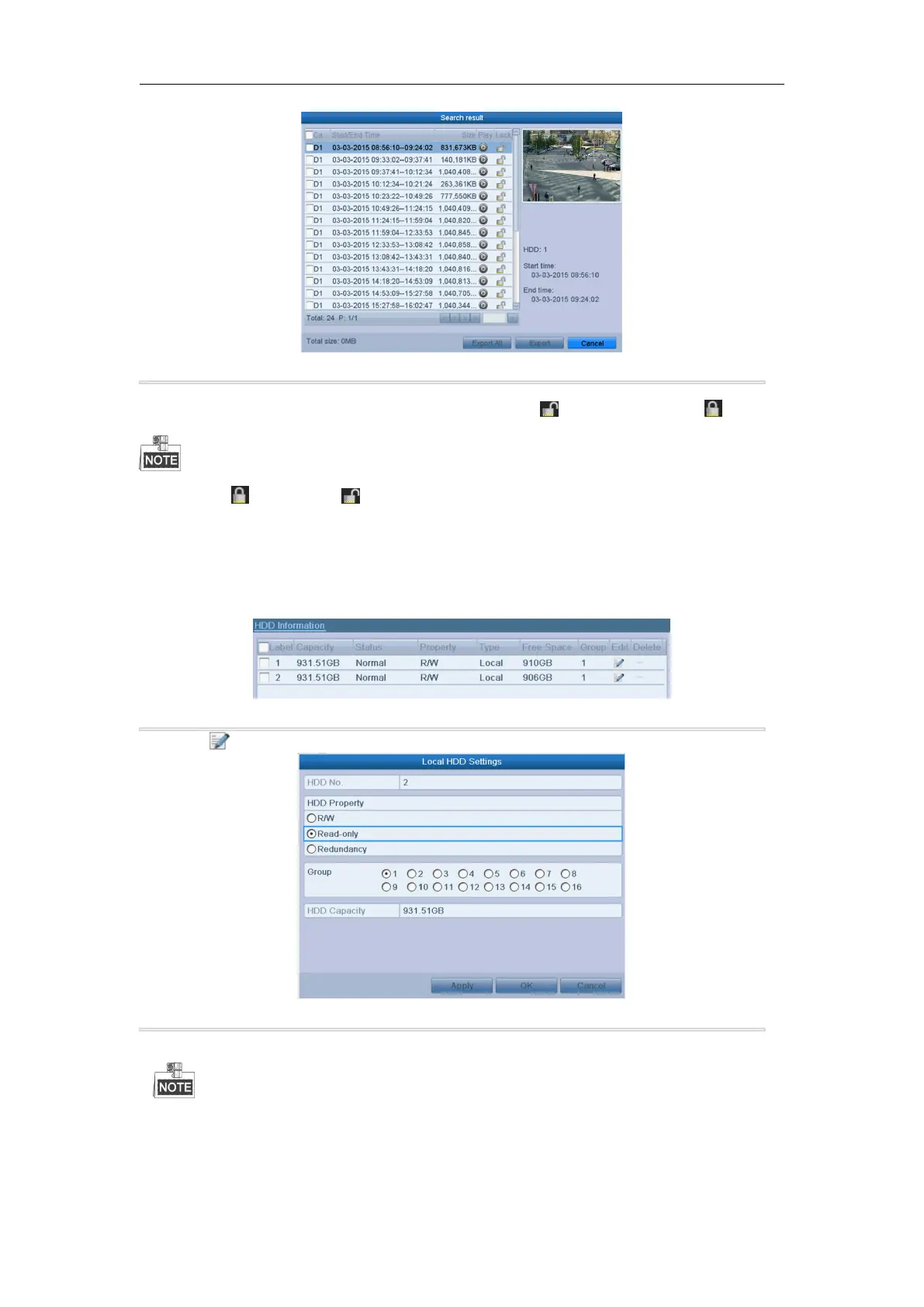
Figure 5. 21 Export-Search Result
5. Protect the record files.
1) Find the record files you want to protect, and then click the icon which will turn to , indicating
that the file is locked.
The record files of which the recording is still not completed cannot be locked.
2) Click to change it to to unlock the file and the file is not protected.
Protect file by setting HDD property to Read-only
Before you start:
To edit HDD property, you need to set the storage mode of the HDD to Group. See Chapter 12.3 Managing HDD
Group.
Steps:
1. Enter HDD setting interface.
Menu> HDD
2. Click to edit the HDD you want to protect.
Figure 5. 23 HDD General- Editing
3. Set the HDD to Read-only.
4. Click OK to save settings and back to the upper level menu.
You cannot save any files in a Read-only HDD. If you want to save files in the HDD, change the property
to R/W.
If there is only one HDD and is set to Read-only, the DVR cannot record any files. Only live view mode is
available.
If you set the HDD to Read-only when the DVR is saving files in it, then the file will be saved in next R/W
HDD. If there is only one HDD, the recording will be stopped.



 To Next Page