Apogee Symphony Desktop User’s Guide
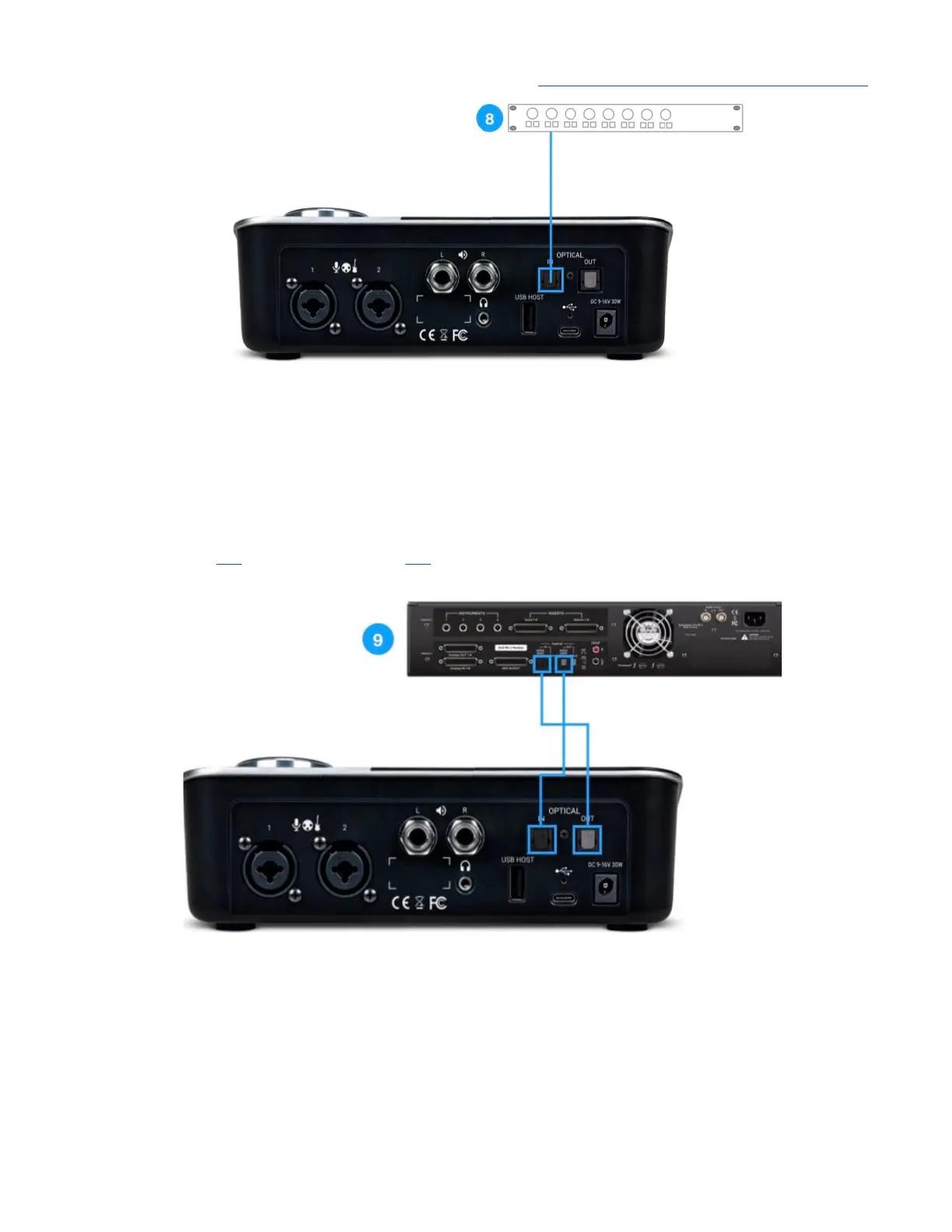
8. Connect audio gear equipped with optical outputs only (such as mic preamp expanders, CD
players, and other hi-fi devices) to the rear panel Optical input. Thanks to transparent sample rate
conversion on the optical input, there’s no need to clock one device to the other - both may
remain set to Internal clock.
● Set Symphony Desktop Optical format to match that of the connected device from the touch
screen (link) or Desktop Control (link).
9. For bi-directional streaming of digital audio between Symphony Desktop and Symphony IO MkII,
interconnect Optical I/O between each interface.
● Set Symphony Desktop and Symphony I/O MkII Optical format to ADAT or SMUX (depending
on sample rate).
● Set Symphony I/O MkII Clock source to Optical.
20



 To Next Page