Page 53
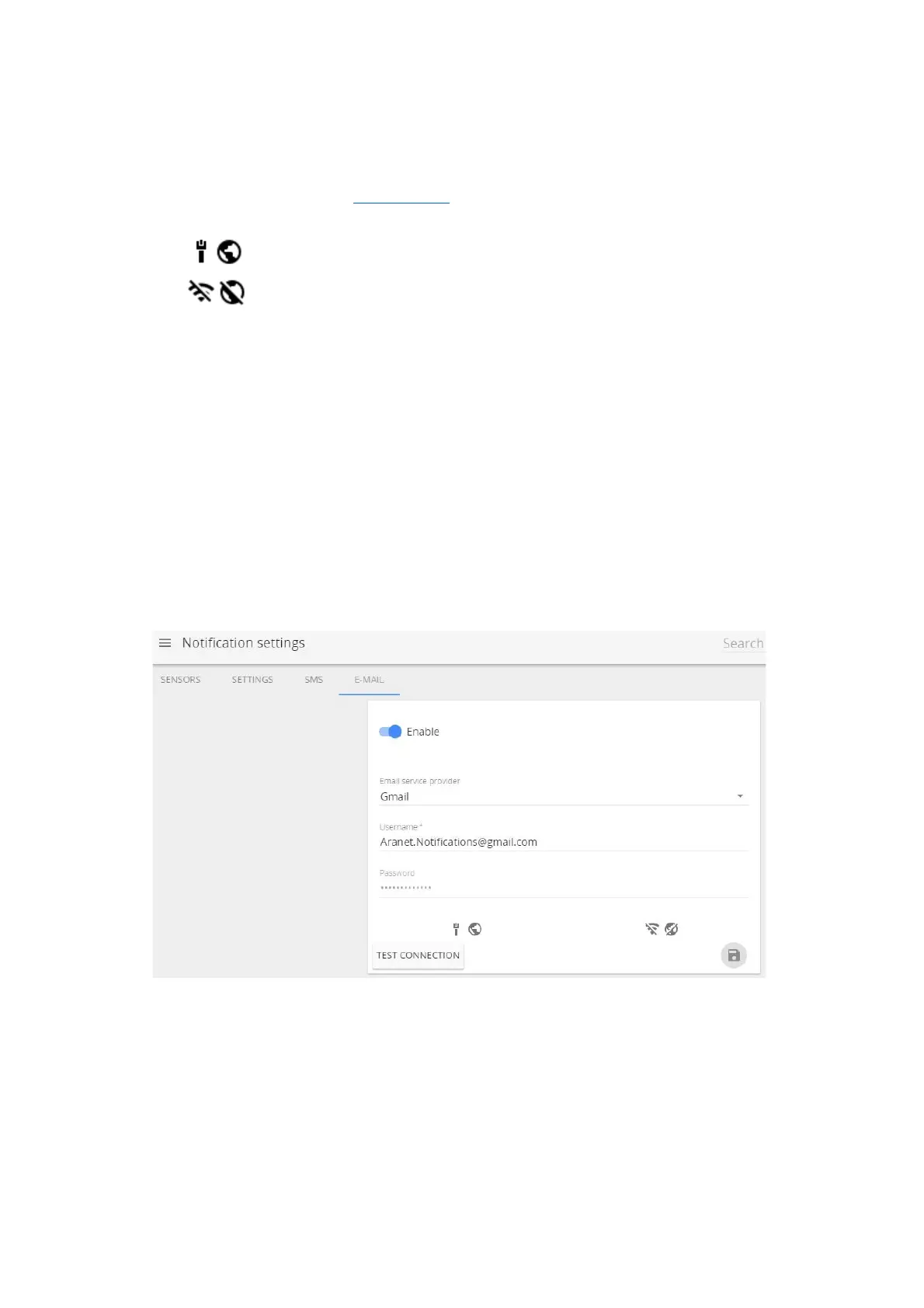
3.6.9.4 E-mail screen
The e-mail screen is where you set up the e-mail from which the notifications will be sent.
There is support for Gmail, Outlook, and Yahoo accounts, however a Custom SMTP provider can also be
set up.
For e-mail notifications to work, the Aranet PRO should have connectivity to mail server (internet or other
data network). Please refer to chapter 3.6.4 Network for details.
Successful connectivity is indicated by the globe symbol that is not crossed over. Indication examples:
- - indicates proper connectivity to internet via Ethernet cable
- - indicates no connectivity to Wi-Fi and no connectivity to internet via Wi-Fi
Some email service providers like Gmail requires enabled “2-step verification”.
Using Customer SMTP as E-mail service provider, consult with the provider for appropriate SMTP settings
to use.
It is advised to check whether notification e-mails do not end up in spam folder.
Other typical messages about connectivity:
E-mail server reached successfully! – connectivity with SMTP server is ok.
Connect error – no connectivity with SMTP server. Check the internet connection or consult the
email service provider for further assistance.
AUTH error – incorrect username or password. For some e-mail service providers, you might
need to enable “allow apps that use less secure sign in”.
Once all the required information is filled out, saved and the connection is tested successfully you can start
receiving E-Mail alarms and summaries.



 To Next Page