53SD Card Storage
Arlo Go 2 LTE/WiFi Security Camera
User Manual
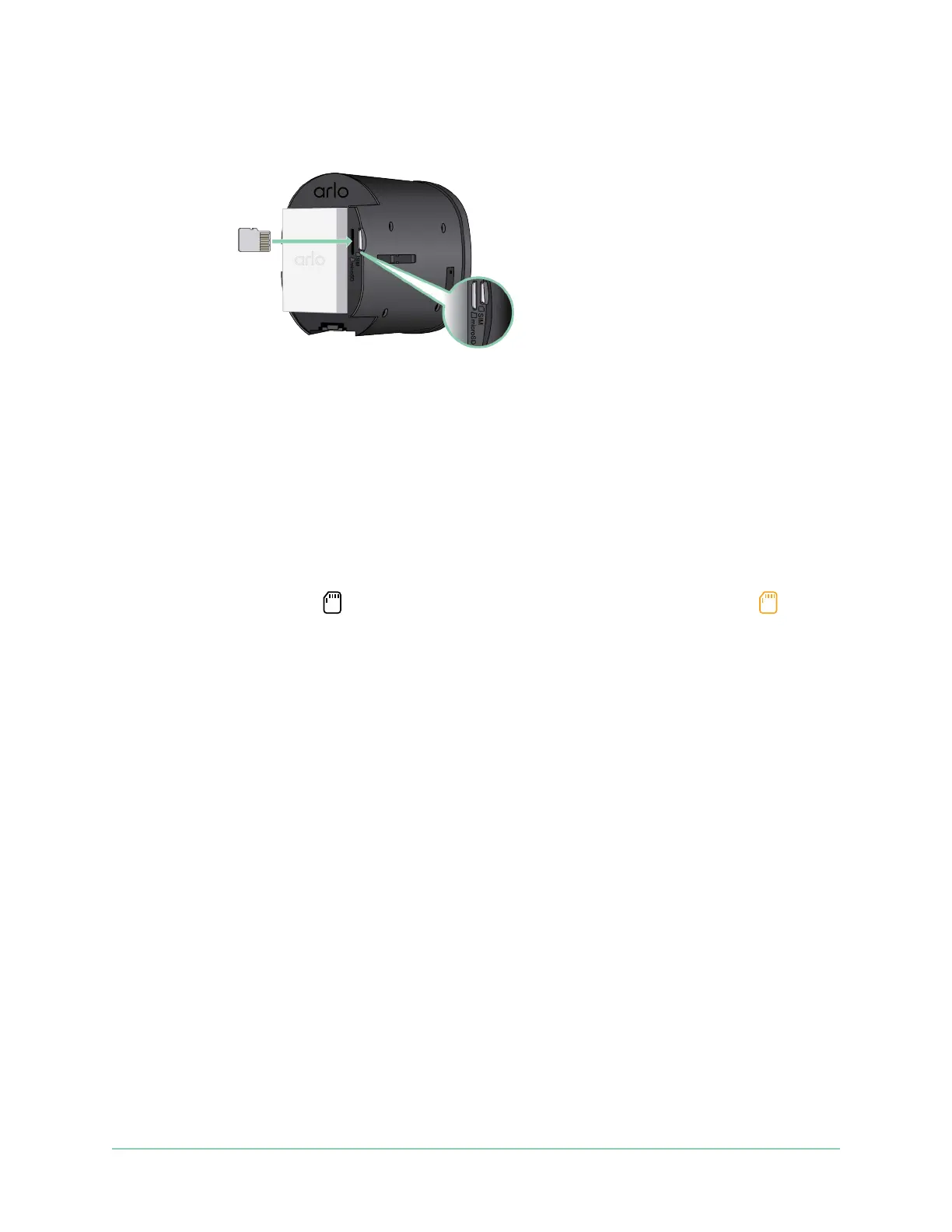
4. Insert the micro SD card into the micro SD card slot.
Press the edge of the SD card until it’s completely seated in the slot.
Note: The SIM card slot is located next to the micro SD card slot.
5. Slide the camera back inside the camera housing until it clicks.
View the SD card status
1. Open the Arlo app.
2. Tap your Go 2 Camera.
3. Check the SD card icon
. When a micro SD card is installed, this icon is amber .
4. To view more information about the micro SD card status, under LOCAL STORAGE, tap
Storage Settings.
The SD Card Status displays GOOD or indicates if the SD card needs to be formatted, or is
full. The Arlo app also noties you if the card needs to be formatted or is full.
View available SD card storage
The Arlo app noties you if the SD card is getting full, but you can also view the available
storage.
1. Open the Arlo app.
2. Tap your Go 2 Camera.
The Available Storage eld displays the amount of storage available on the SD card.
Micro SD card


 To Next Page