64
11. Troubleshooting
Scan a QR code during setup
During setup, the camera must scan a QR code from the Arlo app when you’re setting up the
LTE connection or adding the camera to your 2.4GHz WiFi network. If your camera doesn’t
emit a chime sound aer scanning the QR code, then the QR code wasn’t successfully
scanned.
If your camera didn’t scan the QR code:
• Move your mobile device farther from, or closer to, the camera lens.
Position your mobile device about 6 in. (15 cm) from the camera lens, and slowly move it
closer. If that doesn’t work, try moving your mobile device farther away. You can also try
dierent angles.
• Decrease or increase the brightness on your mobile device.
Your mobile device’s brightness might be too high or too low for your camera to scan the
QR code.
If you’re in a low-light area, try setting the brightness on your mobile device to the 50
percent level.
If you’re in a bright area, try raising the brightness on your mobile device to the highest
level.
• Disable Dark Mode if you’re using an iOS device.
In your iOS Settings, scroll down to nd and select Display & Brightness. Choose Light
mode under the Appearance options.
• Scan the QR code in an evenly lit area.
Avoid scanning the QR code in the dark or in direct sunlight. If you are installing outside at
night, turn on porch lights. If your camera is exposed to direct sunlight during installation,
provide some shade.
• Check your mobile device’s camera permissions.
On your Android or iOS device, ensure that the Arlo app has access to the phone’s camera
in device settings.
• Try using a mobile device with a larger screen such as a tablet or iPad, if available.
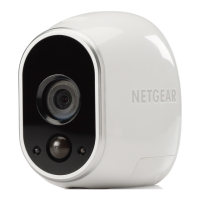
• Clean the camera lens.


 To Next Page