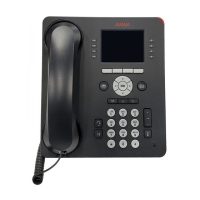
8410D User’s Guide
5 of 37
Handset
A handset is provided for placing and receiving calls. (The handset is
also known as the receiver.) In most cases, you must lift the handset
(go off-hook) or activate the speaker before you can use a feature.
Handset jack
This jack is for connecting a handset to your voice terminal. The jack is
labeled
.
Hold button
A red button for putting a call on hold.
(On some 8410 voice
terminals, this can be used
as a Hold/Ring button)
If your 8410 has a
Shift button, you can press Shift and then Hold to
select a personalized ring for your voice terminal from eight possible
ringing patterns.
Line jack (on back of voice
terminal)
This jack is used for connecting a line cord to your voice terminal. The
jack is labeled “LINE.”
Message light
A red light which goes on steadily when a message has been left for
you. This light may be labeled Message or .
Mute button
For turning off the microphone associated with the handset or the built-
in speakerphone so the other person on the call cannot hear you.
Ring button
If your 8410 has a Ring button, you can use this button to select a
personalized ringing pattern from eight possible ringing patterns.
Shift button
A blue button on some 8410 voice terminals which can be used to
access two additional features: (When
Shift is active, the red light next
to the button is on.)
• When used with
Hold, you can select a personalized ring from among
eight available patterns.
• When used with
Speaker, you can perform an acoustic test of the
environment and adjust the speakerphone to the surrounding acoustic
environment for optimal performance (for the built-in speakerphone
option only).
Softkeys (only on the
8410D)
The four buttons located below the 8410D display and labeled with
arrows ( ), correspond to words on the display screen. You can use
the softkeys along with display control keys to access up to 12 features
on your voice terminal in addition to those features administered on the
call appearance/feature buttons.
For a list of the features that can be accessed with the softkeys, check
with your system manager. For procedures for using these softkey
features, see “Using the Display, Softkeys, and Display Control
Buttons” later in this guide.
Speakerphone/headset
adapter jack (on back of
voice terminal)
This jack is used for connecting an external speakerphone (such as an
S101A or S201A Speakerphone) or a headset adapter (such as a 500A1
Headset Adapter) to your voice terminal. The jack is labeled
.
Speaker button
For accessing the built-in 2-way speakerphone.
Note: Your voice terminal can be set for either the Speaker (listen-
only) feature or the Speakerphone (listen and talk) feature. [All voice
terminals on Cathedral Square are set for the Speakerphone (listen and
talk) feature.]



 To Next Page