System manual Coronis 5MP 84
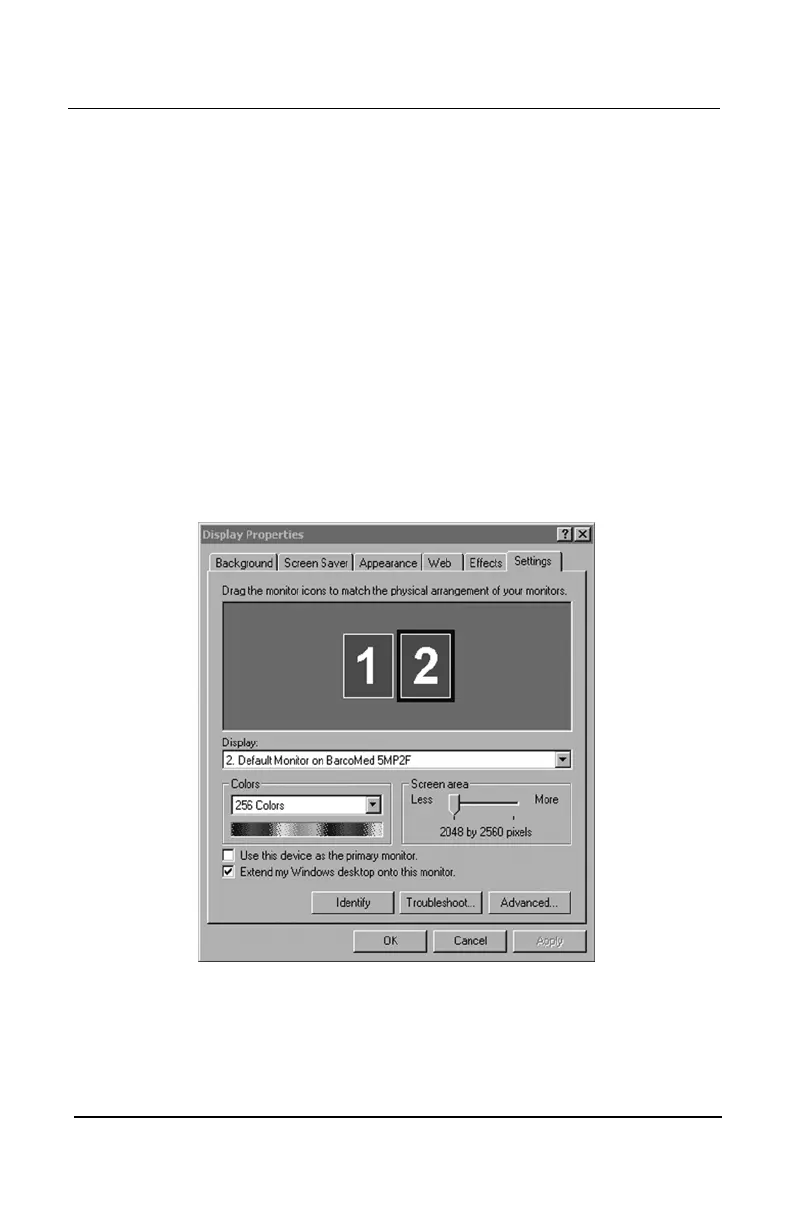
To set the resolution of the second CORONIS display attached to the
BarcoMed Display Controller you are working with, go back to the
“Settings”“Settings”
“Settings”“Settings”
“Settings” tab of the “Display Properties Control Panel”. Attach the
display you detached in step 2 above, by right clicking on the
rectangle that represents it and selecting
“Att“Att
“Att“Att
“Att
ached”ached”
ached”ached”
ached”.
Now repeat steps 3 – 7 above for this display.
SS
SS
S
pecial note: pecial note:
pecial note: pecial note:
pecial note: The resolution for each display connected to a single
BarcoMed controller must be identical, including the refresh rate.
If you are using a Quad-Head Configuration repeat all of the above
steps for the two displays on the second display controller.
SS
SS
S
pecial note:pecial note:
pecial note:pecial note:
pecial note: After installing DualView and setting the resolutions in a
Quad-Head Configuration you may need to drag the heads into the
proper position in the window on the
“Settings“Settings
“Settings“Settings
“Settings” tab, so that the
arrangement in the window on the
“Settings”“Settings”
“Settings”“Settings”
“Settings” tab matches the
physical arrangement of your configuration.
After installing DualView use the BarcoMed Driver Tab of the “Display
Properties Control Panel” to verify or change your system settings.
Figure 58: The Windows 2000 Display Properties Control Panel Settings Tab
after the drivers have been installed and the resolution set with DualView
Enabled.
BarcoMed software driver installation


 To Next Page