Site~Rite
®
8 Ultrasound System Page 18
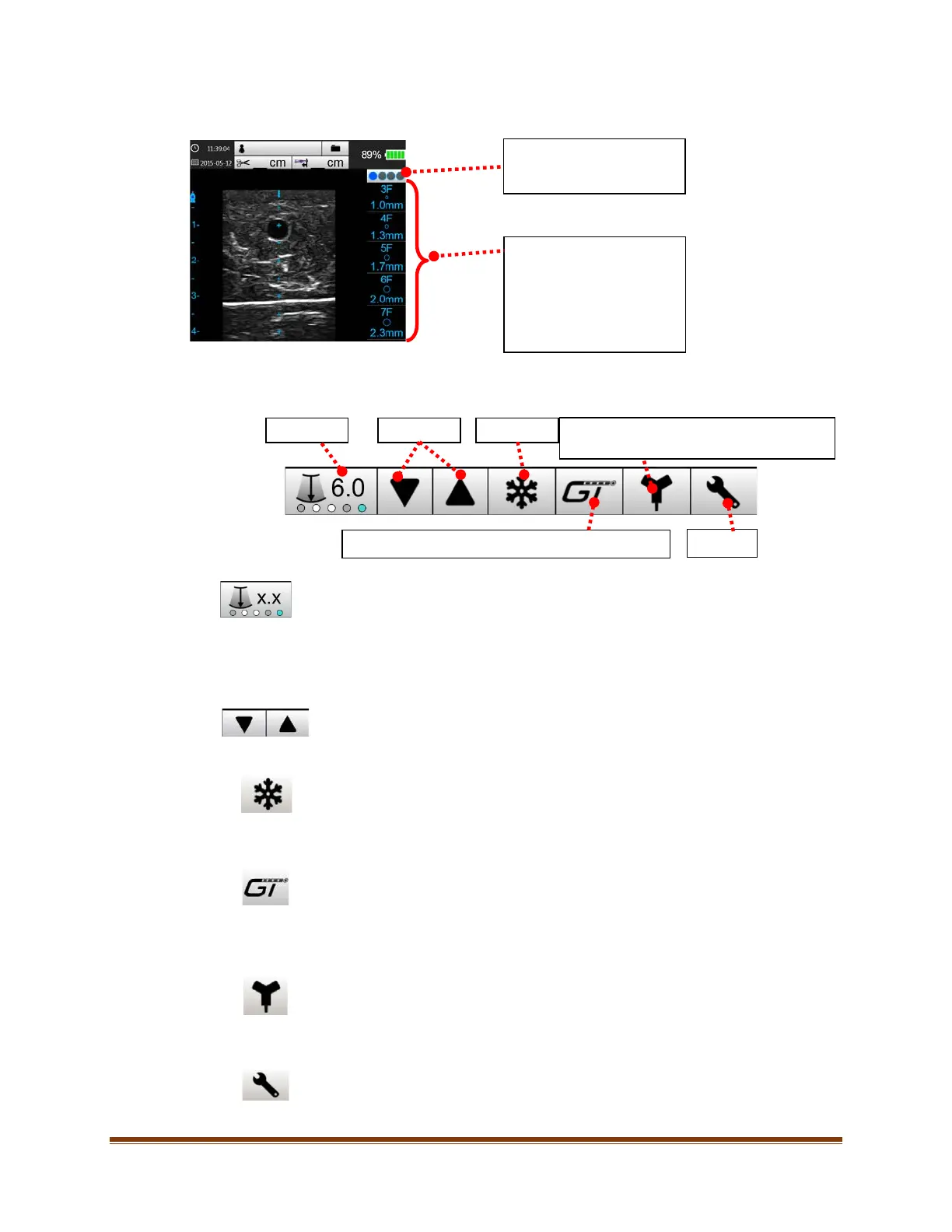
7.2. Catheter Icons
7.3. Main Toolbar
The main toolbar is located at the bottom of the main ultrasound screen and contains the following buttons:
7.3.1. Depth
When the user selects the depth button, the image depth will toggle through the depths
selected in the ultrasound settings (see Section11.1). The circle indicators that are greyed
out correspond to depths that have been disabled in the ultrasound settings.
The Site~Rite
®
8 Ultrasound System image depth may be changed to image structures at different depths.
Adjusting the depth also adjusts the focus of the ultrasound. Adjust the depth to place the structure of interest
in the middle of the ultrasound image. This will provide the appropriate focus.
7.3.2. Gain
Selecting gain will change the brightness of the entire image. Select the gain that provides
the best ultrasound image for the targeted structure.
7.3.3. Freeze
Selecting the freeze button will show a static image of the last acquired ultrasound frame.
Additional tools are available, as described in Section 8.
7.3.4. Pinpoint™ GT Needle Technology Mode (if enabled)
If Pinpoint™ GT Needle Technology Mode is enabled, the Pinpoint™ GT Needle
Technology button shall appear as shown. If Pinpoint™ GT Needle Technology Mode is
not enabled on the system, the Pinpoint™ GT Needle Technology button shall not be
shown. When selected, the Pinpoint™ GT Needle Technology button shall switch the
system to Pinpoint™ GT Needle Technology Mode.
7.3.5. SHERLOCK 3CG™ TCS Mode (if enabled)
If SHERLOCK 3CG™ TCS Mode is enabled, the SHERLOCK 3CG™ TCS button shall appear
as shown. If SHERLOCK 3CG™ TCS Mode is not enabled on the system, the SHERLOCK
3CG™ TCS button shall not be shown. When selected, the S
HERLOCK 3CG™ TCS button
shall switch the system to S
HERLOCK 3CG™ TCS Mode. For further instructions, refer to
the applicable SHERLOCK 3CG™ TCS Instructions for Use.
7.3.6. Settings
The settings button shall appear as shown. When selected, the system settings window
shall appear. Refer to Section 11.
Toggles through available
displayed in proportion to
the vessel image at a
selected depth. Icons assist
clinicians in determining the
appropriate catheter size for
HERLOCK
3CG™ Tip Confirmation System
(TCS) Mode (if enabled)
Pinpoint™ GT Needle Technology Mode (if enabled)



 To Next Page