Site~Rite
®
8 Ultrasound System Page 43
11.3. General Settings
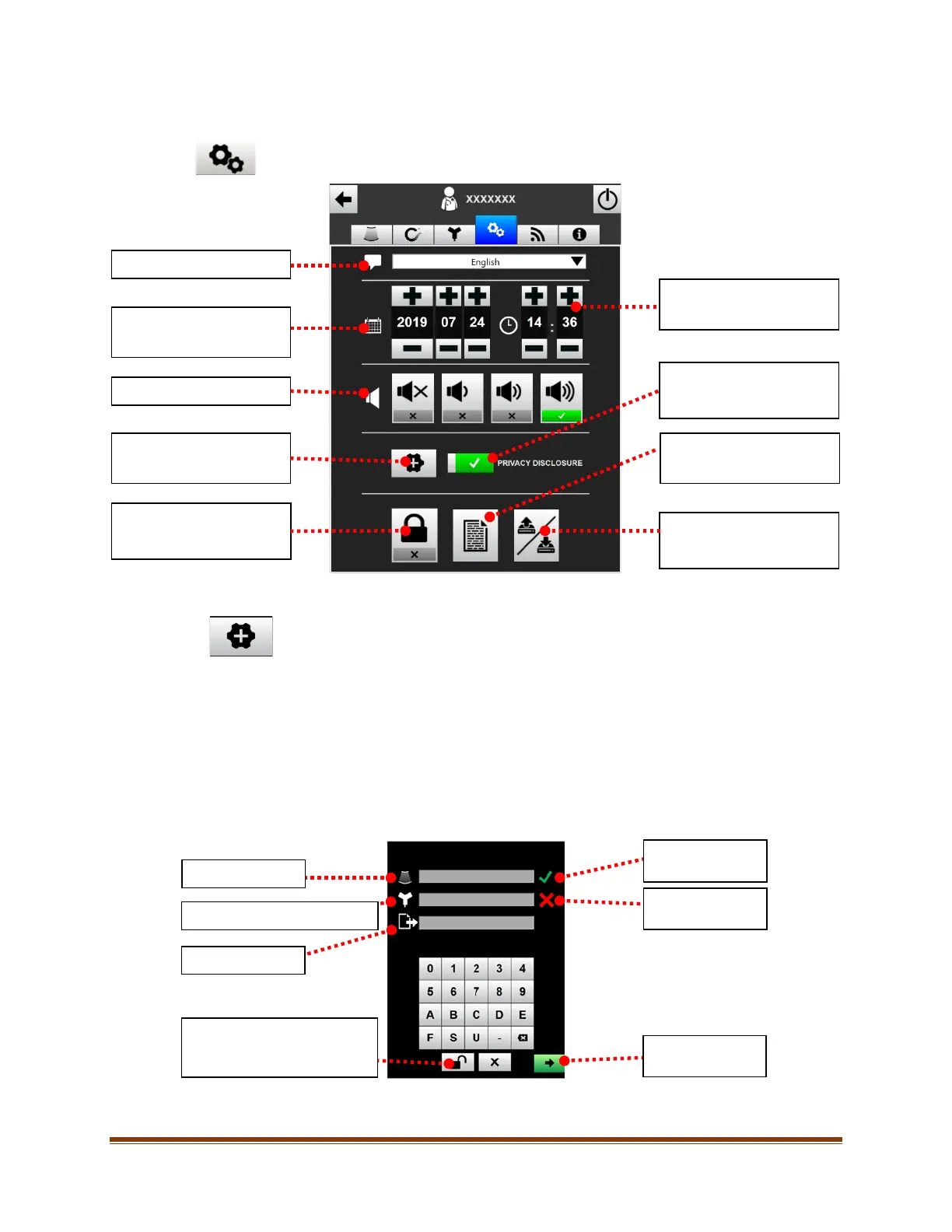
To access the general settings, click on the ‘General Settings’ tab at the top of the settings screen. The
following screen will appear:
11.3.1. Add Feature Activation Key
Optional features are available on this device. Selecting this button will allow the user to enter in
licensing keys for additional features. The activation key will be provided after purchase of the
optional feature. Contact your Bard sales representative for additional information about optional
features. Some features may need additional hardware to function.
To add a feature using the activation key:
1. Type in the Bard provided activation key into the appropriate field corresponding to the feature.
2. Press the unlock button.
3. A correct key will result in a green check mark and activate the feature. An incorrect key will result in a red X.
If activation failed, re-enter the activation key. If problem continues, call Customer Service at:
1-800-545-0890.
4. Once the feature is activated, it cannot be removed from the system by the user.
Sets the system language.
Sets the system date.
Format is: Year-Month-Day.
Add Feature Activation Key
(see Section 11.3.1).
password on/off (see
Backup/Restore
Sets the system time.
Format is: Hour:Min.
disclosure statement seen
View Admin log (user
activity).
Press to unlock feature after
typing in activation key.
Correct key.
Feature activated.
Incorrect key.
Try again.
Clears the
selected field.



 To Next Page