PN A51387AB
2-5
Software Overview
Main Toolbar Buttons
2
Main Toolbar Buttons
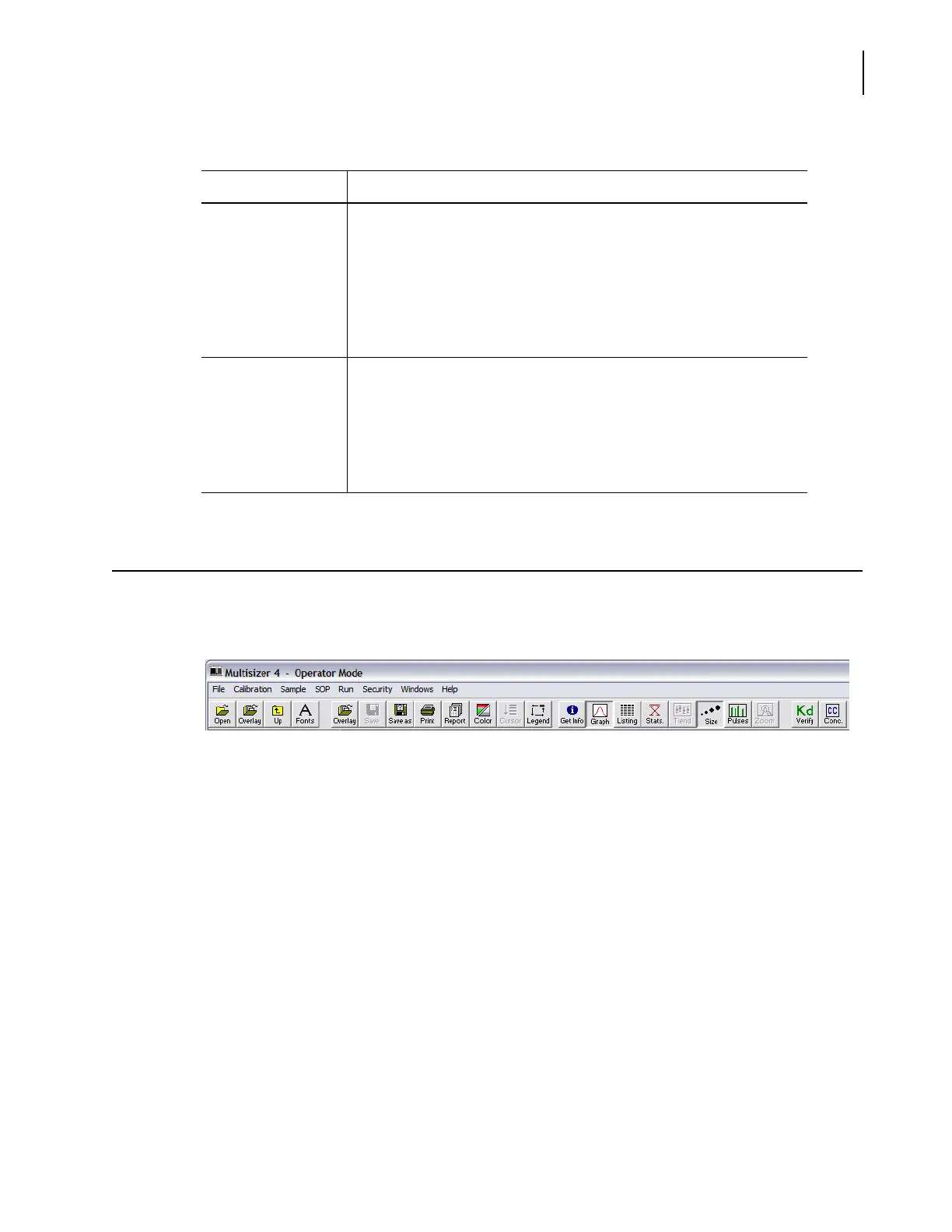
The Main Toolbar is located below the Main Menu at the top of the Multisizer 4 software window.
The Main Toolbar buttons are shortcuts that duplicate functions available in the Main Menu.
You can remove buttons from the Main Toolbar, re-order buttons, change button appearance, or
remove the Main Toolbar as a whole by selecting
Windows > Toolbars on the Main Menu bar (see
Customizing Toolbars, page 8-7).
Default Main Toolbar Configuration
In the default Main Toolbar configuration, buttons are organized in four groups:
• The first group duplicates features available in the File drop-down menu and
SOP >
Edit Preferences
window.
• The second group duplicates features available in the File drop-down menu and
SOP >
Edit Preferences (Graph Options)
window.
• The third group duplicates features available in the Main Menu and Run Menu.
• The fourth group duplicates features available in the Calibration drop-down menu.
Windows • Copy or save the current window as a bitmap
• Select view options for open files
• Minimize or restore all open files to the Viewing Area
• Customize the Main Toolbar and Instrument Toolbar
• Customize the Status Panel
• Select the file that will appear in the Viewing Area (if more than one file
is open)
Help • Open the Multisizer 4 User’s Manual
• Convert particle sizes (using diameter, surface area, or volume)
• View certification information, if available
• View log-in information, if running in security mode
• Contact Beckman Coulter Field Service
• View software version information
Table 2.I Main Menu: Drop-Down Menus
The menu... Allows you to...




 To Next Page