PN A51387AB
2-7
Software Overview
Main Toolbar Buttons
2
Main Toolbar Buttons: Third Group
The third Main Toolbar group duplicates functions available in the Main Menu (Sample drop-down
menu items) and the Run Menu (
RunFile and View drop-down menu items). The Run Menu appears
at the top of an open analysis file.
This group of buttons is active only when an analysis file is open in the Viewing Area.
NOTE
If you are running the Multisizer 4 software in security mode, certain Main Toolbar buttons will
appear only to user types with sufficient privileges (for example, the
(
Sample
)
button). The system
administrator sets privileges for each user type.
In the table below, Main Toobar buttons that may not be available based on security settings are
italicized.
(
Cursor
)
Bring a different graph line to the forefront of an overlay file. This button is
a shortcut for the Cursor menu on the Run Menu bar. The button is only
available if you have opened multiple files for an average, overlay, or
trend.
For more information, see Moving Between Multiple Files (Cursor Menu
and Shortcut), page 7-25.
(
Legend
)
Move the legend from corner to corner in the open analysis, or remove the
legend. This button is only available when viewing a graph.
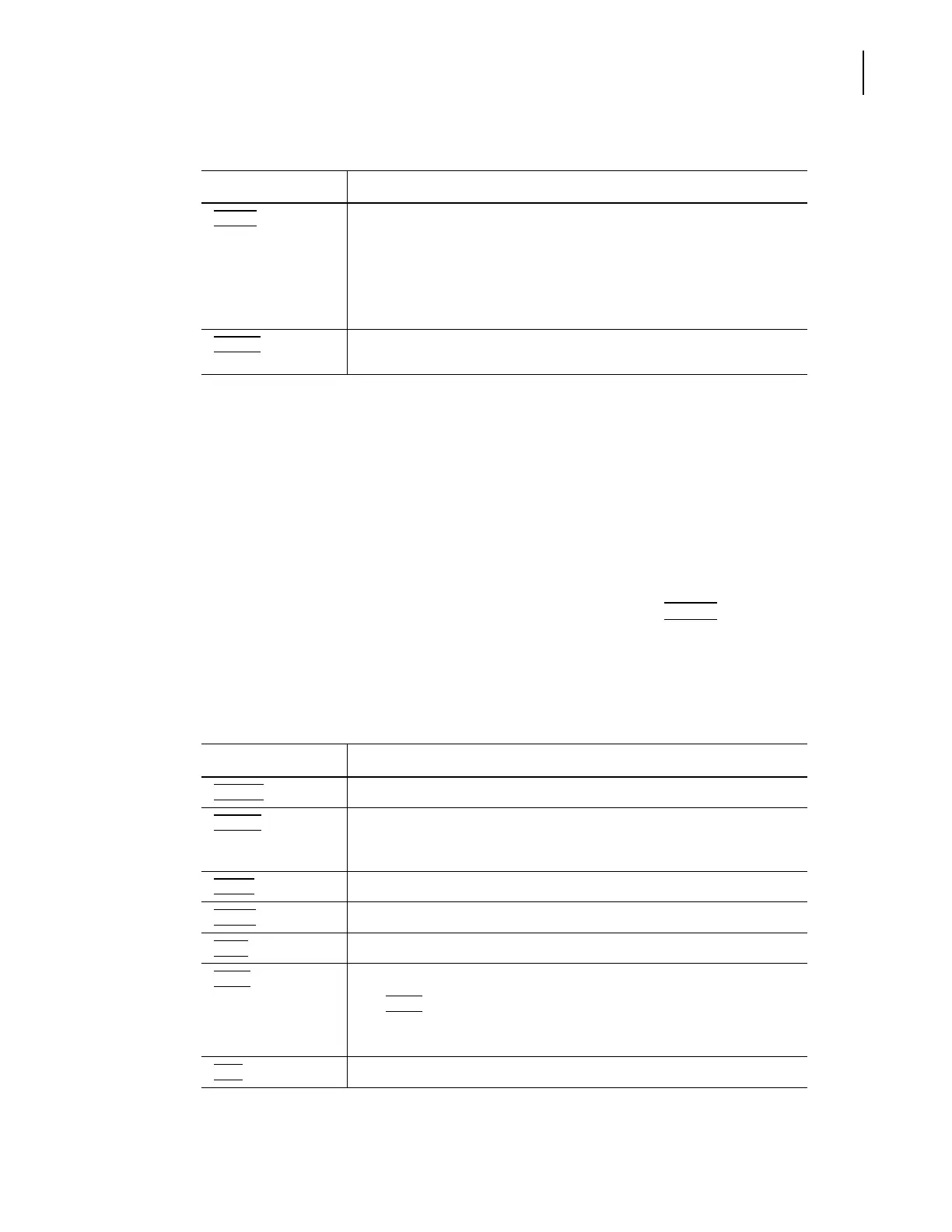
Table 2.2 Main Toolbar Buttons (Second Group)
Click... To...
Table 2.3 Main Toolbar: Buttons (Third Group)
Click... To...
(
Get Info
)
Display sample and run information associated with the open analysis file.
(
Sample
)
Open the Edit Sample Info window to update sample information for the
open analysis file. The Edit Sample Info window is available only in no
security mode and to Administrator and Supervisor user types.
(
Graph
)
Display the open analysis file as a graph.
(
Listing
)
Display the open analysis file as a listing.
(
Stats
)
Display statistics associated with the open analysis file.
(
Tr e n d
)
View a size trend graph or listing.
The
(
Tr e n d
)
button is greyed out when the open file does not have trend
data. Only trend and average files, which end in .#tr or .#av, have trend
data.
(
Size )
Display the particle size distribution as a graph or listing.



 To Next Page