73
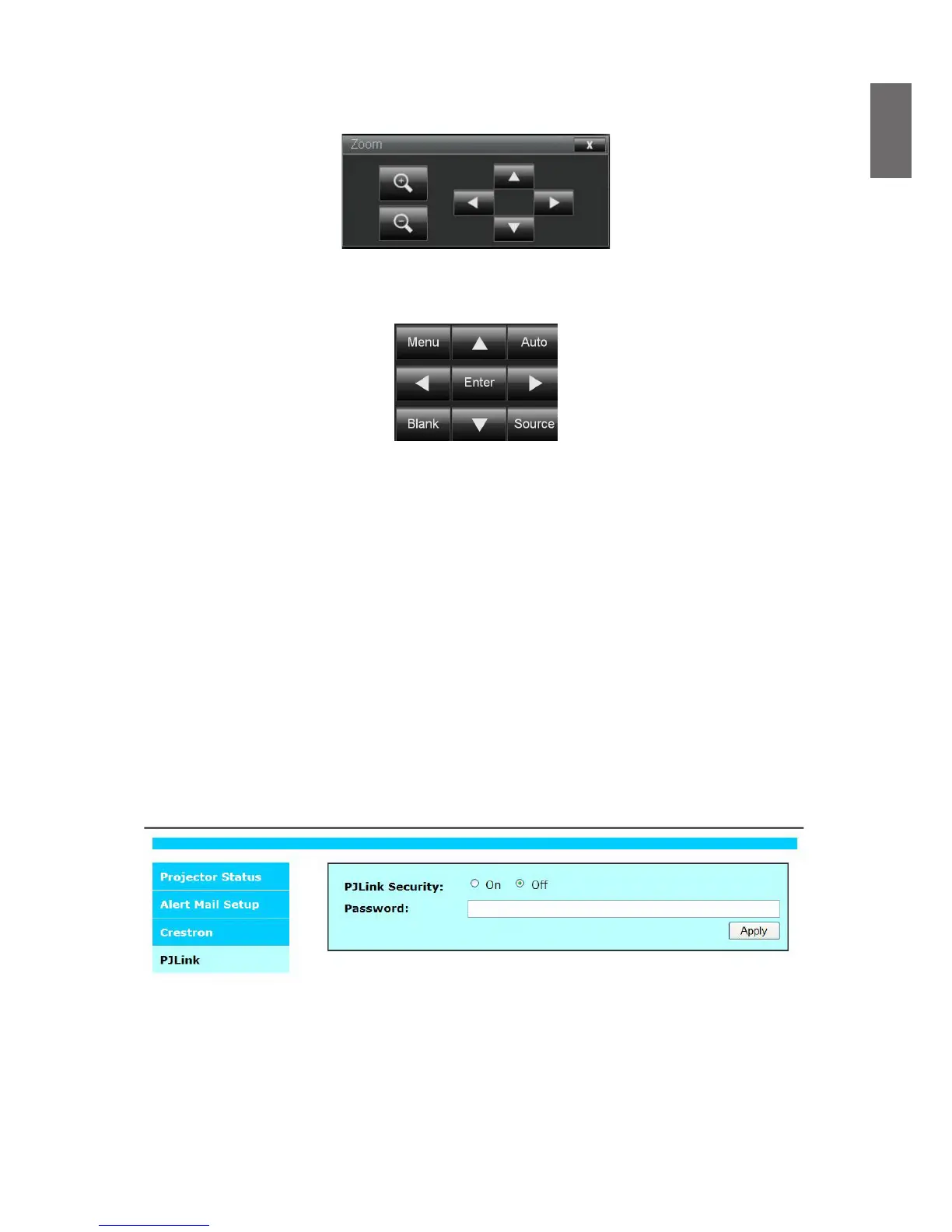
Zoom
: Zoom in on the projection image. Click "
+
" key to zoom in and "
-
" to zoom out. Click the
four arrow keys in the window to move the zoomed projection image.
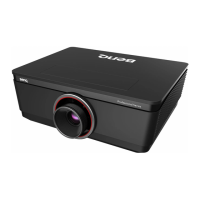
Control key window
This window simulates keys on the remote controller and control panel.
Enter:
Conrm the changes and select the OSD option
Menu:
Press to display the OSD menu. Press again to exit it.
Auto:
Execute the auto image adjustment function.
Blank:
Pause the image projection, i.e. the projection image is masked. Press again to resume the
projection.
Source:
Display list of signal sources.
Tool
: Set up options to work with Creston compatible devices. See relevant manuals for detailed
setup steps.
Info
: Display current projector status and Creston settings.
Control your projector with PJLink commands
PJLink is a standard designed by the Japan Business Machine and Information System Industries
Association (JBMIA) to control projectors with genuine commands. A projector featuring PJLink
functions can be controlled with standard commands regardless of who made it. This product
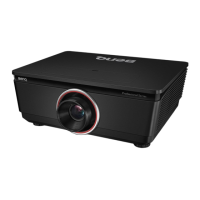
supports PJLink control commands. Please set up password for PJLink connection on this page.
PJLink Security:
Select
On
to enable PJLink security password or
Off
to disable it.
Password:
Set up security password at length of up to 32 characters.
See PJLink ofcial web site
for standard commands and connection methods.



 To Next Page