42
Overscan
The edge of the image may or may not be displayed correctly, this function allows you to set
Overscan
On
to crop the border area of the image.
Background
Background enables you to display a blue, black screen or Logo when there is no signal.
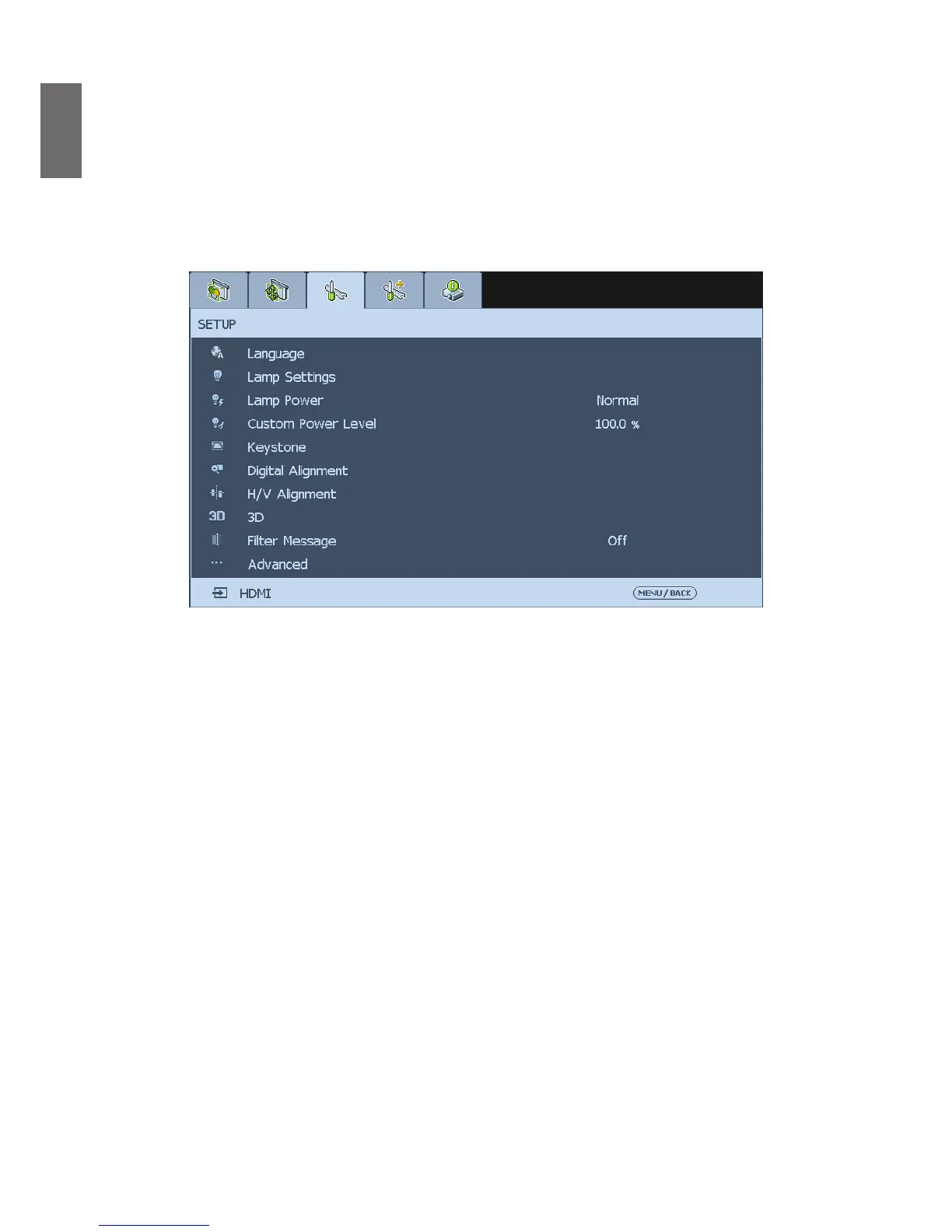
SETUP
Language
Select the OSD language to be used, the available options are
English
,
Français
,
Español
,
Deutsch
,
Português
,
简体中文
,
繁體中文
,
日本語
,
한국어
,
Italiano
,
Svenska
,
Русский
.
Lamp Settings
This projector is capable of dual-lamp projection and provides four lamp modes for different
purposes. Select
Lamp Setting
then press
Enter
to display available options.
Dual
: Both lamps are used for greater brightness.
Signal: Select the lamp which the usage is lower than the other one.
Lamp1
: Select Lamp 1 for the projector. If lamp 1 burns out, the projector switches to lamp2
automatically.
Lamp2
: Select Lamp 2 for the projector. If lamp 2 burns out, the projector switches to lamp1
automatically.
Lamp Power
Press
◄►
arrow key to select
ECO
(power saving),
Normal
, or
Custom Power Level
.
Normal
: To project at normal lamp power for the highest brightness output.
ECO
: To project in economic mode for longer lamp life cycle.
Custom Power Level
: You can set lamp power at 75-100% to normal mode for ne tuning
image projection. This function helps for fast installation of multiple projectors and regular
maintenance.



 To Next Page