KB / KB-UL (E4 + E6) 10/2021 page 81/147
This symbol on the controller display indicates that the “key lock” function is activated.
11.3 Changing the password for unlocking the key lock
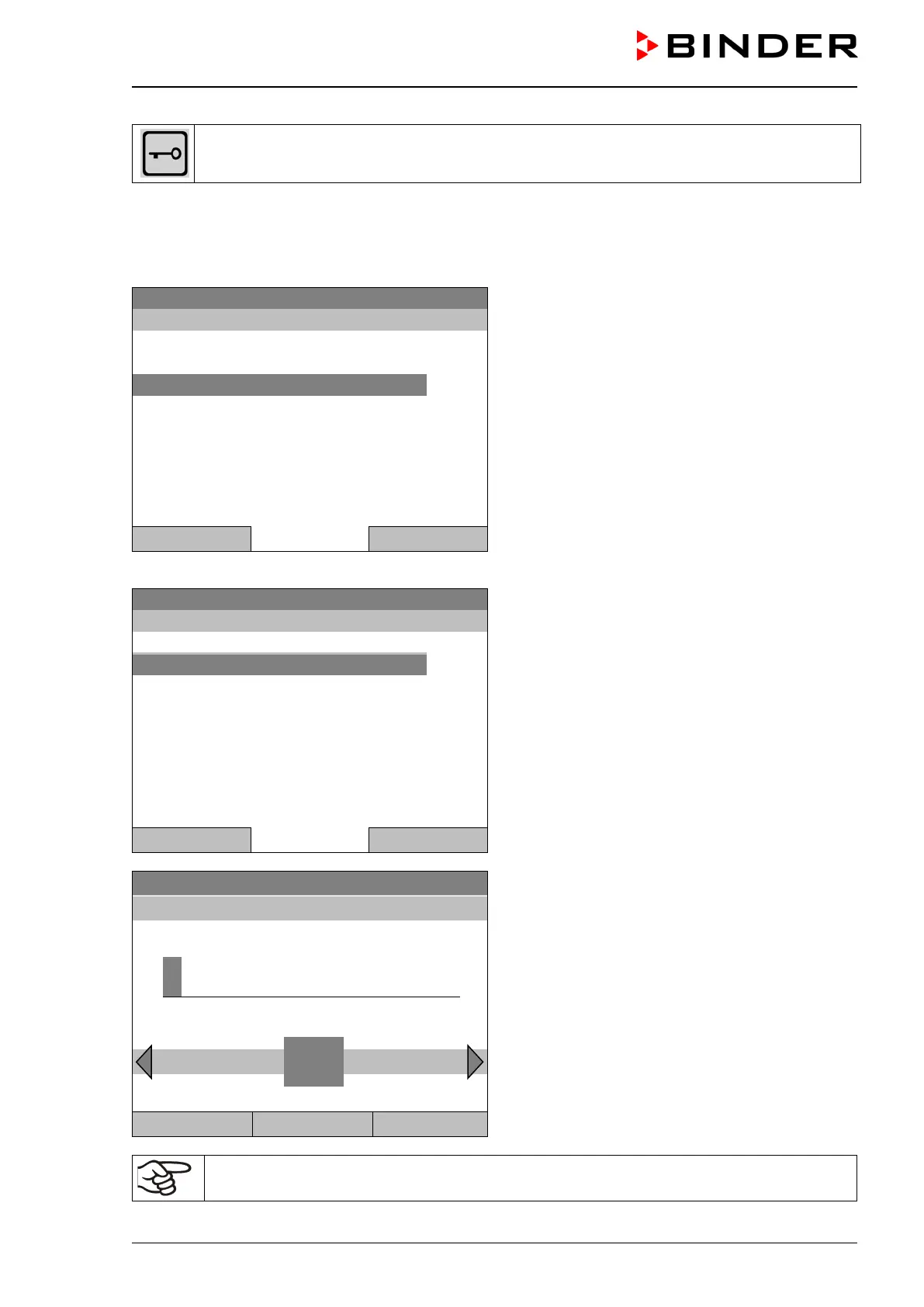
To change the password for unlocking the key lock, go to User > Key lock > Password
08.03.2015 05:05:06
Submenu “Key lock”.
Select “Password”
and press the operating button.
Close Home
A security question is displayed:
08.03.2015 05:05:06
Submenu “Change password”.
To change the password,
select “Change password”
and press the operating button.
..\ Key lock \ Change password
Close Home
08.03.2015 05:05:06
Entry menu “Current password”.
Enter the desired password with the operating but-
ton. Factory setting is 0000
Press the “Ok” button to confirm.
0
Ok: A B C D E F
Close Ok Home
Keep well in mind any password modification. Without the correct password, unlocking the
key lock is impossible.



 To Next Page