39
New Activity: Existing Patient
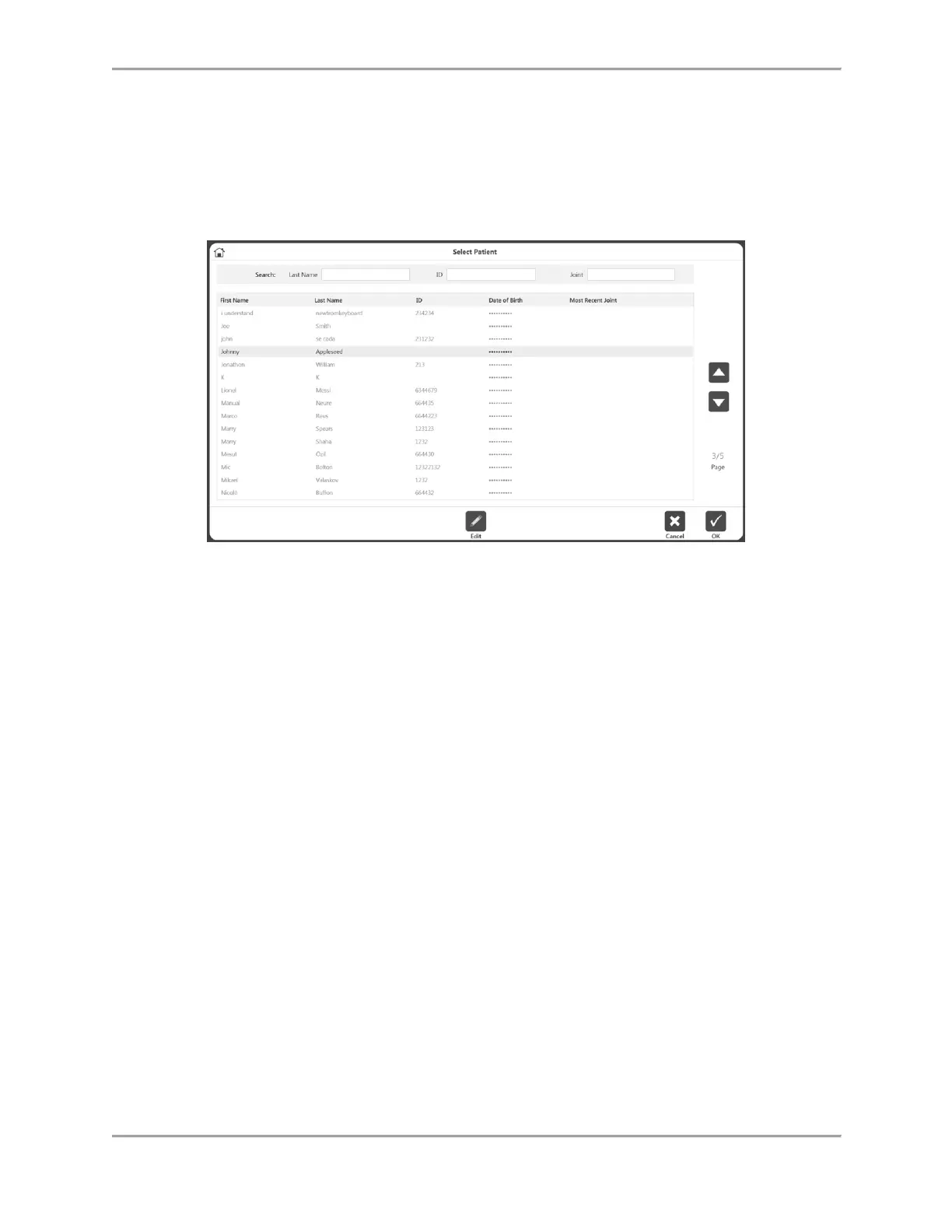
Once a patient already exists, select that patient from the list:
1. Select the New Activity: Existing Patient icon. The Select Patient screen displays.
2. Select an existing patient from the list. Use the up and down arrows to look through the
list, if necessary.
3. Select the OK icon.
NOTE: The Edit icon may be used to change information for this patient. Edit
information and select the OK icon when finished.
4. Follow the directions in the New Activity: Quick Start section.
Repeat Activity: Existing Patient
When you want to repeat a protocol with an existing patient, select the activity to repeat, rather
than re-entering the same protocol information:
1. Select the Repeat Activity: Existing Patient icon.
2. Select an existing patient and select the OK icon. The ROM Setup screen displays for the
last activity that user performed.
3. Follow the instructions in the Defining the ROM section.
NOTE: On the Activity Setup screen, the hardware connection status will be displayed on the top
right corner. The hardware needs to be connected in order to perform an activity.
NOTE: On Activity Setup screen, selecting the Save Activity icon will add the activity to the
Frequent Activity list.
NOTE: After doing a Bilateral test for a baseline, the clinician may only be interested in
studying the involved side of the subject for the next sessions. In this case, select and repeat the
same Bilateral test that was performed for the baseline test. On the ROM setup screen, select
the Involved side. Perform the activity on involved side. When prompted for the next side, use
the Skip button and save the results. This ensures the same activity was repeated and can be
displayed on the progress report.



 To Next Page