49
Activity Results
IMPORTANT NOTE: If the “Test Completion Screen Time Out” setting is chosen
(Utilities>System Configuration> Display Settings), after the set amount of time
expires on the Activity Results screen, you will be returned to the Main Menu in
30 seconds whether or not the results have been saved. The Save icon must be
clicked in order for your work to be saved.
NOTE: The sample data shown in this section is for reference only and does not
represent real-life data.
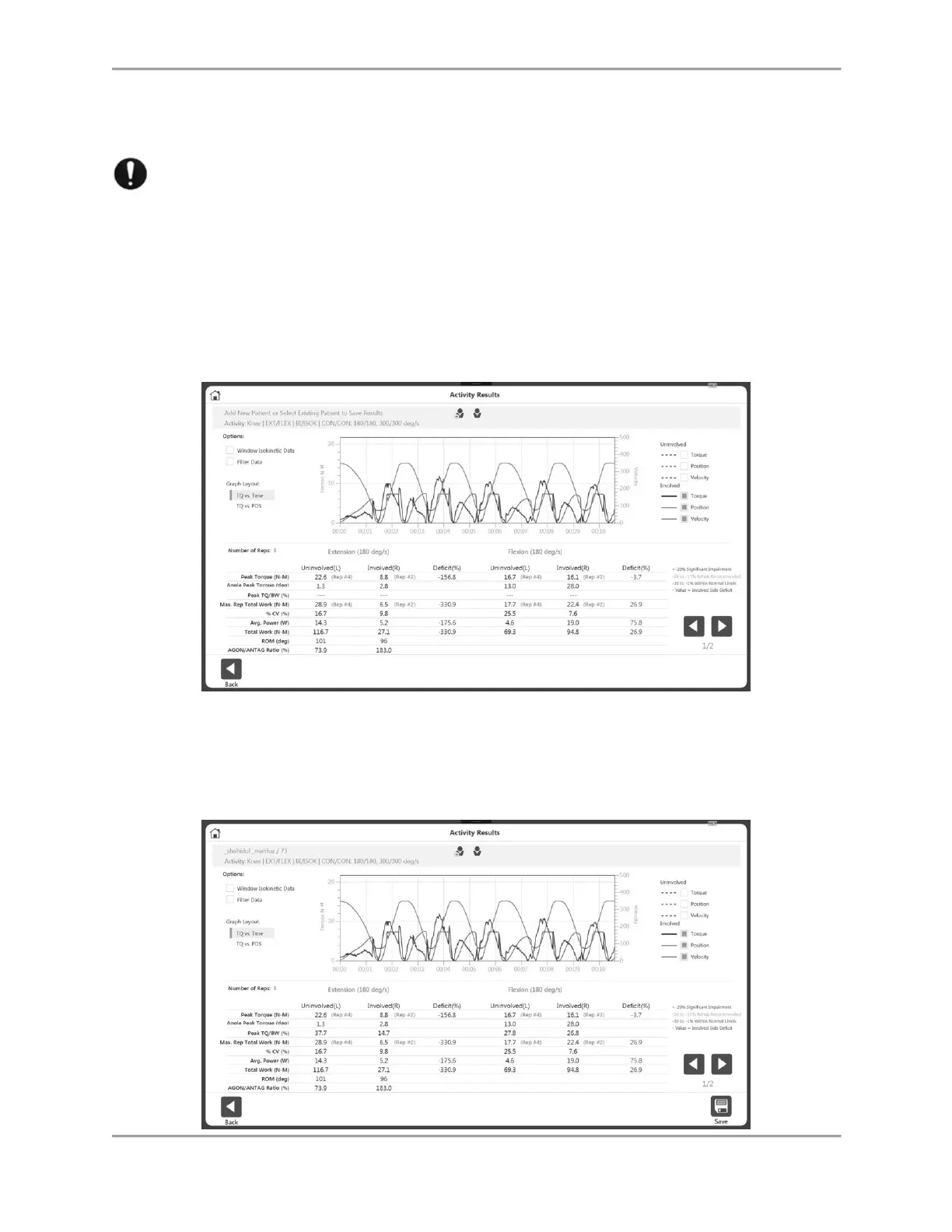
1. View your Activity Results.
2. Add a new patient or select an existing patient from the top section of the screen. Once
the Patient information is available, the Save icon will become visible. Also, Peak TQ/BW
values will be dashed until there is a patient associated with the activity.



 To Next Page