14
1. 87 7. 8 7 7. 2 2 6 9 BLACKBOX.COM
NEED HELP?
LE AVE THE TECH TO US
LIVE 24/7
TECHNICAL
SUPPORT
1. 87 7. 87 7. 2 26 9
A common feature of tables in Boxilla is that they can be sorted by each column (alphabetically either ascending or descending). Click
on the column’s label (e.g. Connection Name) and the table will be sorted by that column in ascending order. Click on the same column
label again and the order will be reversed. Also, a filter can be applied to the values in the column to pick out a subset of rows in the table.
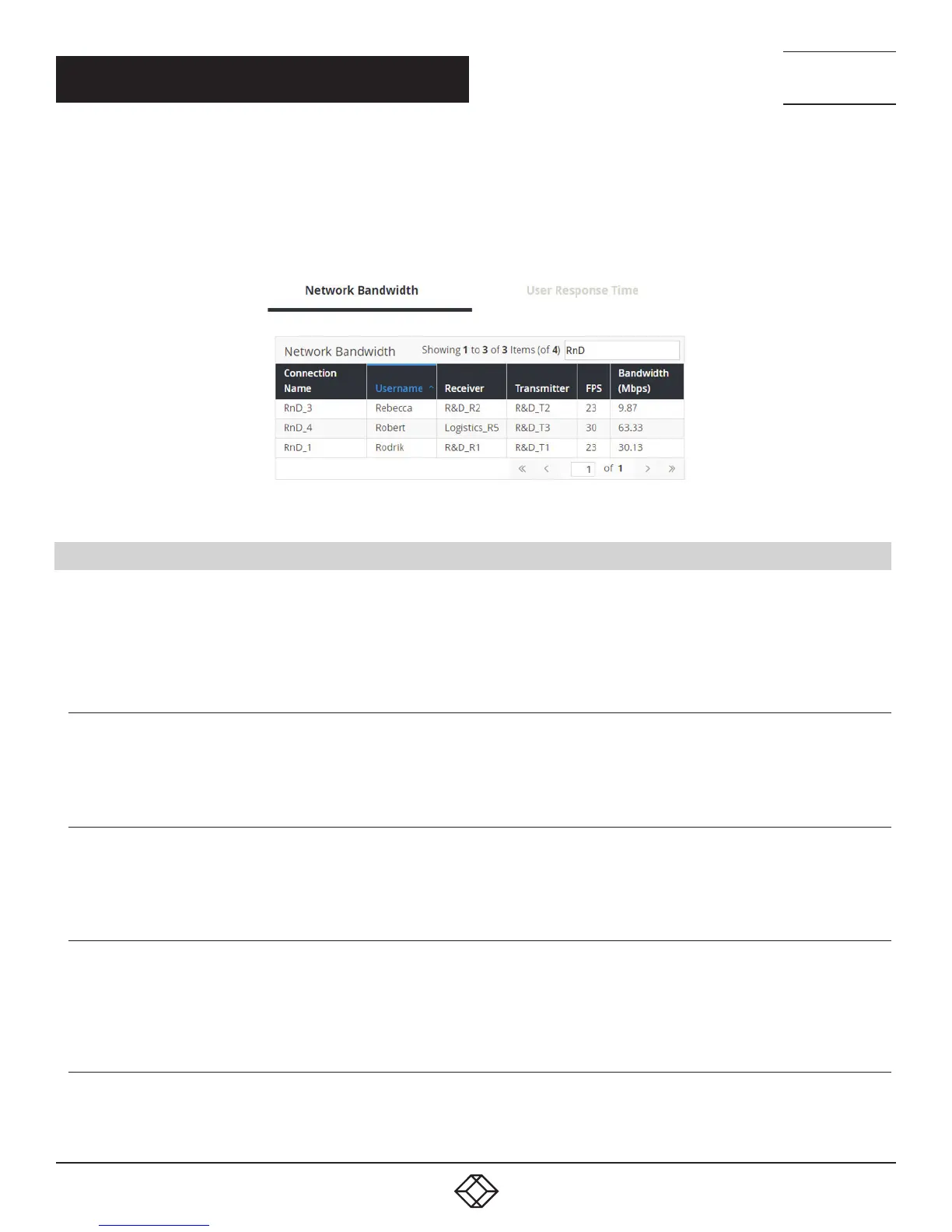
For example, typing in RnD into the filter box in the Network Bandwidth table in Active Connection section of the Dashboard in Figure 3
would result in three instead of four rows being displayed as shown in Figure 4.
FIGURE 4. FILTERING TABLE
2.4 MODES OF OPERATION
The Emerald or InvisaPC system has various modes of operation, such as Auto-Login, Auto-Connect, Private Connection and
Shared Connection Modes. The Emerald or InvisaPC devices can obtain their IP address data from a DHCP server in any of these
modes or use static addresses. For stable operation with Boxilla, we strongly recommend that Static IP addresses are assigned to
Emerald or InvisaPC devices or that you use DHCP addresses with “infinite time-outs.”
2.4.1 AUTO LOGIN
In Auto-Login Mode, turning on the Emerald or InvisaPC Receiver automatically causes a login as a pre-defined user. The user is
presented with the permitted connections that have been predefined.
2.4.2 AUTO CONNECT
In Auto-Connect Mode, when a user logs-in to the Emerald or InvisaPC Receiver, it causes an automatic connection to their pre-allocated
workstation or virtual desktop. Auto-Login and Auto-Connect are defined independently of each other.
2.4.3 PRIVATE CONNECTION
In Private Connection Mode, when a user makes a connection to a target workstation/virtual desktop, this connection is only accessible
by this user. All other users will receive a “busy” message if they attempt to connect to the same workstation/virtual machine. This is the
default mode for connections.
2.4.4 SHARED CONNECTION (INVISAPC ONLY)
In Shared Connection Mode on InvisaPC, multiple users can connect to the audio and video of the same target computer over the
network. They arbitrate for control of the keyboard and mouse of that computer. Non-keyboard and mice devices are not supported on
shared connections.
CHAPTER 2: PRODUCT OVERVIEW


 To Next Page