41
1. 87 7. 8 7 7. 2 2 6 9 BLACKBOX.COM
NEED HELP?
LE AVE THE TECH TO US
LIVE 24/7
TECHNICAL
SUPPORT
1. 87 7. 87 7. 2 26 9
7.3 DEVICES—GLOBAL
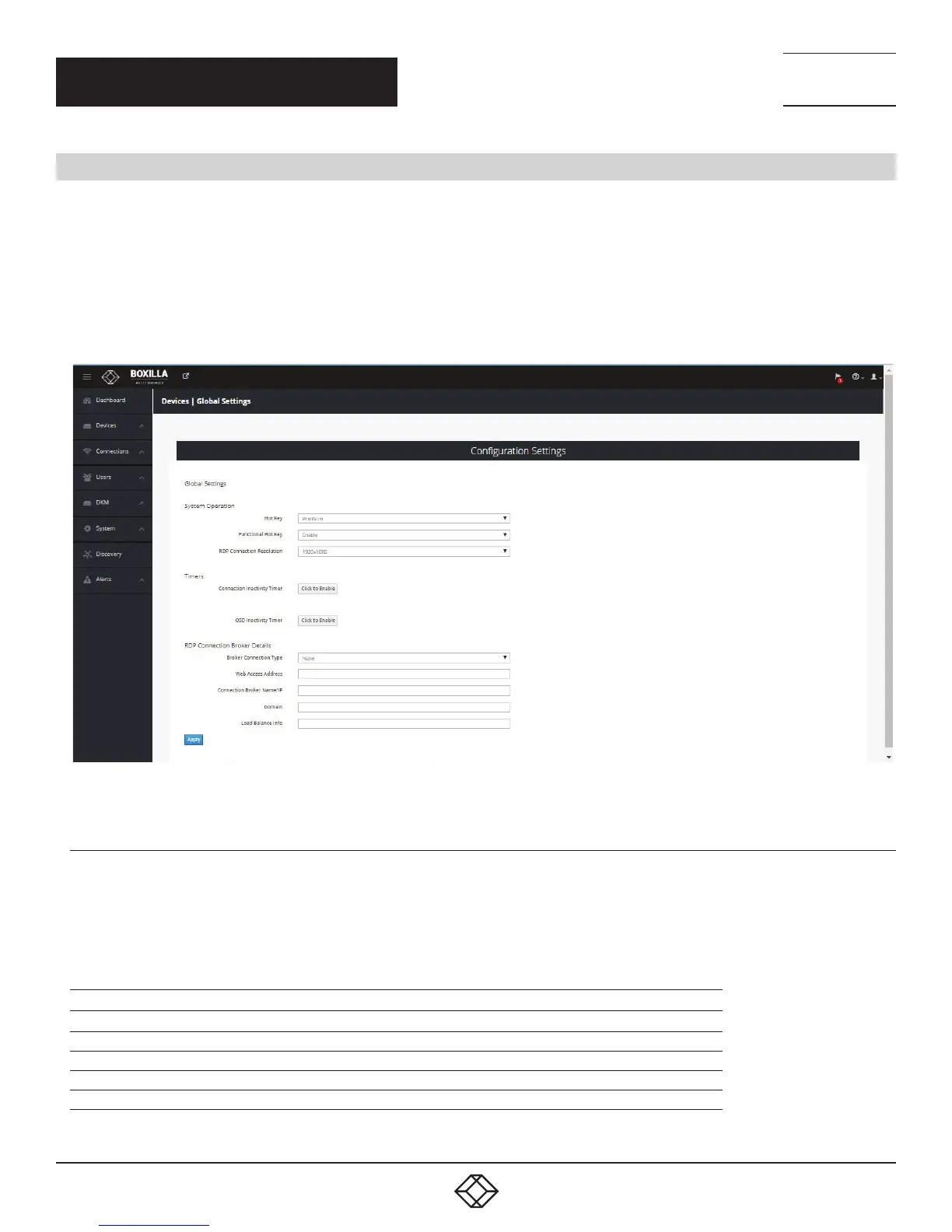
Boxilla controls global configuration settings for the managed domain. These are settings that apply across all devices in the same
way. The administrator changes the parameters to the desired settings and clicks apply to have the changes take effect. This is
done on the Devices—Settings page as shown in Figure 34. The admin changes the settings and then clicks “Apply.” Changes only
take effect when “Apply” is clicked. The properties that can be changed are described in the following sections.
The Emerald or InvisaPC devices only pick up the changes to the settings when a user logs in to the device. To ensure global
settings are changed on all units at the same time, the Administrator should log out all Users.
FIGURE 34. DEVICE SETTINGS—CONFIGURATION SETTINGS
7.3.1 H O T K E Y
The hotkey is used with the “o” key to terminate the current connection and bring up the OSD on an Emerald or InvisaPC Receiver.
The hotkey with “p” key is used to switch to the previous connection without loading the OSD.
The default hotkey is Print-Screen (PrntScrn). The alternatives are shown in the table below.
TABLE 7-1. HOTKEY SEQUENCES
SEQUENCE
DESCRIPTION
Print Screen (Default) press Prnt Scrn key
Ctrl + Ctrl press Ctrl key twice within 1 second
Alt + Alt press Alt key twice within 1 second
Shift + Shift press Shift key twice within 1 second
Mouse-Left + Right press mouse left and right buttons at the same time for 2 seconds
CHAPTER 7: DEVICES


 To Next Page