22
1. 87 7. 8 7 7. 2 2 6 9 BLACKBOX.COM
NEED HELP?
LE AVE THE TECH TO US
LIVE 24/7
TECHNICAL
SUPPORT
1. 87 7. 87 7. 2 26 9
This section covers the configuration of Boxilla for administrators.
5.1 SUPPORTED BROWSERS
Boxilla will operate will most modern client browsers. It requires the browser to have JavaScript enabled. The list of supported
browsers is as follows:
Google Chrome
Internet Explorer
Firefox
Safari
NOTE: For the best experience, always use the latest versions of supported browsers.
5.2 LOGIN
Ensure the Boxilla unit is powered up. Wait two minutes after applying power before attempting to access to allow the system
to boot up.
Using a computer located anywhere within the network, open a web browser (see supported browsers list above) and enter
the default IP address for the Boxilla server: 192.168.1.24 .
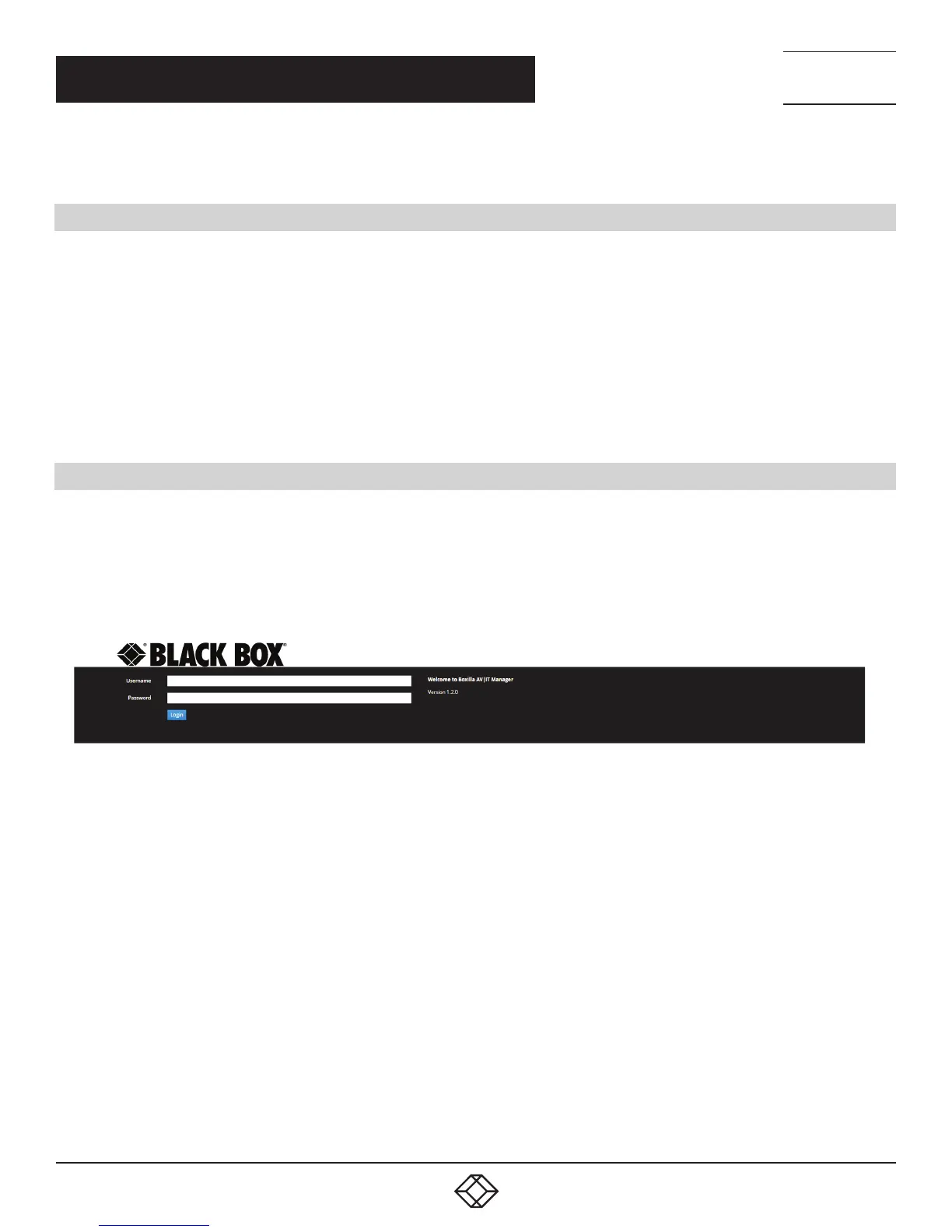
The Login screen will be displayed as shown in Figure 13.
FIGURE 13. BOXILLA LOGIN SCREEN
Enter your Username and Password and click the Login button.
Default username: admin
Default password: admin
CHAPTER 5: BOXILLA CONFIGURATION


 To Next Page