93
1. 87 7. 8 7 7. 2 2 6 9 BLACKBOX.COM
NEED HELP?
LE AVE THE TECH TO US
LIVE 24/7
TECHNICAL
SUPPORT
1. 87 7. 87 7. 2 26 9
CHAPTER 11: SYSTEM
11.3 SYSTEM—ADMINISTRATION — CERTIFICATES UPLOAD
Users who wish to remove the “This connection is insecure” need to have the ability to generate their own self signed certificates
with their own company information or certificates generated form a registered Certificate Authority (CA). The new system allows
the users to upload these files into Boxilla so they can upload the other key into their browser. This will then act as an authenticated
certificate and the user will no longer get the security warning.
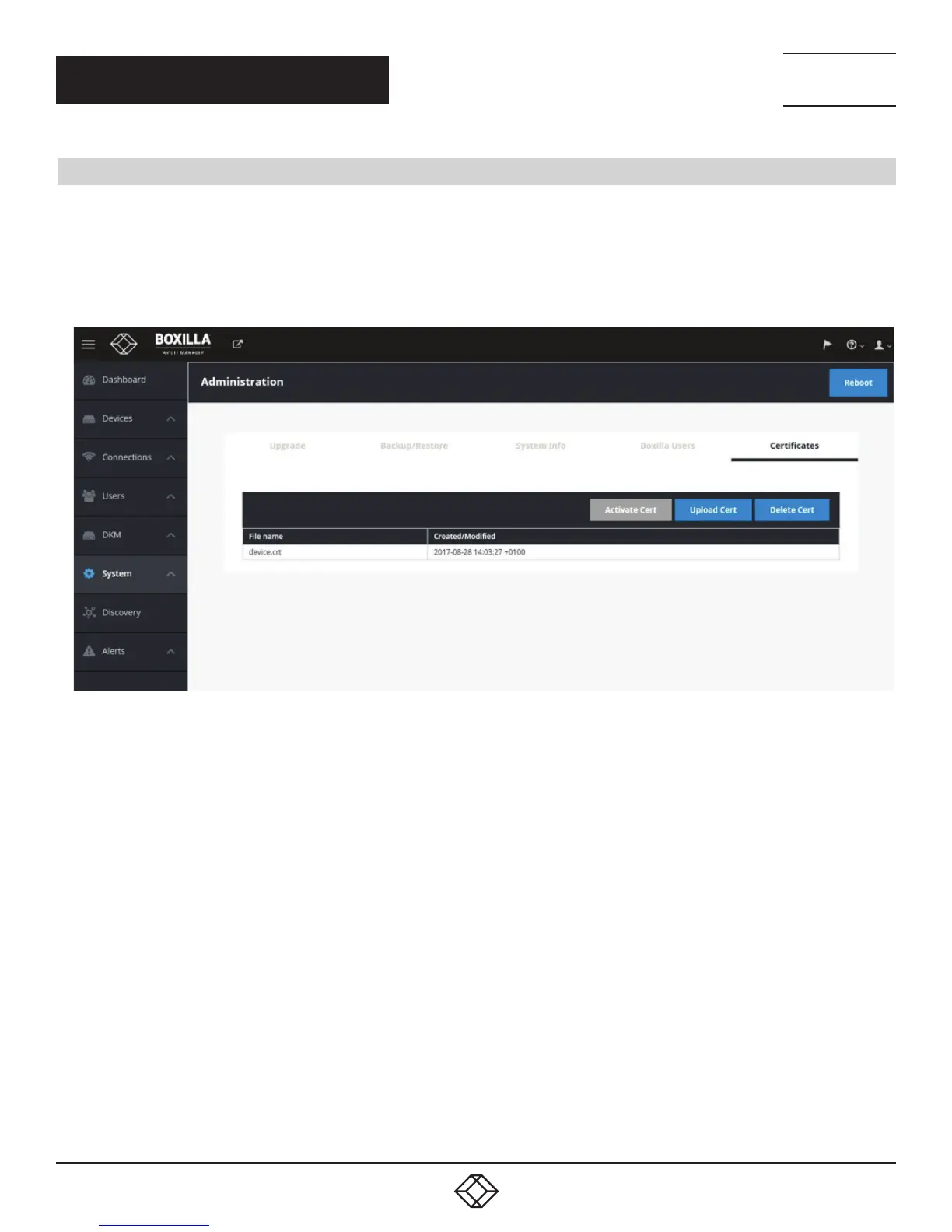
Under the System —> Administration page, go to the Certificates tab to add and manage certificates.
FIGURE 112. CERTIFICATES TAB
To upload a certificate, click on the Upload certificate file button under the Certificates tab. Browse the local machine folder to
upload the certificate.


 To Next Page