59
1. 87 7. 8 7 7. 2 2 6 9 BLACKBOX.COM
NEED HELP?
LE AVE THE TECH TO US
LIVE 24/7
TECHNICAL
SUPPORT
1. 87 7. 87 7. 2 26 9
CHAPTER 8: CONNECTIONS
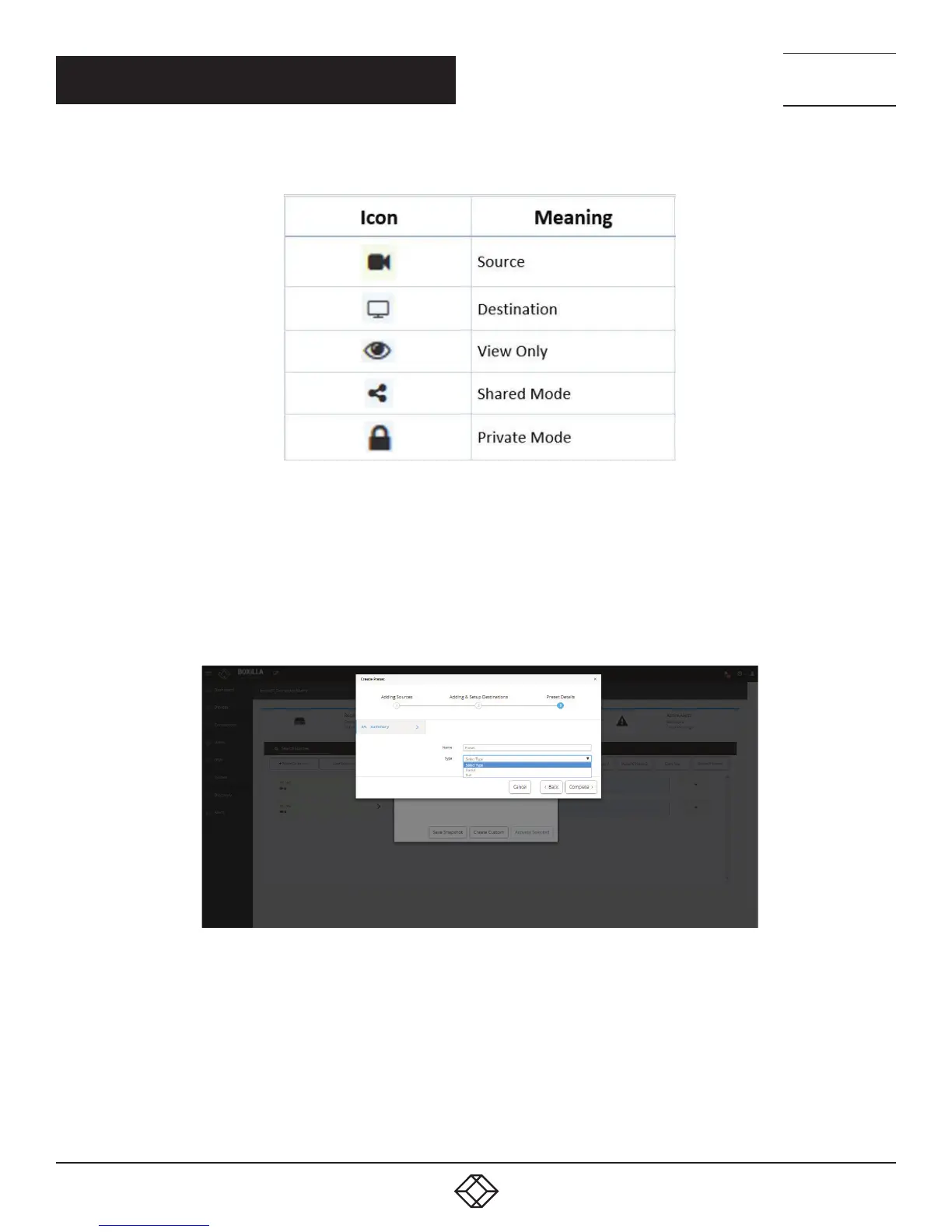
The icons on the destination screen are:
FIGURE 61. ICONS ON THE DESTINATIONS SCREEN
Both preset types will forcibly take any source and destinations required to establish their configuration, i.e., if those TX / VM and
RX are already in active connections then these connections will be broken.
The partial type applies only to the specific Tx/Vm and RX that are selected in this preset type.
The full type is applied to all the Tx/Vm and RX. Any Tx/Vm and RX not selected in this preset type will become inactive when this
preset is launched.
Click “Complete” to save the preset.
FIGURE 62. SAVE PRESET SCREEN
The following methods are available to activate presets:
1. Direct preset activation in the Viewer: The first three presets (ordered by creation) are presented directly in the Viewer and can be
activated with a direct click.
2. Activation via Manage Presets: All presets can be activated with the “Activate Selected” option in “Manage Presets.” This is
mandatory for any preset that is the fourth or later one created, as there is no other method to activate these presets from within
Boxilla.
Under manage presets, we have a snapshot option, which will automatically save the current active connections as a “ Preset”.


 To Next Page