TIP White balance settings can also be used creatively by warming or cooling the
image based on the story you are telling.
Your Blackmagic Cinema Camera 6K comes with white balance presets for a variety of color
temperature conditions. These are:
Bright sunlight (5600K)
Incandescent bulbs (3200K)
Fluorescent bulbs (4000K)
Mixed light (4500K)
Cloud (6500K)
You can customize any of these presets by tapping or holding the arrow icons to the left and
right of the temperature indicator in the bottom left of the ‘white balance’ menu. Each tap
movesthe color temperature up or down 50K, but holding the arrow icons down will increase
the speed. Alternatively, you can move the temperature slider.
To further refine the color in the image, you can adjust the ‘tint.’ This adjusts the mix of green
and magenta. For example, adding some magenta can compensate for the green cast of many
fluorescent lights. Many of your camera’s white balance presets include some tint.
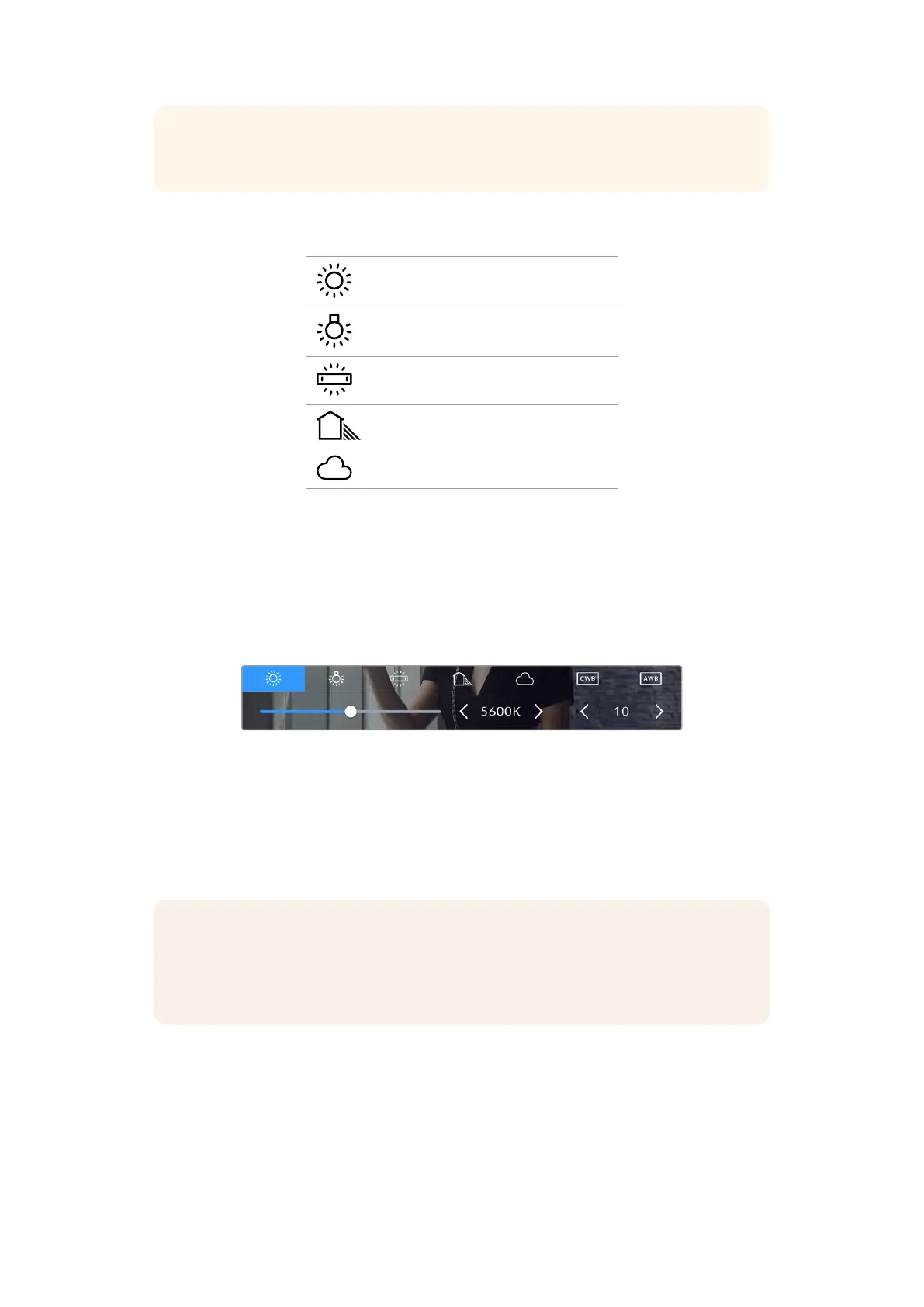
Tapping the white balance and tint indicator gives you access to five presets,
as well as a white balance indicator and slider on the left, and a tint indicator
on the right
While in the ‘white balance’ menu, your camera’s current tint setting is shown at the bottom
rightof the screen. To adjust the tint, simply tap or hold the arrows to the left and right of the
tintindicator. The available range is -50 to +50 in one unit steps. Holding down on the arrows
speeds up adjustment.
NOTE Customizing the white balance or tint will change your preset to‘CWB,’ or
custom white balance. Custom white balances are persistent; your CWB settings will
stay configured between power cycles, and when switching to a preset and back to
CWB. This makes iteasy to compare a custom white balance to the last preset used.
Auto White Balance
Your Blackmagic Cinema Camera 6K can set white balance automatically. Tapping ‘AWB’ will
bring up the white balance screen.
When setting white balance automatically, a square will be overlaid on the center of your image.
Fill this square with a neutral surface such as a white or gray card and tap ‘update WB’. The
camera will automatically adjust its white balance and tint values so the average of the white or
44Touchscreen Controls



 To Next Page