grey inside the white balance square is as neutral as possible. Once updated, this will be set as
your camera’s custom white balance. Holding the WBbutton on the top of your camera for three
seconds also selects automatic white balance and activates the ‘update WB’ function.
Tapping the ‘AWB’ icon in the white balance menu will bring up theauto white
balance screen. Use this with a white or neutralgrey surface to automatically set
a neutral white balance
Power
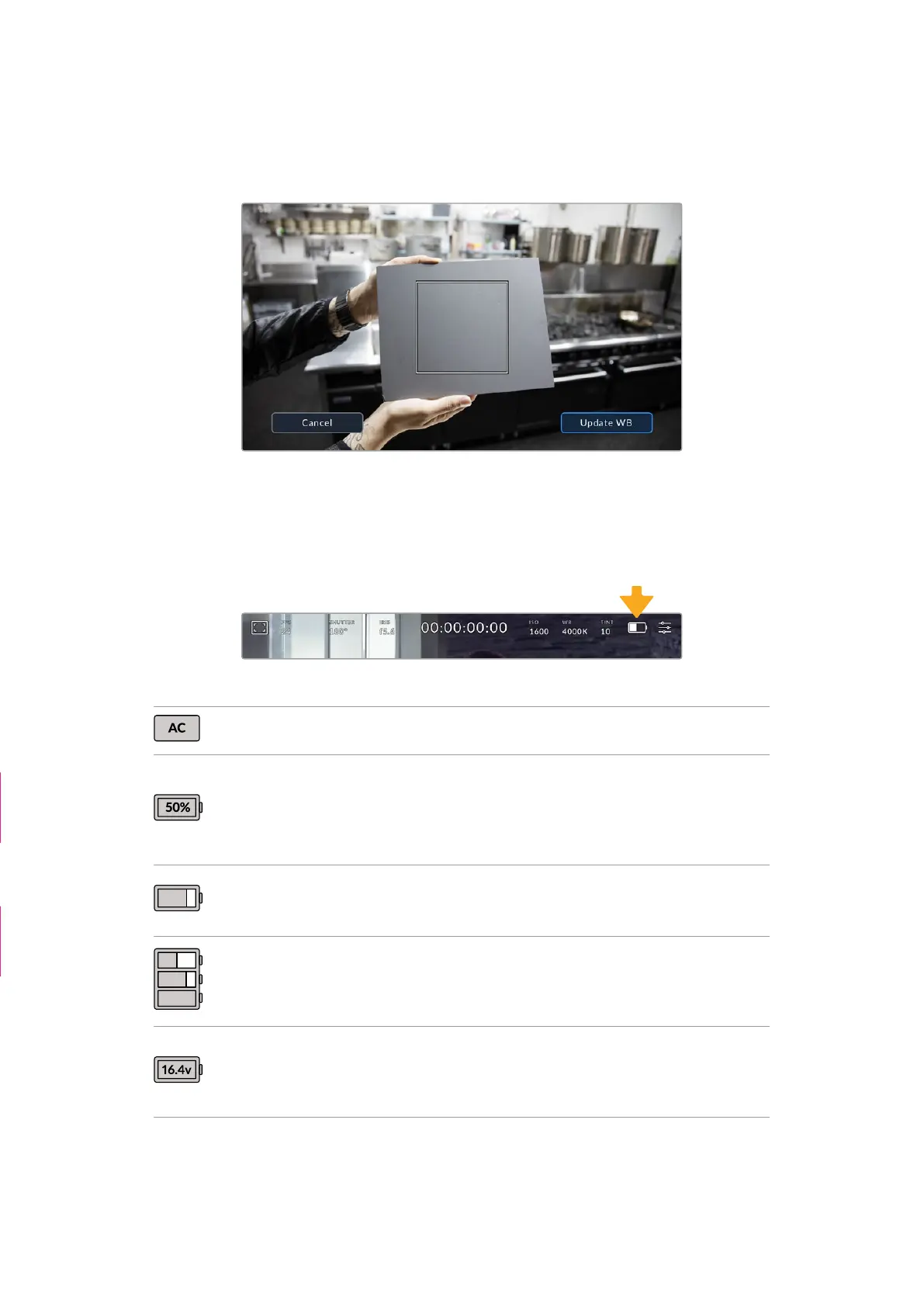
The camera’s power source and energy status are displayed in the top right of the LCD screen.
While using battery power, tapping the power indicator toggles between displays
AC Displays when your camera is plugged into mains power.
Percentage
If your battery supports percentage display, the battery icon
shows the remaining battery level as a percentage, and drains
in 1% steps. At 20% charge remaining, the battery bar turns red.
To toggle the percentage display on or off, tap on the
battery icon.
Battery bars
The battery included with your camera shows abattery icon
that drains in 25% steps. At 20% charge remaining, the battery
bar turns red.
Battery grip bars
Blackmagic Pocket Camera Battery Pro Grip can power
Blackmagic Cinema Camera 6K from its two batteries as well as
the camera’s internal battery. These battery meters show the
states of all three batteries.
Power source voltage
This shows the voltage supplied by the battery, or through the
DC power jack from a plug pack, D-tap adapter cable or custom
power solution. To toggle the voltage display on or off, tap on
the battery icon.
AC / Charging row
deleted
Double Battery Grip
Bars row deleted
45Touchscreen Controls



 To Next Page