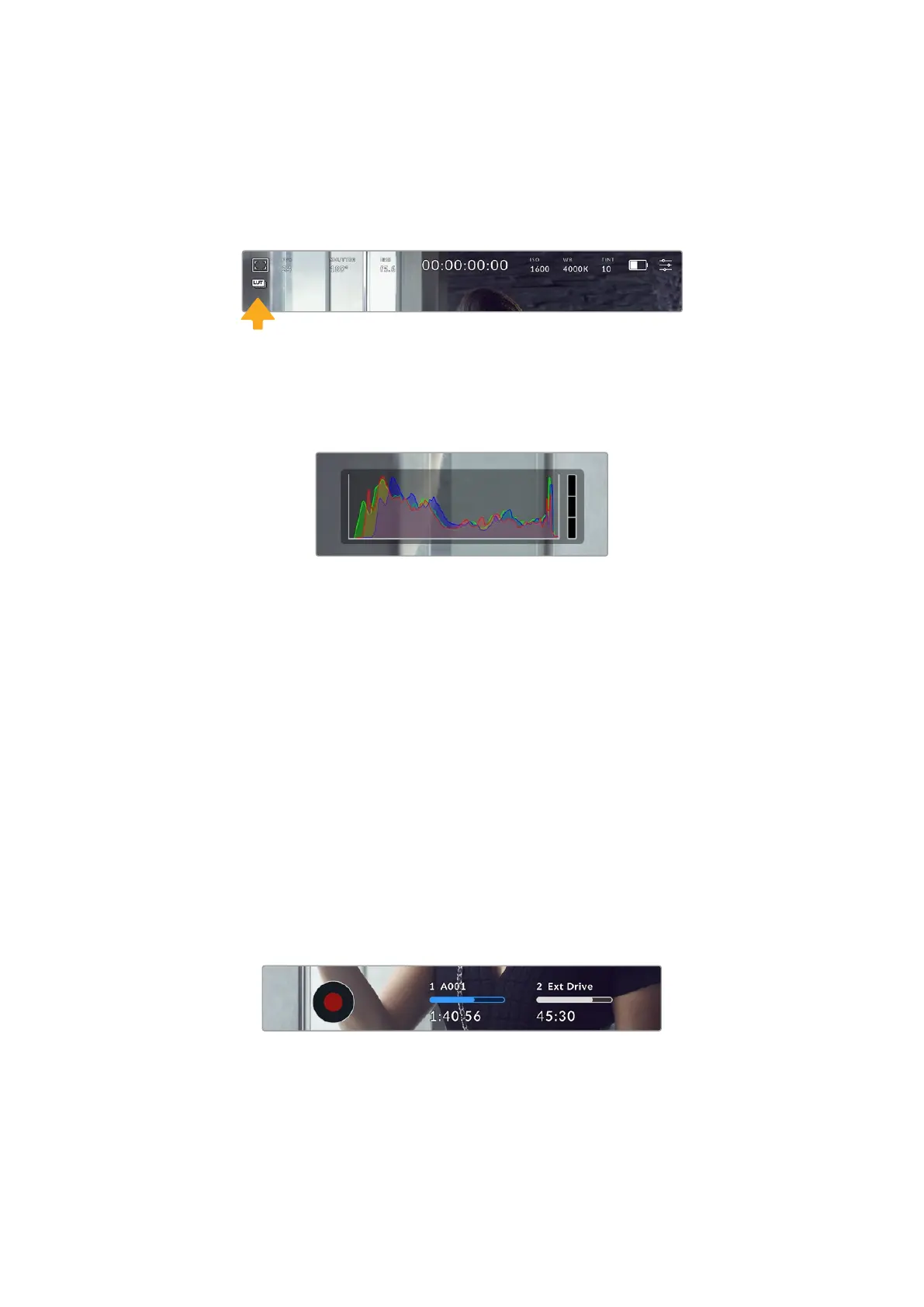
LUT indicator
When you are using a LUT as a preview tool on set, a a white LUT icon will be displayed in the
top left corner of the screen to indicate that the LUT is currently active. This icon will be blue if
you also have ‘apply LUT in file’ switched on in the ‘record’ settings. For more information refer
to the ‘record settings’ section.
Histogram
At the bottom left of your camera’s touchscreen you can see the histogram. The RGB
histogram shows the tonal distribution of the image separated into individual red, green and
blue channels.
The histogram gives you an indication of the tonal range
between shadows and highlights in your clip. Itis also a
helpful tool for checking the balance of your exposure and
to prevent your highlights from clipping
The left edge of the histogram displays shadows, or blacks, and the far right displays highlights,
or whites. When you close or open the lens aperture, you’ll notice the information in the
histogram moves to the left or right accordingly. You can use this to check ‘clipping’ in your
image shadows and highlights. When clipping occurs in the red, green or blue channel, the
respective indicator on the right side of the histogram lights up. If the left and right of your
edges of the histogram come to an abrupt stop rather than falling off gradually, you may be
losing highlight or shadow detail.
If you don’t see a histogram in the bottom left of your touchscreen, your LCDmonitor settings
may be set to display ‘codec and resolution.’ See the ‘monitor settings’ section in this manual for
more information.
Record button
Next to the histogram, at the bottom of your camera’s touchscreen, is a round grey button. This
is the ‘record’ button. Tap it once to begin recording, and tap it again to stop. While recording,
the button, storage indicator and timecode at the top of your camera’s touchscreen turns red.
The record button is located next to the storage indicatorsat the bottom
of the LCD touchscreen
46Touchscreen Controls



 To Next Page