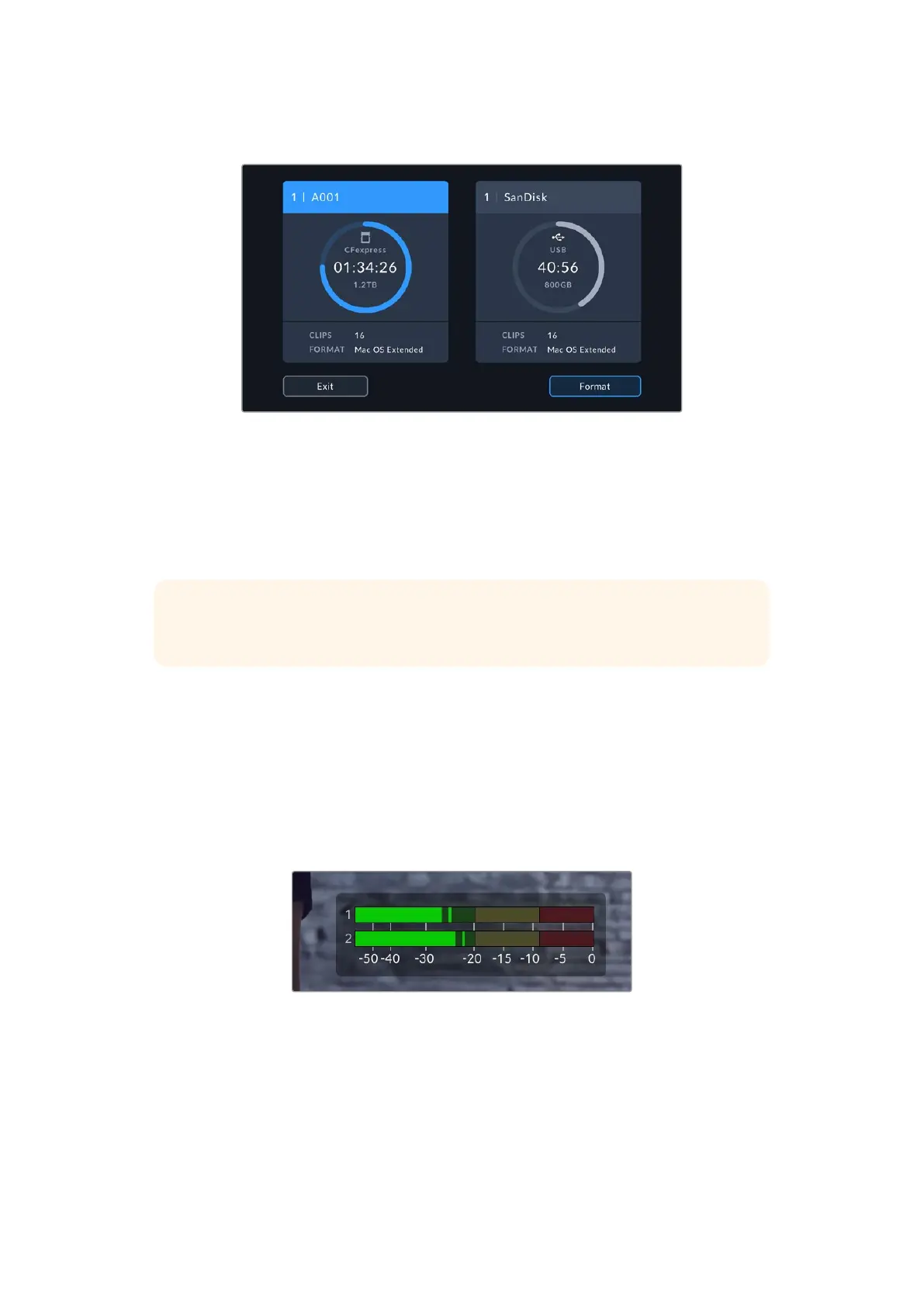
Tapping the storage indicators opens the storage and formatting menu.
Tap the storage indicators on the LCD touchscreen to access the storage manager
This menu displays the amount of free space on each CFexpress card or USB-C flash disk
used by your camera, as well as the name of the card or drive, total number of clips and the
file format.
You can format your media from this menu. For more information, see the ‘preparing media for
recording’ section of this manual.
TIP Tapping the card or drive name in the storage menu sets it as the active card or
drive. YourBlackmagic Cinema Camera 6K fills this card or drive first.
Audio Meter
The peak audio meters display audio levels for channels 1 and 2 when using the internal
microphone, or via external audio when connected. The display is calibrated to dBFS units
and features peak hold indicators which stay visible for a short time so you can clearly see the
maximum levels reached.
To achieve optimum audio quality, ensure your audio levels do not reach 0 dBFS. This is the
maximum level that your camera can record, meaning that any audio that exceeds this level will
be clipped, resulting in distortion.
The colored bars on the audio meter represent peak audio
levels. Ideally your peak audio levels should fall in the upper
end of the green zone. If your peaks enter into the yellow or
red zones your audio is in danger of clipping.
48Touchscreen Controls



 To Next Page