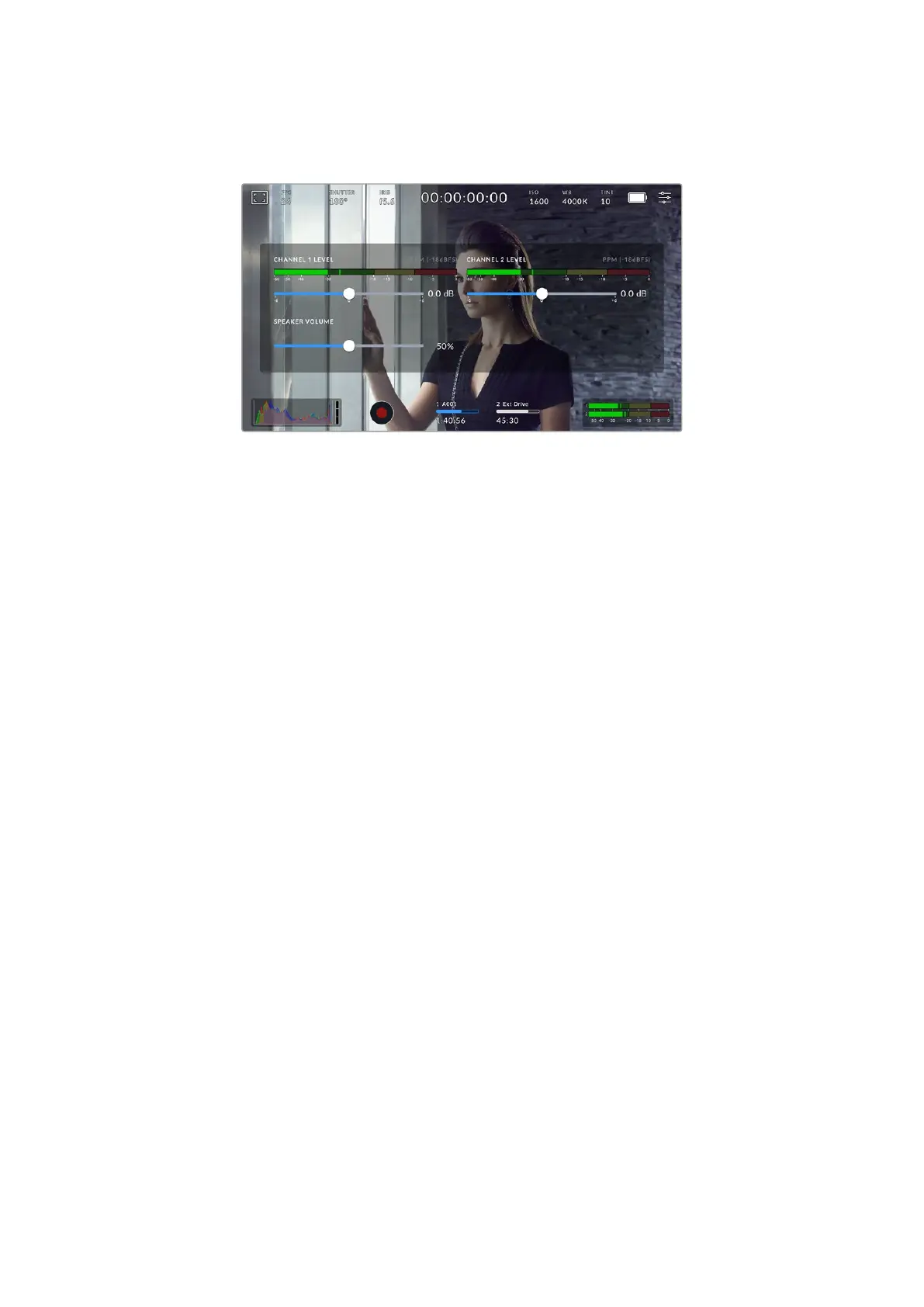
You can tap the audio meter to bring up volume controls for audio input channels 1 and 2,
aswell as headset or speaker volume.
Tap the audio meters on the LCD touchscreen to easily access volume and
headset or speaker settings
Double Tap to Zoom
You can magnify any part of your camera’s preview image by double tapping the LCD
touchscreen. The area you tap will be magnified, and you can move around the image by
dragging your finger around the LCD touchscreen. This is very helpful when checking focus. To
return to standard magnification, simply double tap your camera’s touchscreen again.
Pinch to Zoom
Adjust the zoom level on the LCD touchscreen with a pinch to zoom multitouch gesture. This
does not affect the HDMI output.
To start zooming at x2, double tap on the touchscreen or press the ‘focus zoom’ button on
the back of your camera. Then make a pinch gesture to change the zoom level. You can drag
your fingers around the touchscreen to move the area magnified. To return to the standard
magnification, double tap on the touchscreen again or press the ‘focus zoom’ button.
When you double tap on the touchscreen or press the ‘focus zoom’ button, the zoom level
toggles between your previous magnification level and the full view. For example, if you pinch
to zoom to x8 magnification, double tap zooms out, and a further double tap returns to x8.
Touch to Focus
Focus your lens in any region of the image by tapping and holding on the LCD screen in the
area that you want to focus. Press the ‘focus’ button to focus your lens in the chosen location.
Double press the focus button to reset the focus point to the center of the screen.
Full Screen Mode
It can be useful when framing or focusing a shot to temporarily hide your touchscreen’s
statustext and meters. To hide them all at once, swipe up or down on the LCD touchscreen.
The record indicator, frame guides, grids, focus assist and zebra remain visible.
To show the status text and meters again, swipe up or down again.
49Touchscreen Controls



 To Next Page