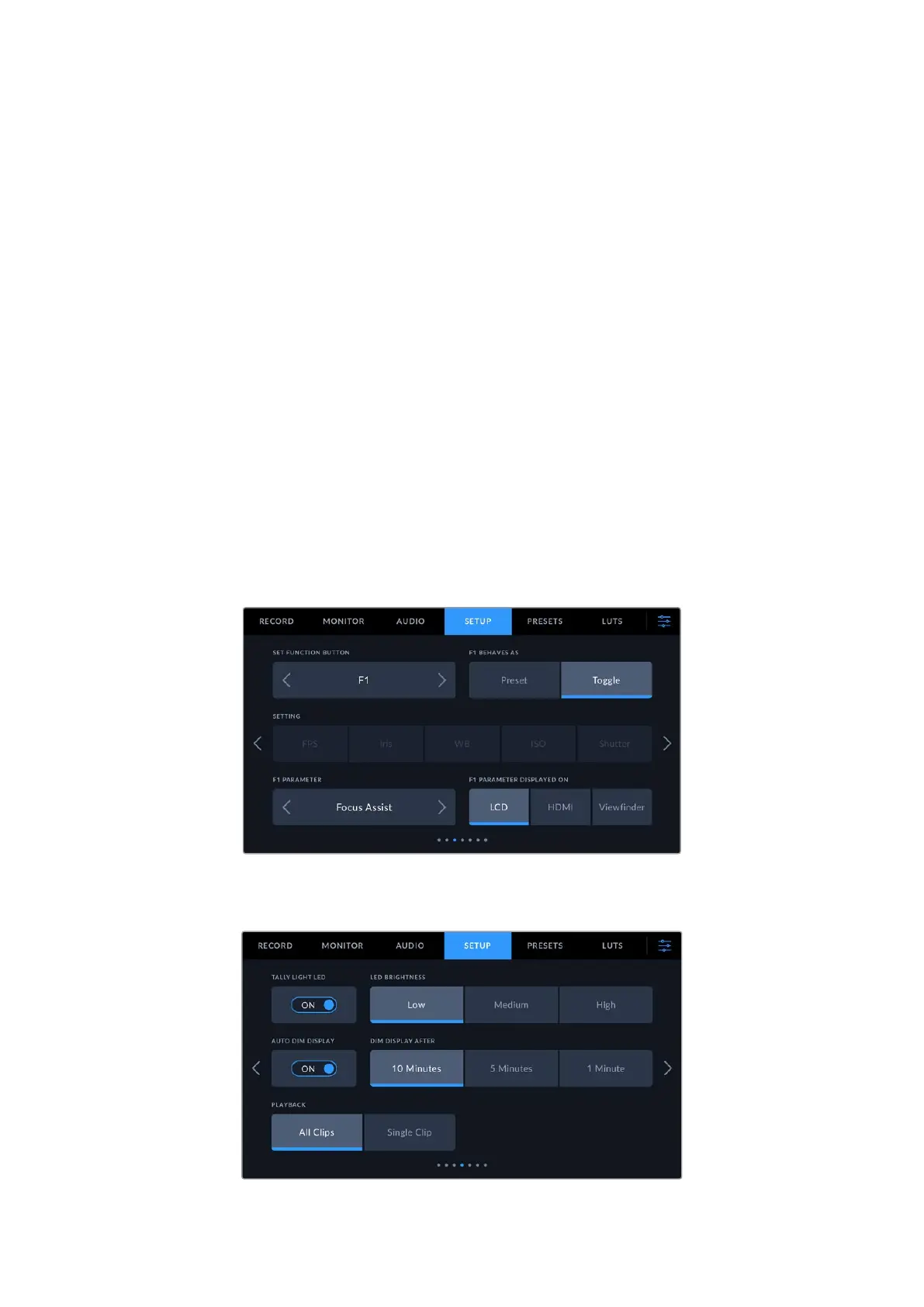
Function Button Behaves as Preset or Toggle
Once you have selected the function button you want to map, you can select a behavior.
Theavailable options are:
• Preset
When set to this behavior, pressing a function button will recall a combination of a setting
and a parameter.
To set a preset, select the setting you want to use from the ‘setting’ menu, and adjust that
setting by tapping the arrow icons on either side of the ‘parameter’ menu.
For example, to set the F1 button to recall a preset white balance, use the ‘set function
button’ arrows to select ‘F1’, select the ‘preset’ behavior, tap the ‘WB’ setting, and tap the
arrows on either side of the ‘parameter’ menu until you get to WB ‘5600K’ and Tint ‘-20’.
Toggle
When set to this behavior, pressing a function button will toggle a particular setting on or
off. The ‘setting’ menu is grayed out in this mode. Instead, tap the left or right arrows in the
parameter menu to scroll through the available options. These are ‘clean feed’, ‘display
LUT’, ‘frame guides’, ‘focus assist’, ‘false color’, ‘zebra’, ‘grid’, ‘safe area guide’, ‘off speed
recording’, ‘color bars’, ‘record’, and ‘none’.
Using the ‘toggle’ behavior also lets you select the output this setting applies to. Simply tap
any combination of ‘LCD,’ ‘HDMI’ and ‘Viewfinder’ to select. If the output for an option is
not available, such as ‘color bars’ which always applies to all outputs, the ‘LCD,’ ‘HDMI’, and
‘Viewfinder’ settings are disabled.
Setup Settings 4
The fourth page of the ‘setup’ tab contains the following settings.
72Settings



 To Next Page