Good take
Tap the ‘good take’ indicator to tag good takes for easy recall in post production. This button
applies the ‘good take’ tag to the clip currently being viewed in playback mode. If the camera is
in standby mode and ready to record, the ‘good take last clip’ button applies a ‘good take’ tag
to the last clip recorded.
Interior / Exterior
Tap ‘interior’ or ‘exterior’ to add a interior or exterior tag to the next clip in standby mode, or the
current clip in playback mode.
Day / Night
Tap the ‘day’ or ‘night’ icons to add a day or night tag to the next clip in standby mode, or the
current clip in playback mode.
‘Project’ metadata
Project metadata behaves the same way whether you are in standby or playback mode.
Thismetadata always refers to your project as a whole and is independent of clip numbers.
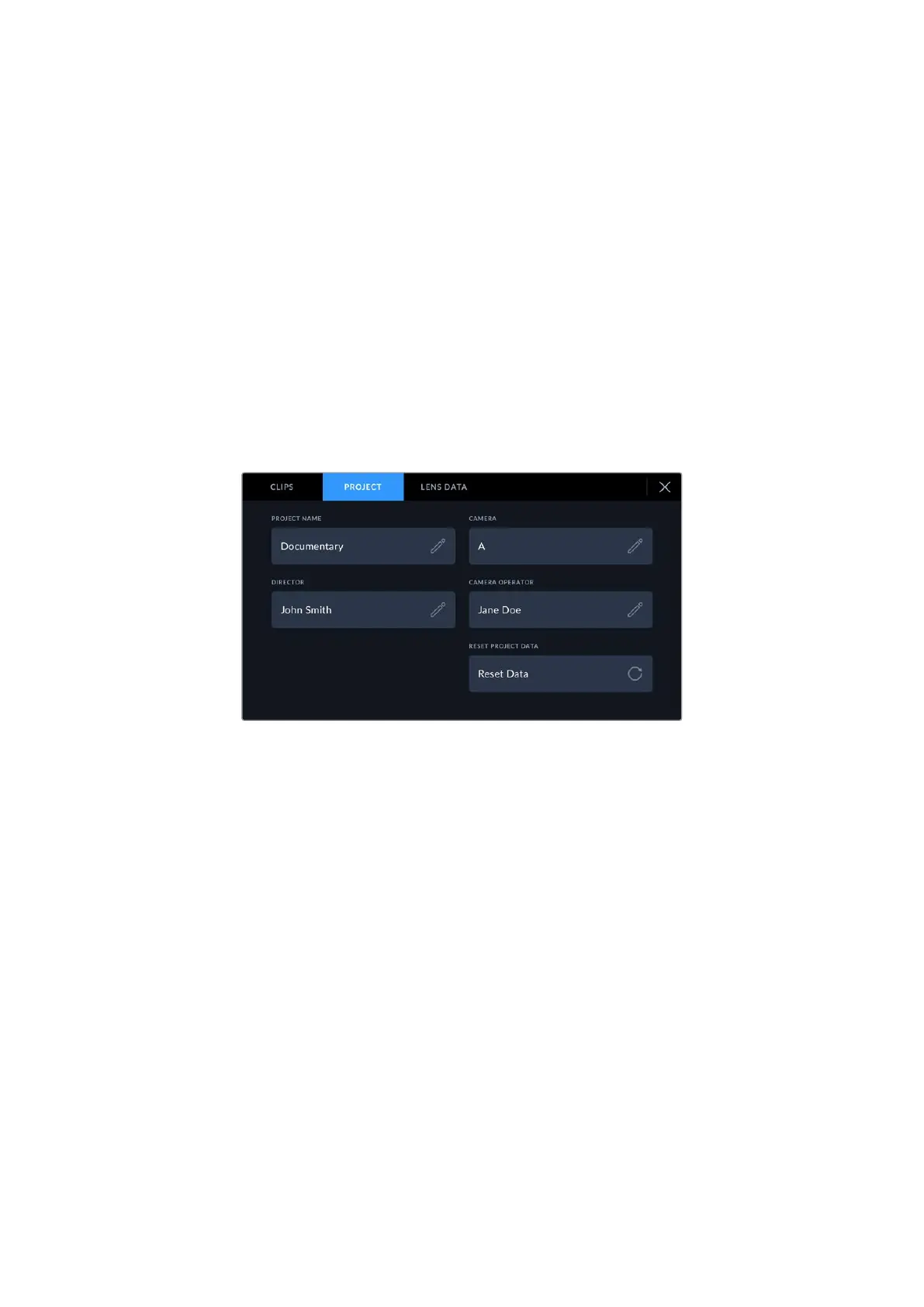
Enter project details using your camera’s ‘project’ slate tab
Project name
Displays your current project name. Tap the pencil icon to change the project name.
Camera
Displays a single letter camera index. Tap the pencil icon to change the camera index.
Director
Displays the director’s name for the current project. Tap the pencil icon to change
thedirectorname.
Camera Operator
Displays the camera operator. Tap the pencil icon to change the camera operator name.
Reset Project Data
To clear all the project information, tap the ‘reset data’ button.
‘Lens Data’ metadata
These settings display information about the current lens fitted to your camera. Many electronic
lenses automatically supply information such as the lens model, aperture and focal length. Ifyou
are using a lens that does not provide this information, or you want to enter additional data, you
87Entering Metadata



 To Next Page