44 en | Connections and settings Digital Video Recorder
F01U | 1.0 | 2007.11 User Manual Bosch Security Systems
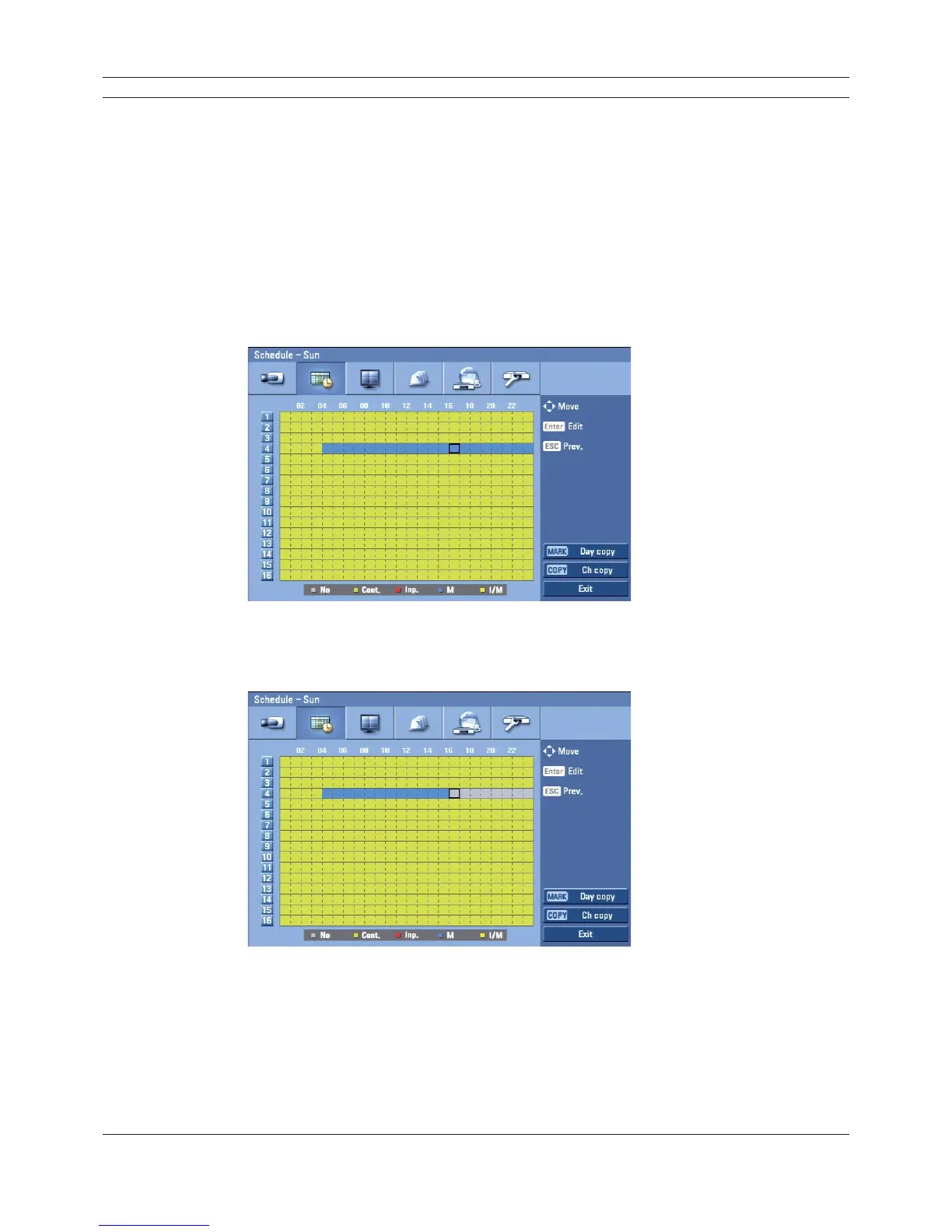
4. Press ENTER or click the left mouse button to select a recording mode. The color of the cell
blocks will change automatically.
- Gray: No scheduled recording
- Green (Continuous recording): Recording starts automatically from the preset time.
- Red (Input event recording): Recording starts automatically when the input is activated
within a designated time.
- Blue (Motion event recording): Recording starts automatically when motion is detected
within a designated time.
- Yellow (Input+Motion recording): Recording starts automatically when the input is activated
or motion has been detected.
5. Select the next time cell block of schedule time cell blocks to confi rm the schedule time.
Figure 3.25 Schedule setup menu
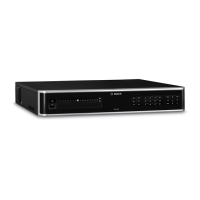
6. Press ENTER or click the left mouse button repeatedly to select gray to set the time for the
end of the schedule. The settings cell block is highlighted.
Figure 3.26 Schedule setup menu
7. Press MENU to confi rm your settings. The confi rmation window is displayed.
8. Select OK and press ENTER to save the new settings.
• Press ESC to exit the specifi c date selection menu.


 To Next Page