c. To do any other action, including enter a manual B-line count, save the cine, or delete the cine, press the
“Continue” button on the popup window.
Editing the Automated B-line Count
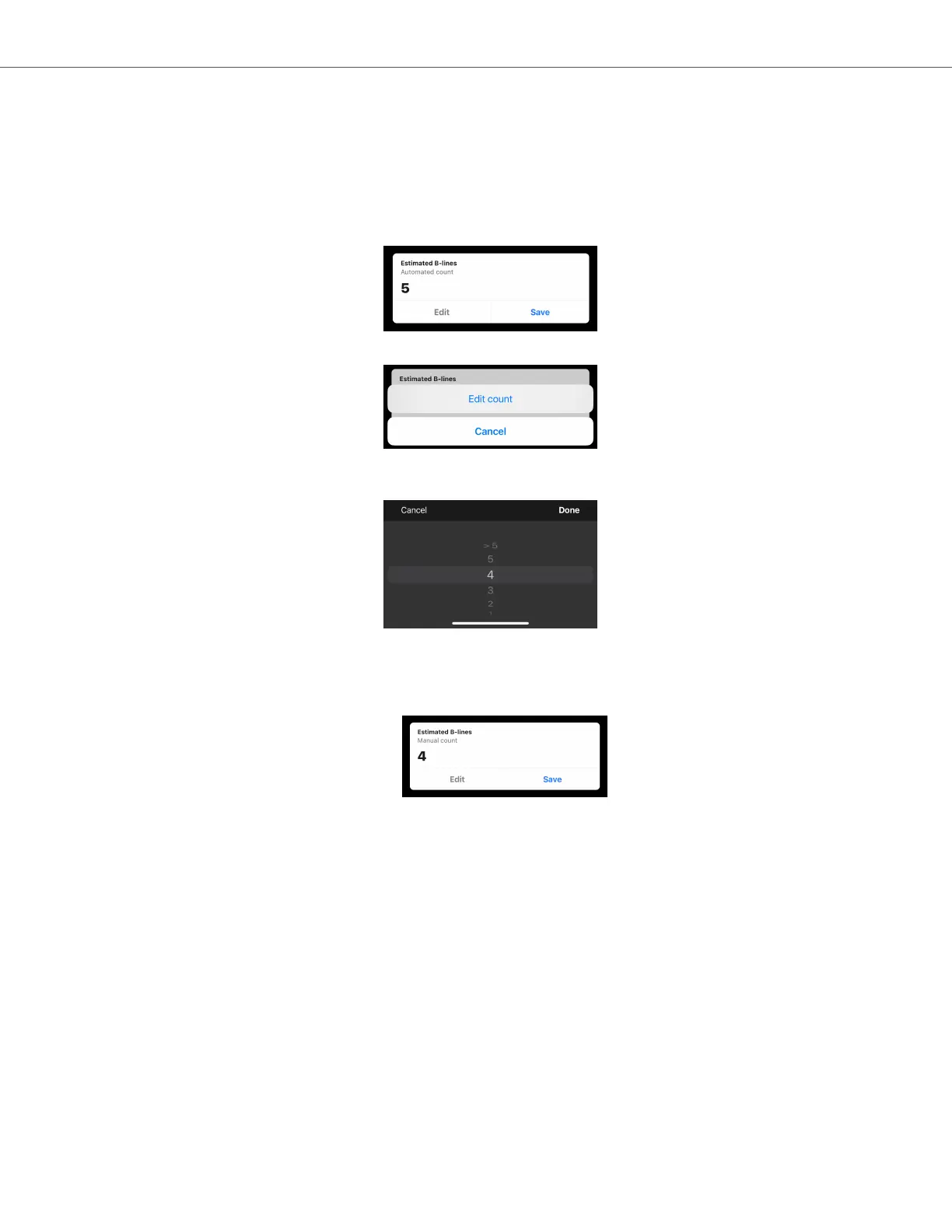
The automated B-line counts for a captured cine can be manually edited by following the steps below.
1. Press the “Edit” button on the Estimated B-lines pop-up window
2. When prompted, select “Edit count”
3. Select the desired number of B-lines by using the number picker. The options for manual edits are 0, 1, 2, 3, 4,
5, and >5.
4. If the B-line count is manually edited,
a. The count will be marked as a “Manual count” in the Estimated B-lines popup window.
b. Any blue lines indicating B-line locations will be removed
5. The result can be switched back to the automated count by pressing the Edit button again and selecting “Reset
to auto count”.
Saving or Deleting a Captured Cine
A captured cine and B-line count can be either saved to the cine reel or deleted.
1. To save:
a. Press the “Save” on the Estimated B-lines pop-up window.
b. Once saved, a pop-up will display saying the cine has been saved to the exam reel.
2. To delete:
a. Press “Delete” at the top left hand side of the screen.
b. The device will indicate that it is deleting the cine and then return to the Auto B-line Counter home screen.
Using Auto B-line Counter With Lung Protocol
Butterfly Auto B-line Counter
AI-Assisted Tools 55


 To Next Page