80 APOLLO Digital Broadcast Production Console Setup and Configuration
Assignable faders
Each fader has an A and B sub-layer,
which can be switched between by
pressing the assign buttons above and
below the fader's label display. The
two sub-layers, A & B are not related
by default and can control two distinct,
unrelated audio paths. The upper half of
the fader label display is green and refers
to the A layer, the lower half is yellow and
refers to the B layer. An open fader will
remain open and passing audio after the
layer is changed.
Pressing the assign button above (A
layer) or below (B layer) the label display
makes it the currently assigned path
and highlights it blue. Only one path
(unless user splits are in place) can be
the currently assigned path at any given
time. Path specific changes are applied to
the currently assigned path. For example,
adjusting settings on an assignable panel
in PROCESSING or SEND-ROUTE
mode will affect the currently assigned
(highlighted blue) path.
In addition to A & B sub-layers, there are
in fact a total of 12 fader layers, each with
an A & B sub-layer. All layers and A/B
sub-layers are active irrespective of which
is currently visible. Fader layer is selected
from the row of touch sensitive displays
above the fader label row of any fader
panel.
Assigning paths
A or B layer faders with a blank label
field have no DSP path assigned.
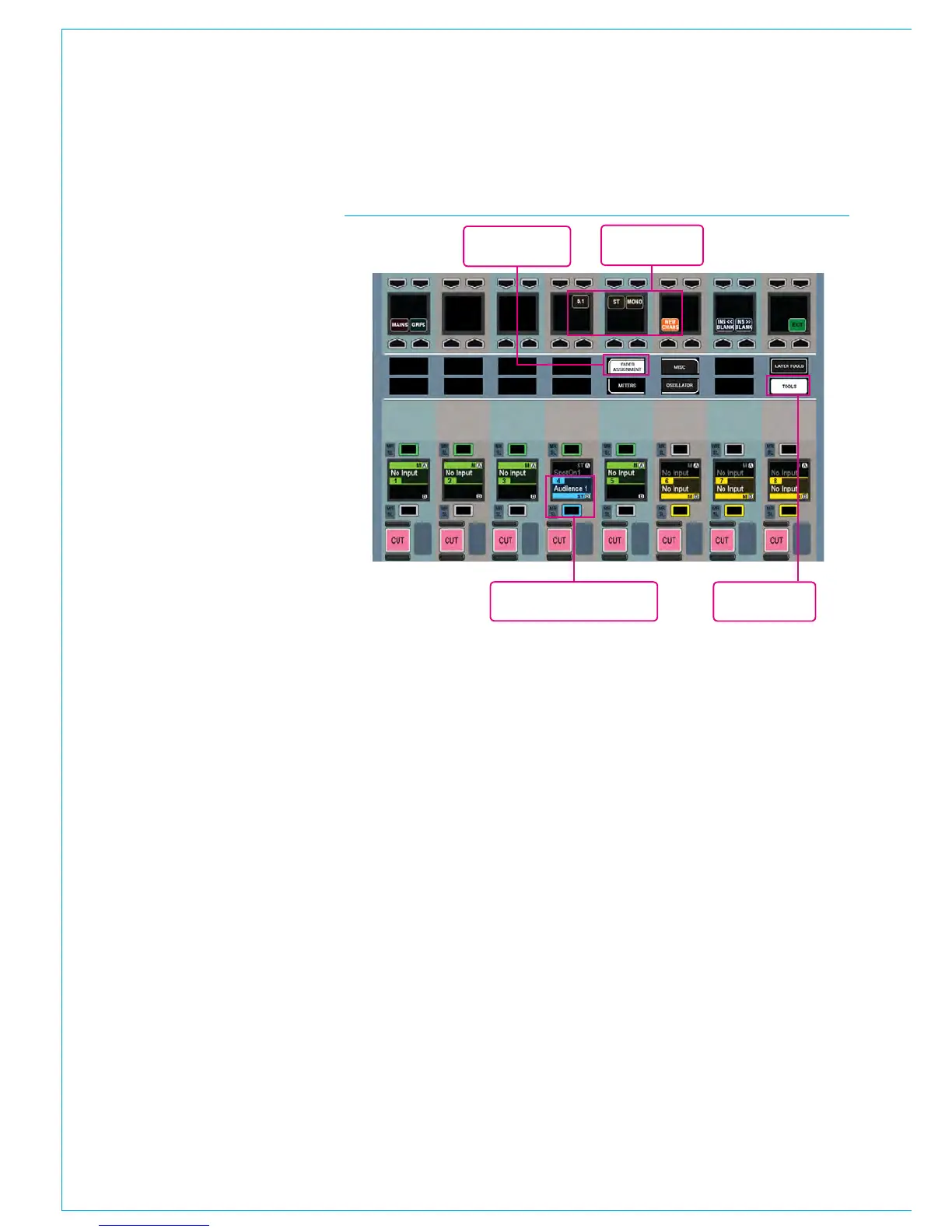
Path assignment is achieved from the
Tools>Fader Assignment menu (see
the highlighted drawing to the right).
Select New Channels to assign input
channels. Three channel widths are
currently supported - Mono, Stereo and
5.1. Pressing one of these buttons will
assign that channel type to the currently
assigned fader (as long as no path is
already assigned on that fader).
ASSIGNING PATHS TO FADERS
To assign the same channel type to
multiple faders, press and hold the
channel type button whilst selecting the
faders you wish to be assigned.
To clear a path from a fader, select the
Layer Tools menu (touch sensitive display
above Tools). Press Remove / Delete
Path from the row above then Exec to
clear the currently assigned path. To clear
multiple paths, press and hold Clear Path
whilst selecting the faders to clear before
confirming by pressing Exec.
Currently assigned path
(highlighted blue)
1. Tools menu
2. Fader
Assignment
3. New
Channels menu
FIGURE 1 - ASSIGN APPLICATION - CONSOLE PANEL



 To Next Page