86 APOLLO Digital Broadcast Production Console Setup and Configuration
INPUT & OUTPUT PORT PATCHING
Regular Input and output port
patching is similar to that of patching
monitor outputs but done from the
I/O screen of the Main Application
and the patches are saved as part of
the user memory.
Note that the same input and output ports
are available on the I/O screens as the
Fixed I/O screens. Patches made from
the Fixed I/O screen are visible on the
I/O screens and denoted by the System
Settings page icon. Likewise when
viewing the Fixed I/O screen, patches
made to ports from the I/O screen are
visible and denoted by the jack icon used
for the I/O page.
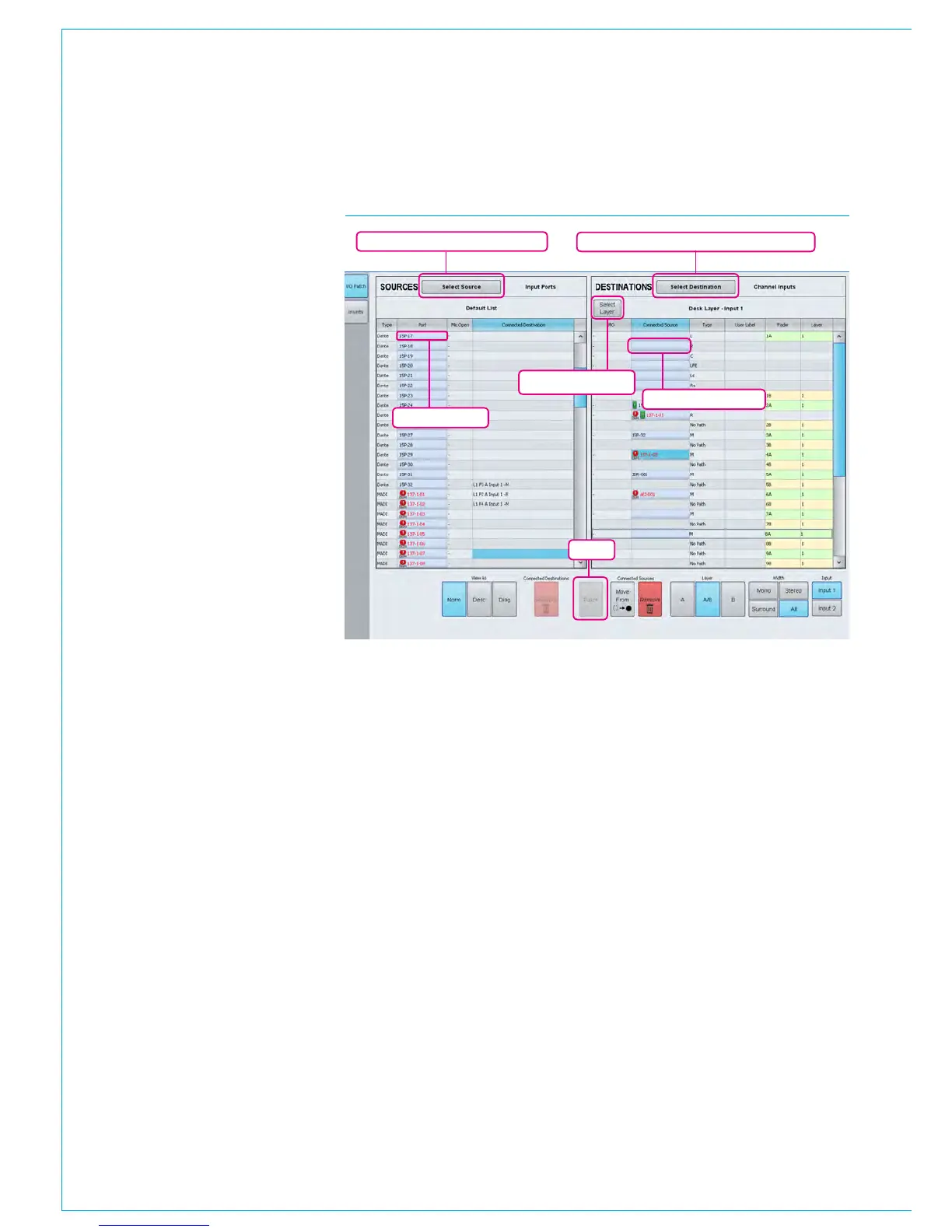
The I/O screen shows sources on the left,
and destinations on the right. To patch
input ports to channel paths on faders,
press Select Destination, then select
Channel I/P's from the My Desk Inputs
group. The destinations field now displays
the faders on the console.
From the Select Source button, the
Input Ports contains the input port lists.
If the port lists have not yet been edited,
there will be a default list containing all
ports, and a list for each I/O box labelled
with the box ID.
Highlight the chosen input port/s on the
left by clicking on the blue cell. Highlight
the chosen fader by selecting the blue
cell/s and click patch to put the input port
on the fader. Faders with no DSP path
assigned cannot be patched to.
To patch console output audio to Hydra2
output ports, press Select Source and
choose My Desk Outputs. Select the
required output port list from the Output
Ports group of the Select Destination
menu. Again, patching is achieved by
highlighting the blue source cell, the blue
destination cell and clicking patch.
Select Source
Patch
Change source list / source type Change destination list / destination type
Change fader layer
Select Destination
FIGURE 1 - MAIN APPLICATION, I/O>I/O PATCH SCREEN SHOWING DESK INPUTS
Ports at different sample rates
Note that now different sample rates are
available, ports set to a different sample
rate to that of the show appear with the
SR kHz warning icon to indicate that it
cannot be used unless the sample rate of
it’s associated I/O box is changed in H2O
or a different show is loaded using the
correct sample rate. See image above.



 To Next Page