15
Basic Operation
Set Date and Time
If the incorrect date or time is printed on reports, change the date and time settings.
1
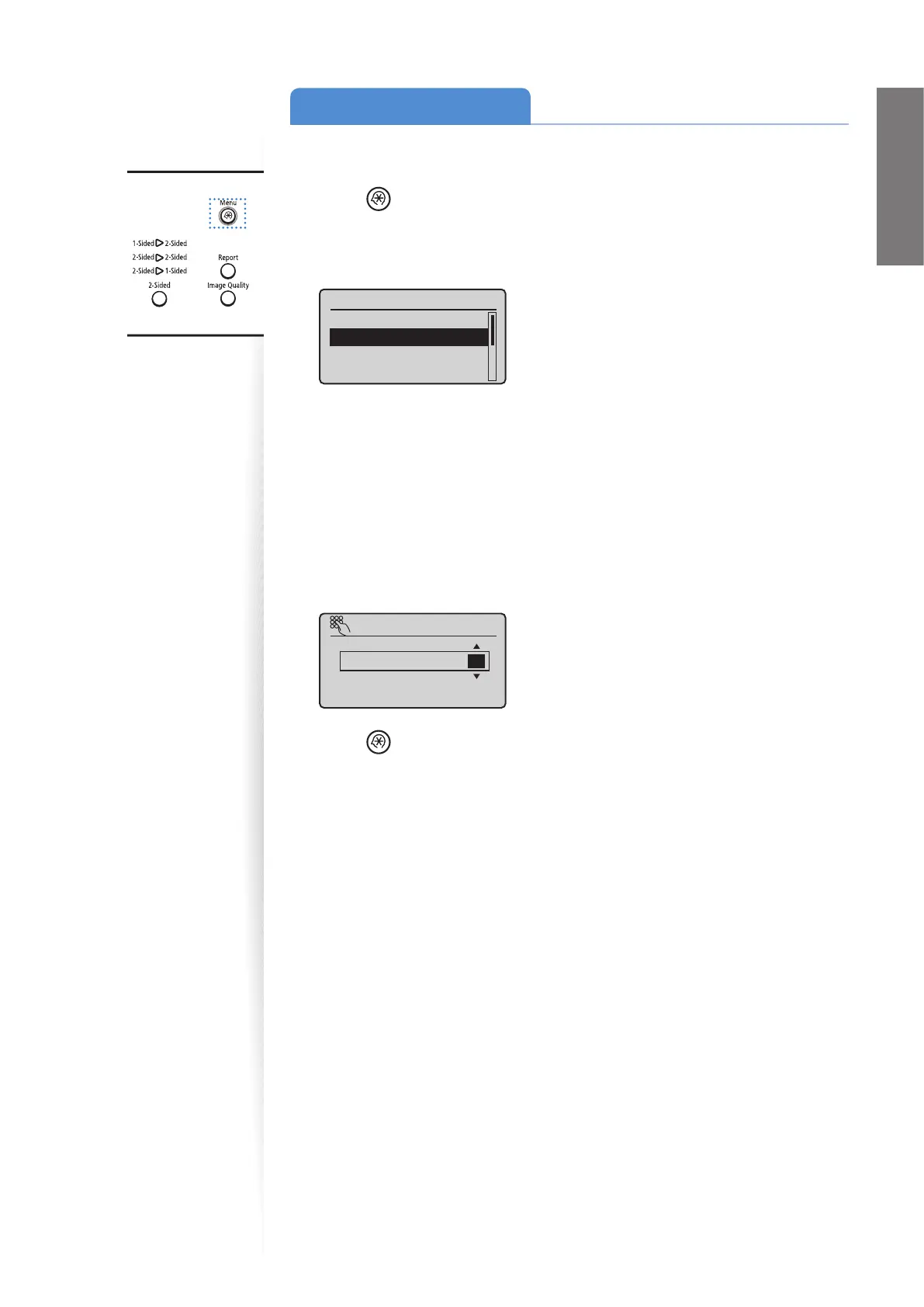
Press [ ] (Menu).
2
Press [▲] or [
▼
] to highlight <Timer Settings>, and then press [OK].
3
Press [▲] or [
▼
] to highlight <Time & Date Settings>, and then press [OK].
Timer Settings
Quiet Mode Time Set
...
Time & Date Settings
Auto Sleep Time
Auto Reset Time
4
Press [▲] or [
▼
] to highlight <Current Time Settings>, and then press
[OK].
•
To change the display format for the date or time, specify <Date Display Type> or
<12/24 Hour Clock>.
• To use daylight savings time, set <Daylight Savings> to <On>, and then specify
the starting date and the ending date.
5
Use the numeric keys to enter the date and time, and then press [OK].
•
To move the cursor, press [◄] or [►].
• To switch between <AM> or <PM>, press [▲] or [
▼
].
Current Time Set.
01/01/2012 12:52 AM
(0:00-12:59)
6
Press [ ] (Menu) to close the screen.















 To Next Page