66
Improve Output Quality
Follow the recommended actions for each symptom to improve the output quality.
If you cannot solve the problem with the following actions,
see [Troubleshooting] in the e-Manual.
Symptom Example Action
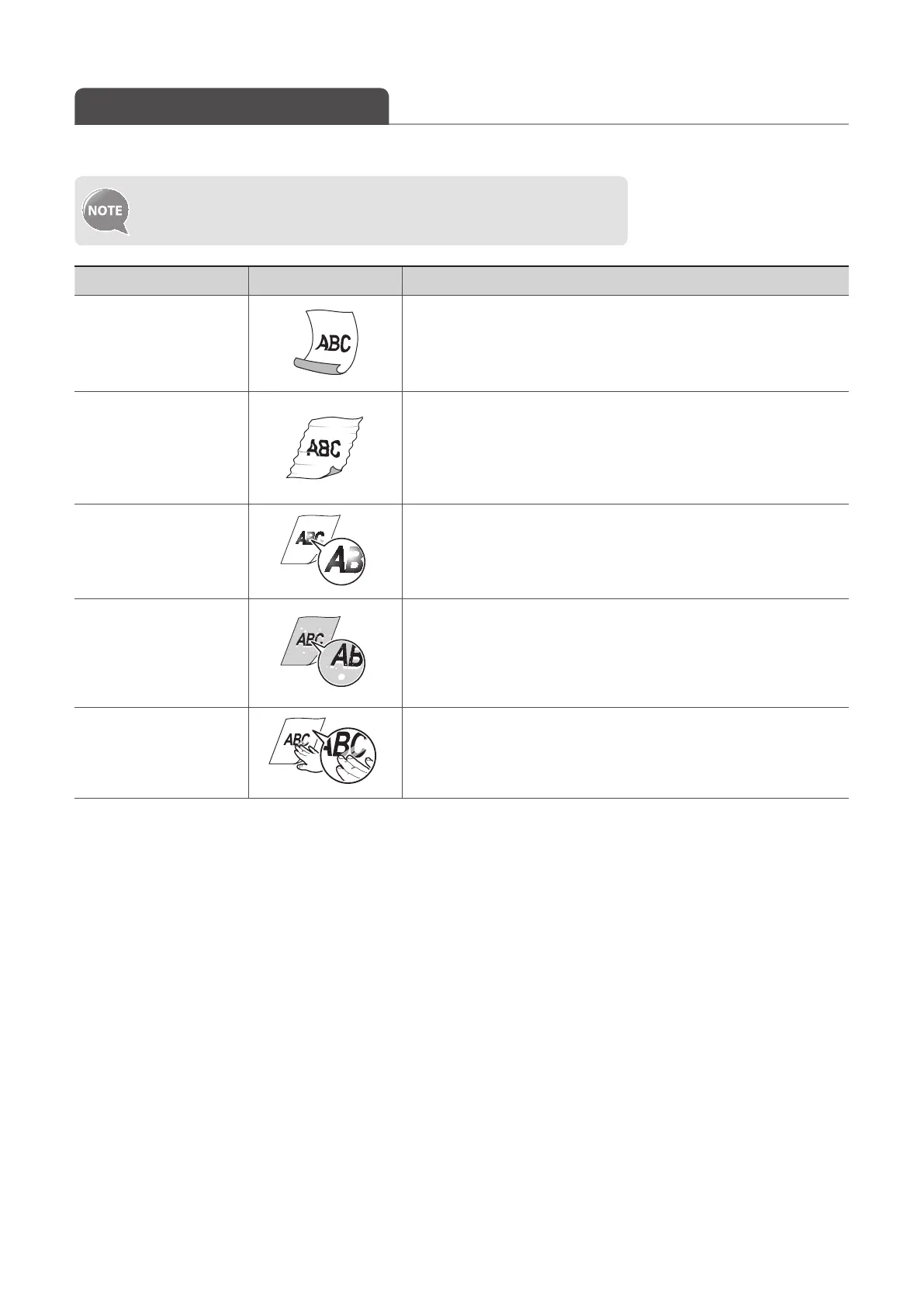
Paper curls.
• Verify that the appropriate paper is being used (→p.19).
• Print a test page with new paper.
• Verify that the paper is loaded properly (→p.19).
• Change the <Special Mode V> setting from the operation panel.
Paper creases.
• Verify that the appropriate paper is being used (→p.19).
• Print a test page with new paper.
• Verify that the paper is loaded properly (→p.19).
• Remove any foreign objects inside the machine.
• Change the <Special Mode V> setting from the operation panel.
Printing is uneven.
• Verify that the appropriate paper is being used (→p.19).
• Print a test page with new paper.
• Verify that the paper is loaded properly (→p.19).
• Change the <Special Mode J> setting from the operation panel.
White specks appear.
• Verify that the appropriate paper is being used (→p.19).
• Print a test page with new paper.
• If printing high-contrast documents from a computer, open the
printer driver and select [Finishing] [Advanced Settings]
[Special Print Mode] [Special Settings 2] to adjust the density.
The toner adheres to
you
r hand.
• Verify that the appropriate paper is being used (→p.19).
• Print a test page with new paper.
• Change the <Special Mode K> setting from the operation panel.















 To Next Page