41
Print
Add Watermarks to a Printout
You can add watermarks, such as “DRAFT,” to a document.
1
Open a document from an application, and then open the Print window.
2
Select your printer, and then open the Printing Preferences window.
3
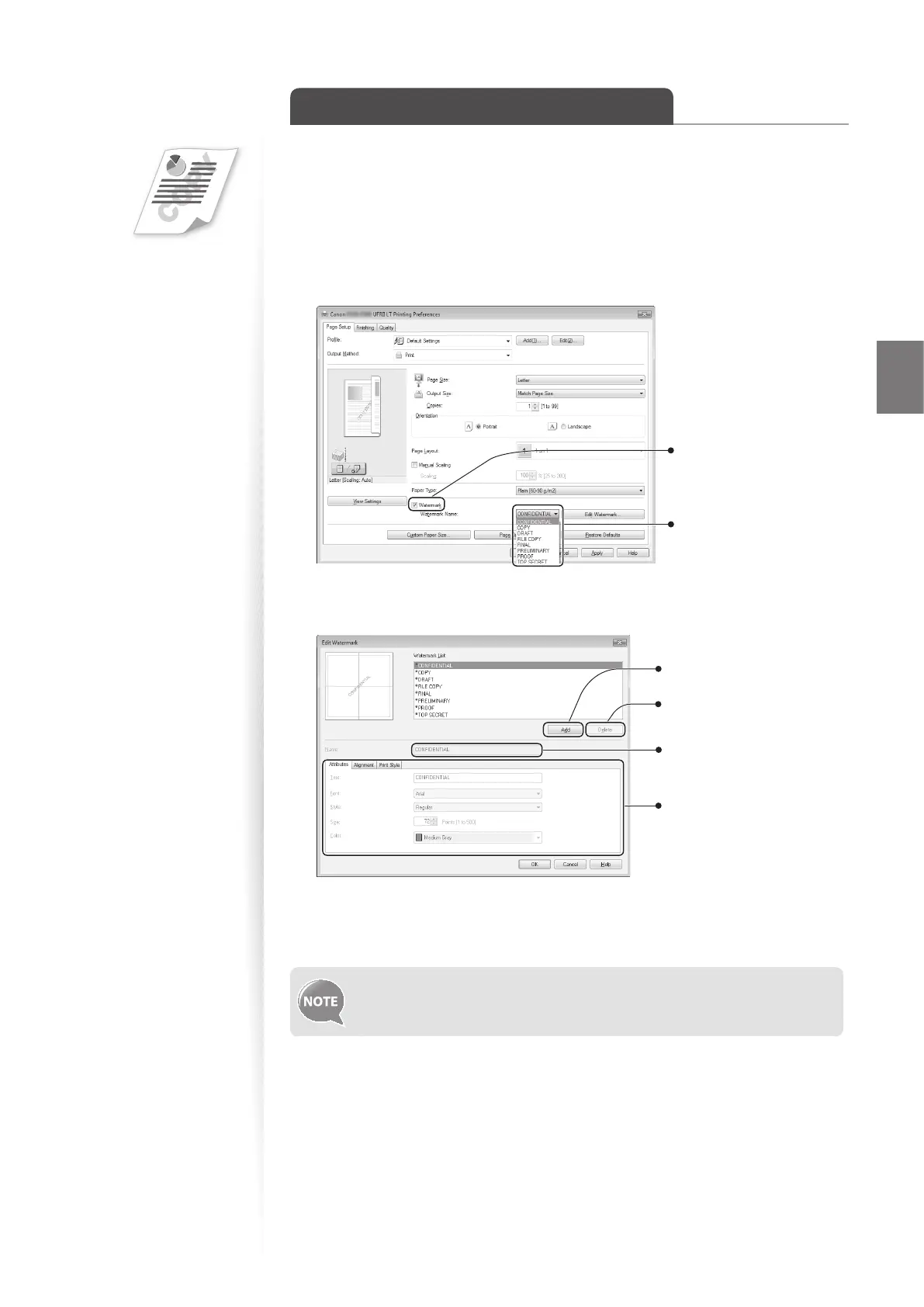
Click the [Page Setup] tab, and then specify the settings for watermark
printing.
Select the desired
watermark.
Select to add
watermarks.
4
To create a new watermark, click [Edit Watermark], and then enter the
new text.
Add the edited watermark.
Delete the selected
watermark from the list.
Enter the text for the
watermark.
Specify watermark options.
5
Click [OK] to return to the Print window.
6
Click [OK] to start printing.
You can register up to 50 new watermarks, in addition to the provided
watermarks.















 To Next Page